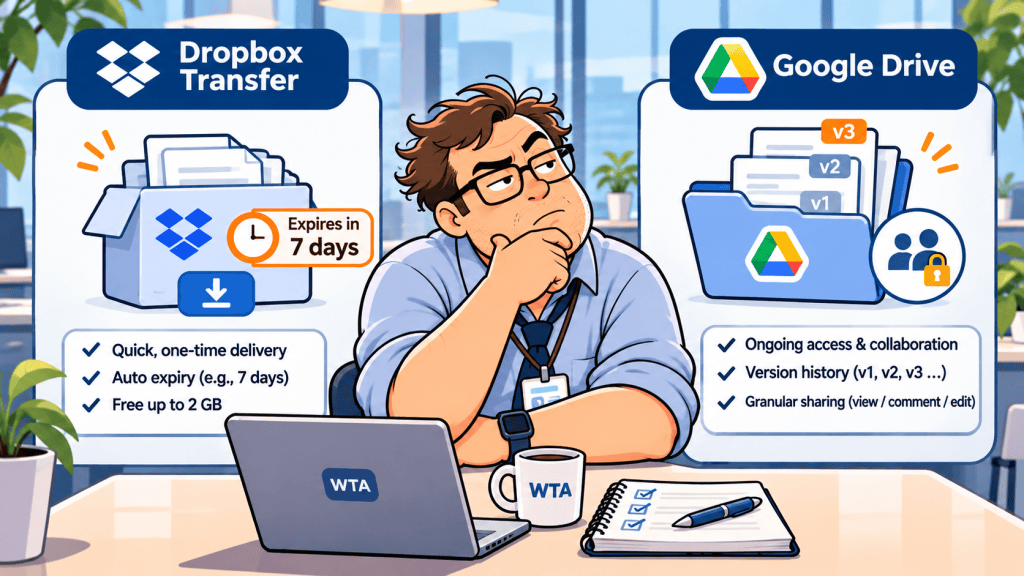
A design studio finishes a client project on Thursday. The final package is 1.8 GB, the client uses neither Dropbox nor Google Workspace, and someone on the team will probably ask for a revised PDF next week. The tempting move is to paste a cloud link into the closing email. But that leaves three questions unanswered: is this a fixed delivery or a live folder, when does access end, and what counts as proof the client accepted the work?
For Dropbox Transfer vs Google Drive for client deliverables, the distinction is not which product has the most features. It is whether you are delivering a finished copy or continuing to share working files.
Short answer: Choose Dropbox Transfer for a final download that should not be a collaboration space. Choose Google Drive when the client needs ongoing access, comments, or updated versions. Neither tool turns a download into approval, and neither can revoke a copy already saved on someone else’s device.
Research scope: vendor documentation checked November 9, 2026. This is a documentation-based workflow comparison, not a hands-on test, performance benchmark, or security certification. Plan features and admin policies can change.
Dropbox Transfer vs Google Drive at a glance
| Client handoff question | Dropbox Transfer | Google Drive |
|---|---|---|
| What gets shared? | A downloadable transfer assembled for delivery | A file or folder with ongoing access permissions |
| Can an external client open it without an account? | Yes; recipient does not need Dropbox | Yes with “Anyone with the link,” if admin policy permits; restricted access works differently |
| Is it meant for edits and comments? | No; best for completed copies | Yes; viewer, commenter and editor permissions |
| Free-tier constraint relevant here | Dropbox Basic: up to 2 GB per transfer; 7-day expiration | Free Google account has shared storage; not a Dropbox-style transfer allowance |
| Expiration controls | 7 days on Basic; customizable on eligible paid plans | Named-person access expirations for eligible work/school accounts; not an identical anonymous-link countdown |
| Recipient activity | Transfer view and download counts; optional download notifications | Use client acknowledgement; a public link alone does not identify the downloader |
| Easy to revoke future link access? | Delete the transfer or let it expire | Remove a person or change general access to Restricted |
Those distinctions come from Dropbox’s Transfer documentation, its transfer-management guide, and Google’s Drive sharing controls. The most consequential row is the first: a transfer is a handoff; a Drive link is an access relationship.
The trade-offs that actually change the decision
1. A finished version or a moving target?
Dropbox describes Transfer as a way to send files that recipients do not need to collaborate on. That fits a signed-off campaign export, an edited video, or a packaged design deliverable. Treat the transfer as a release: label it with the project, release date, and version, and retain a separate internal master.
A Drive link is better if you expect the client to review a live document, comment on a draft, or keep checking the same location for updates. However, a folder named “Final” is not a version-control policy. The approved release still needs clear permissions. Otherwise someone could replace or add files later.
A practical rule: use the working folder for collaboration, but send a clearly identified final copy when approval has closed. If the work changes later, issue a new version rather than silently replacing what the client already received.
2. No login does not mean the same level of control
Dropbox Transfer recipients can download without a Dropbox account. In Google Drive, “Anyone with the link” lets someone open a file without signing into a Google Account, provided the organization allows that type of sharing. Those two paths are both convenient, but a forwarded public link may reach someone you never intended to invite.
If the material is confidential or client-specific, prefer a recipient-specific access method supported by your environment and verify the recipient’s identity outside the link. A password-protected Dropbox transfer is a paid-plan feature, not something to assume exists on Basic. For Drive, use Restricted access for named recipients where feasible, and check Workspace administrative restrictions before promising a no-login handoff.
3. Expiration is not records retention
On Dropbox Basic, transfers expire after seven days. Dropbox says eligible paid plans use a 30-day default unless a custom expiry is configured, with larger transfer limits and optional controls depending on the exact subscription. You can also delete a transfer to disable it earlier. An expired delivery link is not a substitute for keeping the agreed deliverable in your own archive.
Drive does not work like a package-delivery link with the same default seven-day timer. Google documents per-person expiry settings for work and school accounts, with role and folder limitations. Do not promise an automatic expiration for an anonymous “Anyone with the link” URL. Assign somebody the job of reviewing and closing the share instead.
Most importantly, both models can only stop future access through the service. Files that a recipient has already downloaded may remain in their possession. Write that limitation into your handoff policy rather than implying that an expired link retrieves documents.
4. “Downloaded” is not “approved”
Dropbox’s Sent Transfers view can show view and download counts, and download notifications can be enabled. That helps a coordinator see activity, but a link shared onward does not establish which human downloaded the file, whether they examined it, or whether they accepted it. Google Drive link sharing likewise should not be treated as a signed acceptance record.
Use three separate statuses: sent, client confirmed receipt, and client approved. A human reply or an approved portal record can establish what the download signal cannot. This is the same principle we use in our client confirmation email workflow: a system event is not a commercial decision.
Two small-team workflows that avoid a messy handoff
You do not need a sophisticated automation platform to enforce a good handoff. For a three-person agency, the owner, version and closing date matter more than a Zap.
Option A: Dropbox Transfer for a final deliverable
- Freeze the release. Export the approved files into one clearly named package, such as
Acme_Rebrand_FINAL_v1_2026-11-09.zip. Remove drafts and unlicensed extras. - Keep an internal master. Save the exact package and approval record in a controlled project archive. Do not use the transfer as the only surviving copy.
- Check the allowance. A 1.8 GB package fits Dropbox Basic’s stated 2 GB per-transfer limit. Larger packages require an appropriate plan or a different delivery approach.
- Create the transfer. Use Dropbox Transfer, preview the recipient page, and confirm the expiry and any plan-dependent controls before sending.
- Send one deliberate message. Include the release label, expected files, download deadline, support contact, and a request to acknowledge receipt.
- Close the loop. Record the acknowledgement and sign-off separately. Delete the transfer early if the link should no longer work; keep the internal approved archive.
If clients still owe you the files, that is the opposite direction of traffic. Use a collection tool such as those compared in Dropbox File Requests vs OneDrive Request Files, then finish the intake as described in our file-request closeout guide. A Transfer link is for sending, not collecting.
Option B: Google Drive when client access must continue
- Separate draft and final locations. Keep internal production files out of the external-facing area. Label a final folder with a version and approval date.
- Choose the audience. Use Restricted for specified recipients where appropriate; use Anyone with the link only when the sharing risk is acceptable and your administrator permits it.
- Grant the least useful role. Use Viewer for delivery, not Editor by default. Give Commenter access only when feedback really is part of the next step.
- Test as the recipient. Confirm that a suitable account can reach the item, or test a public link in a signed-out window. Do not send a link that accidentally reveals the whole project workspace.
- Send the exact version. Explain whether files will change, identify one contact for corrections, and request explicit receipt or approval.
- Review access on a set date. After the contract’s access period ends, remove permissions or switch a public link back to Restricted. Preserve the agreed release internally.
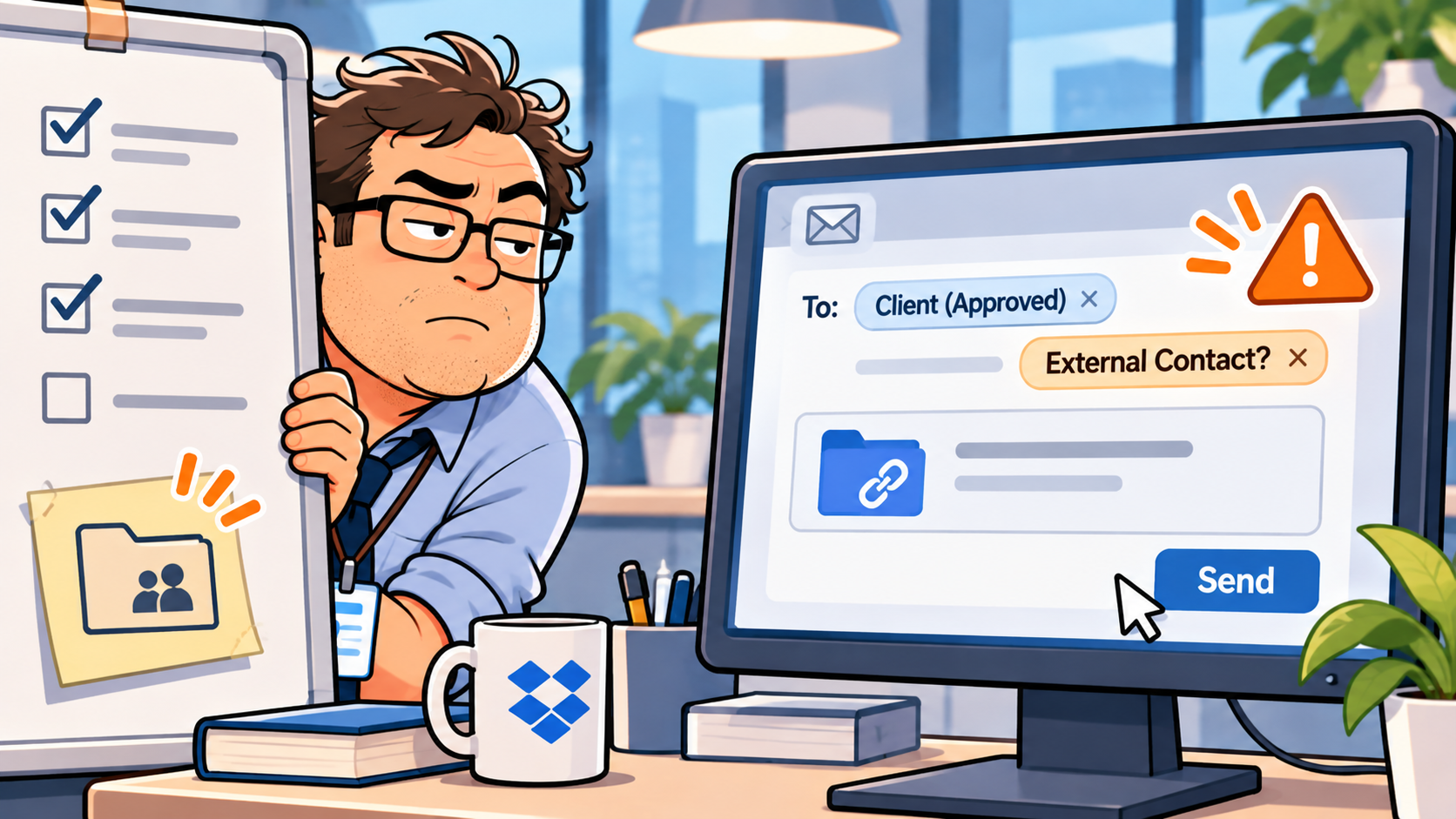
Bob’s field note: before calling a handoff complete, ask, “Could this link be forwarded outside the client’s team?” If the answer is yes, the link has not done the job of recipient verification. A neat folder and an attractive download page cannot fix that.
When is upgrading worth it?
The tempting comparison is “Dropbox costs money while Drive is free.” That skips the purchasing decision. Dropbox Basic allows transfers up to 2 GB with a seven-day expiration. Paid Dropbox plans may raise the transfer size and add custom expiry dates, password protection, and branding; exact entitlements differ by tier. Google Drive’s free storage allowance is shared with other Google services and does not turn Drive into a delivery-specific transfer product.
Pay for a dedicated transfer feature when the client handoff requires larger packages, controlled deadlines, branding, or download monitoring often enough to justify another tool. If your existing Workspace setup already handles long-lived client collaboration, a new Transfer subscription may add little value. Do not buy a higher plan merely to avoid writing a clear final-delivery email.
The related client-intake question is separate: if the client needs to submit a file with no Google sign-in, see our Google Forms vs Fillout upload comparison. Intake tools and delivery tools solve different directions of the same client workflow.
A simple final-delivery message
Use a short email that identifies the release and the action you need. Here is a reusable example; adapt any acceptance or legal language to the actual agreement:
Subject: Final files — Acme rebrand, version 1
The approved package is ready: [delivery link]. Please download it by [date] and confirm that you received the files. This link is for delivery, not further edits. If a correction is needed, reply to this email so we can issue a numbered replacement. Receipt confirmation is separate from final project acceptance under our agreement.
That message clarifies the deadline without claiming a download proves business approval. It also gives the team one place to track the next action. If a client requests v2, leave v1 in the archive and send a new, clearly dated release.
Common questions before you send
Does the client need a Dropbox or Google account?
Not to download a Dropbox Transfer. A Google Drive file set to Anyone with the link can also be opened without Google sign-in, but a restricted share may involve authentication or organization-specific visitor-sharing arrangements. External-sharing policies vary.
Can I send updates through an old transfer link?
Do not rely on a transfer as a live shared working folder. Prepare and send a new labeled release when files change. For ongoing edits and feedback, use a controlled Drive collaboration space.
Can I tell whether the client accepted the files?
No. A transfer’s view/download activity is a useful operational signal, not proof of the recipient’s identity or contractual approval. Request a clear written response or use an approval workflow that records the decision.
What if an outdated link is still circulating?
On Dropbox, find and delete the active transfer when you need to stop future access. In Drive, review both named recipients and general link access, then remove or restrict it. Neither action removes copies already saved elsewhere.
Sources and editorial scope
Product details were checked against Dropbox Transfer: an overview (updated September 24, 2026), How to create and send a transfer (updated February 5, 2026), How to view sent and received transfers, and Google Drive Help: Share and manage access. This is a feature-and-workflow analysis, not a claim of first-hand testing. Plan entitlements, security policies and regional billing can change; confirm your account’s current settings before sending sensitive documents.
WTA VERDICT
Use Dropbox Transfer for the delivery; use Google Drive for the relationship. If your files are approved and finished, a dated download package with a known expiry makes the handoff easier to close. If the client still needs an evolving shared workspace, Drive’s access and collaboration roles are more appropriate. Neither choice replaces a version label, an internal archive, and an explicit record of acceptance.
3-Line Takeaway
- Final, fixed package: Dropbox Transfer gives you an account-free download with time-limited access.
- Ongoing reviews or updates: Google Drive is the better fit when permissions and live files matter.
- For either tool: record the version and request explicit acknowledgement; downloads are not approvals.

Leave a Reply