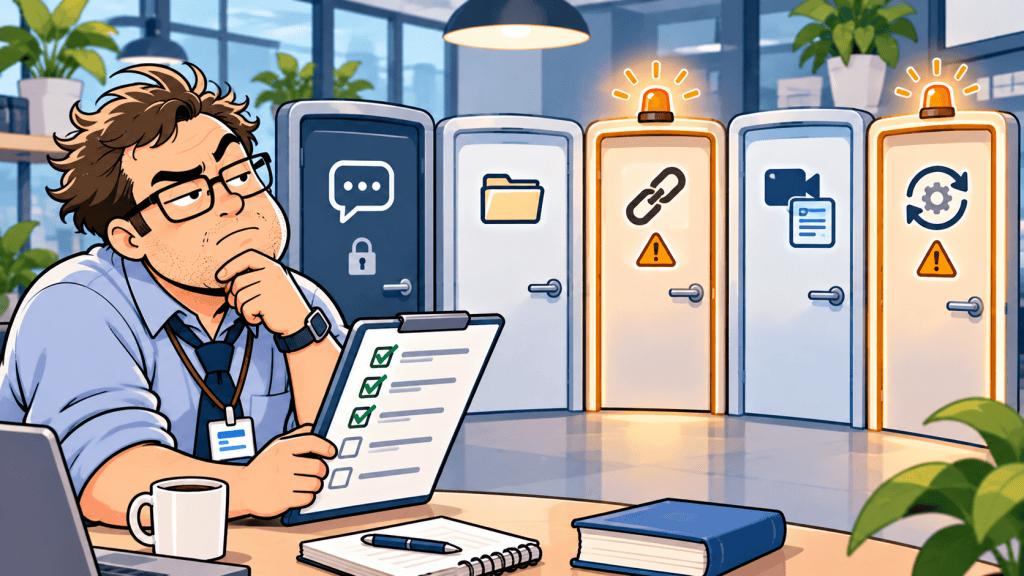
A client project can be finished in the invoice system and still be open in five other places. The agency removes the customer from a chat channel, but an old document link continues to work. Or the team deactivates every link, including the one the client still needs to collect the final deliverables.
A useful client offboarding access checklist prevents both mistakes. This guide is for small agencies and consultancies whose project files, communication, meeting notes, and automations live across several tools. It is a workflow for finding and verifying access, not a promise that one button will erase every copy a recipient already downloaded.
The job is to hand over what was promised, preserve what the agreement requires, and close permissions no one needs anymore.
One client relationship can leave five access paths
| Access path | What can remain after the project ends | What to verify |
|---|---|---|
| Chat and collaboration | Membership in another Slack Connect channel, a Teams guest account, or a direct message | Which conversations and organizations are still connected? |
| Shared files and folders | Direct permission, inherited folder access, or a SharePoint grant outside the channel | Who can open the final folder and individual documents? |
| Links and upload requests | An anyone-with-link URL, an open file request, or a separate delivery link | Which links still work and should they? |
| Meeting and decision copies | AI notes, exported summaries, CRM records, approval logs | Which copies are official records, and where are they shared? |
| Automations and credentials | A Zap, connection, API token, webhook, or form owned by the wrong account | Who owns the running workflow, and will revocation break it? |
Treat the five-path table as your client offboarding access audit, not a claim that every client has all five problems. A two-person design studio might only use a shared Drive folder and email; a consulting agency may have accounts across half a dozen services. Inventory the actual project before choosing what to switch off.
First decide what belongs to whom
The most important offboarding question isn’t “Can we revoke this?” It’s “Whose asset is it, and what does the contract require at closeout?”
A client-owned Microsoft 365 workspace is not the same as an agency-owned Slack channel. A final report the client purchased is not the same as an internal scratchpad. Treat each item as one of three end states:
- Hand over: approved deliverables, agreed source files, account ownership, and operating documentation the client should control.
- Keep with restricted access: agency records that must remain available internally under the agreement and applicable retention requirements.
- Revoke or close: temporary external seats, obsolete upload links, unneeded shared drafts, and integration access no longer authorized.
Do not delete the only working copy or rotate a live integration’s credentials merely because the client has signed off. Confirm ownership and dependent workflows first. If the client hosts the asset, ask its administrator to make the relevant change and record the confirmation rather than implying your agency can administer their tenant.
Run the five access checks in order
1. End the right conversations, not the entire relationship by accident
Start with a list of external people, channels, and guest accounts that were added for the engagement. Ask the project lead whether the client still needs a support channel, a transition window, or access to another active project.
Slack Connect: removing an organization from one channel is not the same as disconnecting the organization from all Slack Connect conversations. Slack says an organization-level disconnect affects shared channels and DMs, while files uploaded by members of the other organization can become inaccessible. Its documentation also explains that an archived channel copy depends on permissions. Save any contractually necessary records and secure permission for any handoff before the disconnect. For precise platform steps, see WorkTech Atlas’s Slack Connect offboarding guide and Slack’s official disconnect guidance.
Microsoft Teams: distinguish guest access from shared-channel membership. Microsoft explicitly warns that someone granted access to a shared-channel file through SharePoint may keep that file access after they are removed from the shared channel. So remove channel or guest access as appropriate, but check the document permissions separately. Use the Teams guest offboarding checklist for account-level steps and Microsoft’s shared-channel documentation for the file-access exception.
For both tools, log the precise scope: “removed from client project channel” is a different statement from “all connections to this organization ended.”
2. Audit files by permission, not by where the link was posted
Open the canonical project folder and its final deliverables. Look for access through named people, groups, shared folders, individual file links, and special sharing rules. Removing a message with a link does not change the underlying file’s permissions.
In Google Drive, the Share interface shows specific people and general access. Google documents both Restricted and Anyone with the link, plus removal of a named person’s access. It also notes that shared-folder settings can override a file’s sharing choices. Review parent folders and the final document itself rather than assuming the two match. See Google’s file-sharing help.
In OneDrive or SharePoint, use Manage access to inspect people, groups, and links. Microsoft describes these as separate routes through which a document can be accessible. An external client can sometimes retain a direct grant even when the original project space has changed. The relevant control is the file’s access, not the fact that it used to appear in Teams. See Microsoft’s Manage access explanation.
The important distinction is between removing access to the working folder and withdrawing an agreed final-delivery link. If the contract promises the client a permanent copy, provide the approved package through the agreed channel before retiring the working space. Our Dropbox Transfer vs Google Drive handoff comparison explains why a time-limited transfer and an editable collaboration folder serve different purposes.
3. Close invitation links and inbound upload doors
A client may have left the workspace and still be able to use an old upload request. That is not automatically a security incident, but it can create late files and version confusion after sign-off.
For Dropbox file requests, Dropbox says closing a request stops uploads through the invitation link unless the request is reopened. Close requests for finished projects; do not assume this deletes files that were already received. For ordinary Dropbox shared links, link restrictions do not affect people who were granted direct access, so inspect links and collaborators separately. These are distinct permission controls, described in Dropbox’s file-request documentation and link-sharing guide.
Check Google Drive and OneDrive sharing links for a similar reason. An anyone-with-the-link URL may remain usable after you remove one named collaborator, depending on the service and file settings. Conversely, changing a document to restricted access may block the intended recipient. Mark each link as continue, replace with final-delivery link, or close. Verify with an appropriately authorized test account or the product’s access view; do not share sensitive files with a personal test email merely to make the spreadsheet look complete.
4. Find the copies created by meeting and approval tools
What the client saw in the video call and what your agency retained can be different data sets. A recording may be removed while an AI summary lives in a CRM activity; an approval email can be copied into a project database even if the original note is deleted.
Follow the route the information took: meeting tool → notes or transcript → CRM/project record → notification/email. Mark which copy is the agreed record of a decision and which is a temporary convenience copy. The right outcome may be retention with narrower permissions, deletion under an agreed policy, or export to the client. It isn’t always “delete everything.”
For platform-specific limitations and downstream copies, use WorkTech Atlas’s AI meeting-note deletion guide. If your team records sign-off in Airtable, our approval-log guide shows how to distinguish a change history from a documented decision. A status of “approved” in one app cannot establish that every export, shared link, or recipient copy was deleted.
5. Check automations before changing connection ownership
This is the step most likely to interrupt a client’s work if done in the wrong order. A form may still send responses into a client CRM. A Zap may run through an agency employee’s app connection. A webhook may keep sending updates to an obsolete endpoint.
Create an inventory of the live triggers, connected accounts, connection owners, and destinations. Then ask the client-side owner to confirm what should keep running after the engagement. Transfer or reauthorize the necessary connections first; revoke obsolete access afterward.
Zapier’s Team and Enterprise documentation explains that app-connection ownership can be transferred and that stopping the sharing of a connection can pause Zaps that rely on it. It is not safe to treat “removed the user” or “revoked the connection” as a harmless administrative cleanup. Review Zapier’s connection-management guide before touching live dependencies.
An agency should not retain a live client’s API credentials “just in case.” But it should not invalidate the only working production credentials without a verified handover plan. Separate credential rotation from proof that the workflow still functions; record both when applicable.
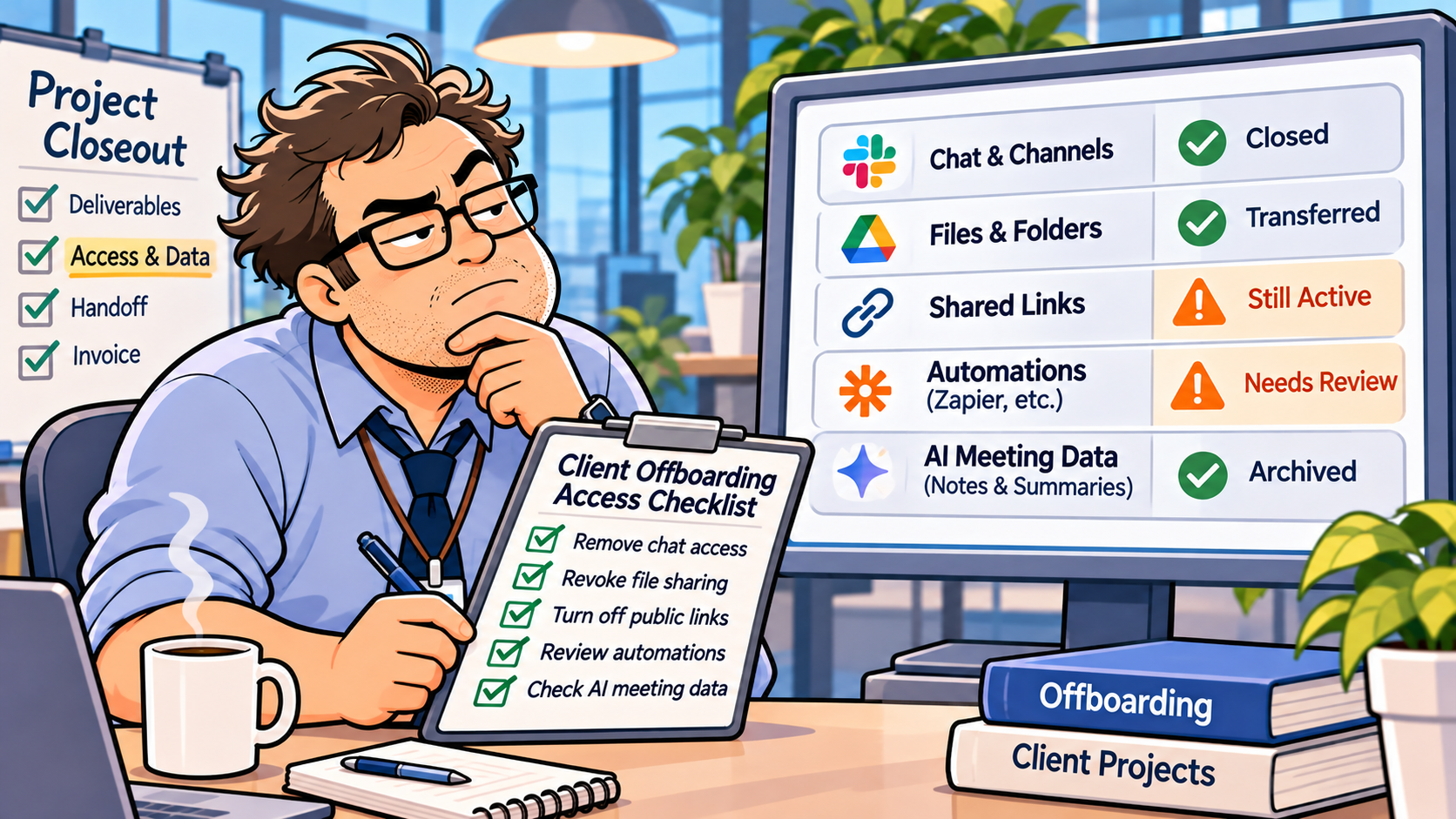
Keep a one-page access closure log
A checklist becomes useful when another person can confirm exactly what was done. The simplest version is a table with five fields: asset, owner, intended end state, responsible person, and verification evidence. Here’s a fictional example, not a record of a tested project:
| Asset / location | Owner | Intended end state | Who acts | Evidence to record |
|---|---|---|---|---|
| Client strategy folder | Agency | Remove external editing; preserve internal copy | Workspace owner | Permissions review + dated approval |
| Approved PDF package | Client | Deliver usable copy | Account lead | Client receipt / handoff confirmation |
| Shared project channel | Agency | Remove client after transition | Slack/Teams admin | Channel/member view + timestamp |
| CRM automation connection | Client | Transfer ownership, then rotate access | Client admin | Owner confirmation + successful authorized check |
For live use, add fields for project name, asset URL or ID, decision date, due date, verifier, and an exception reason. A screenshot of one permission screen may be incomplete: the recipient might also have access through a group, parent folder, or a different share link. Write down what the evidence does and does not establish.
Use three statuses: Pending, Verified, or Exception approved. Avoid a vague “Done” column. An exception might be a 30-day support channel that remains open by agreement; its owner and review date should be explicit.
A safe order of operations for the final day
- Confirm the contract and handoff list. Decide which deliverables, records, and continuing services the client should receive.
- Capture the inventory. Identify channels, folders, shared links, meeting artifacts, and automations before changing access.
- Transfer and verify first. Give the client its final copies and reassign essential accounts or workflows; use only authorized checks.
- Revoke narrowly. Remove unnecessary seats, group membership, links, upload requests, and temporary permissions one access path at a time.
- Recheck and sign off. Have a second responsible person review important access changes and record unresolved exceptions with a deadline.
A post-closeout message should be specific: “The temporary client channel and two working-folder links were closed; the approved deliverables remain available through the agreed handoff location.” Avoid claiming that all client data was removed unless you’ve actually verified the relevant systems, copies, and retention obligations.
Two questions that prevent an expensive misunderstanding
Should the client lose access to every file after the project ends? Not necessarily. Finished deliverables, contractual rights, and ongoing support arrangements determine what stays available. Separate the final handoff from temporary collaboration access.
Can we guarantee that an old download no longer exists? No. Revoking access may prevent future access through a service, but it does not reliably retract copies already downloaded, exported, forwarded, or stored elsewhere. Be precise about the boundary you can verify.
WTA VERDICT
A clean client exit is a sequence of handoff, permission review, narrowly scoped revocation, and recorded verification. The biggest hidden problem isn’t one particular tool. It’s assuming the channel, file, link, meeting note, and automation all share the same access boundary. They often don’t.
3-Line Takeaway
- Map all five paths: conversations, files, links, copied records, and running automations.
- Transfer before revoking: keep client-owned deliverables and live services working.
- Verify precisely: record which access was closed, what remains, and who approved the exceptions.

Leave a Reply