
A client project is finished. The final files are approved, the shared Teams space has gone quiet, and someone asks whether it can be archived. That sounds like a tidy end to the job. It is not yet an access review.
A client might be a guest in your Microsoft 365 tenant, an external participant in a shared channel, or simply someone holding a SharePoint link. Those routes are not interchangeable. Closing one may leave another open.
Microsoft Teams guest offboarding checklist, in brief: Keep the deliverables first, remove the client’s Teams or shared-channel membership second, inspect separate SharePoint permissions and links third, and ask your administrator to review any remaining guest identity. Archive only when you have confirmed the access decision. This is a project-level checklist for small client-service teams, not a tenant-wide security procedure.
Why removing a Teams guest is not the whole offboarding job
| Access route | Where to review it | Why it matters at closeout |
|---|---|---|
| Teams guest membership | Team owner: Manage team → Members | Removing a guest from a team does not, by itself, remove their guest identity from Microsoft Entra ID. |
| Shared-channel participation | Shared-channel owner: Manage channel → Members | Shared channels use external B2B direct connect participants rather than the usual guest account model. |
| File or folder sharing | SharePoint or OneDrive: Manage access | A separately granted link, direct permission, or parent-folder permission needs its own review. |
This is why a list of people in Teams is a starting point, not an inventory of everything they can open. Microsoft documents the separation between team membership and guest accounts and between shared-channel membership and separate SharePoint file permissions.
If you are still choosing the collaboration model for the next engagement, see our Teams shared channels vs guest access comparison. This guide takes over when the work is ending.
The seven-step offboarding runbook
1. Confirm the exit date and the person responsible. Record the client’s name, project, external email or work account, last agreed access date, team or channel owner, and one person authorized to close access. Check whether the same client still participates in another active project. Do not delete a directory identity simply because one engagement has ended.
2. Preserve the agreed final versions. Make an internal inventory of the approved files, where they live, and who accepted them. Include any contractual or organizational retention instructions. Keep the authoritative files in a location your organization controls, with the appropriate permissions; do not make deletion or a local download your default preservation method. If the handoff also used upload request links, our Dropbox and OneDrive request closeout guide covers that separate intake door.
3. Map the access routes before changing them. Inspect team membership, private or shared channels, named file/folder permissions, and active links for key deliverables. Include documents shared in chats or stored in an individual’s OneDrive if your project used them. If several people at the client company participated, list them separately rather than treating the organization as one user.
4. Remove the person from the appropriate Teams space. For an ordinary guest, a team owner can open More options → Manage team → Members, find the person under members and guests, and remove them. Microsoft’s team-owner instructions describe that control and note that only an administrator can remove someone from the organization. For a shared channel, its owner manages participants in Manage channel → Members. Removing the person from the channel is not the same operation as disabling guest access for the entire tenant.
5. Clean up the file paths separately. Open representative project files and folders in SharePoint or OneDrive and inspect Manage access. Review People, Groups, and Links where offered. Remove unneeded direct access, specific-person links, and broader links according to your sharing policy. When access comes from a parent folder or site, change the permission at that level instead of assuming a file-level button will solve it. Microsoft documents both the Manage access controls and the caveat that separate SharePoint permission can survive a shared-channel membership change.
6. Escalate directory cleanup to IT when necessary. A Teams guest is backed by a guest account in Microsoft Entra ID. A team owner can remove membership, but an authorized administrator handles organization-level removal. Ask IT whether that guest identity still serves other teams, sites, or applications before it is deleted or disabled. External participants in Teams shared channels instead use B2B direct connect, so the same guest-directory cleanup step does not apply in the same way.
7. Verify, document, then archive if appropriate. Recheck membership and links after changes. Where practical and permitted, use an authorized account-based check or ask your administrator to confirm that the intended external identity no longer has the specified access. Record the reviewer, date, file locations, access routes checked, exceptions, and follow-up owner. Only then decide whether the team should remain active, become read-only through archiving, or be handled under an approved deletion and retention process.
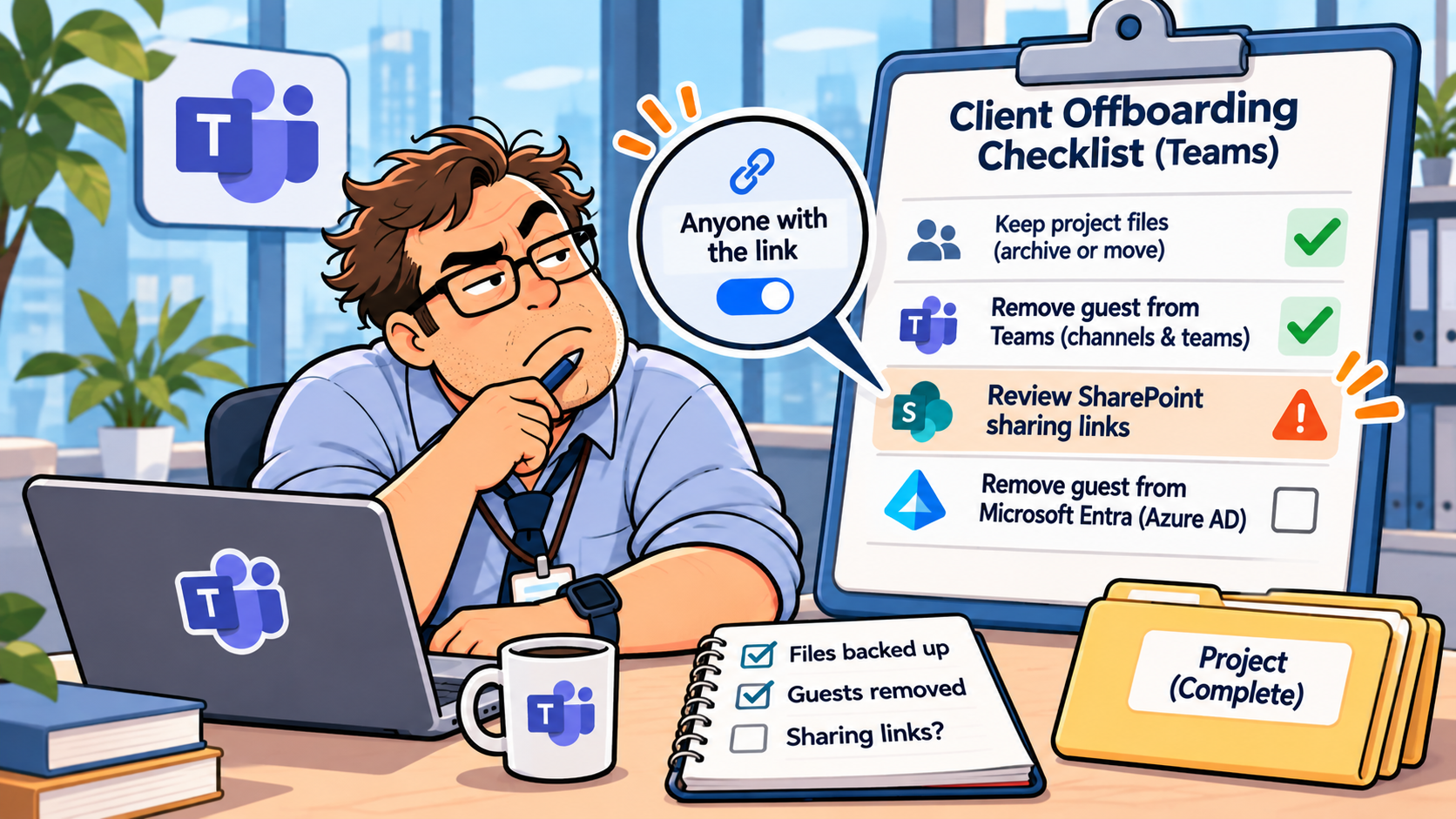
The easily missed item is a document link sent in last month’s client email. A team might look correctly closed while separately granted access to a file still has permissions you intended to revoke. An ordinary incognito-window test is not proof of removal for a link intended for a specific signed-in person. Check the sharing configuration, and verify using the appropriate identity or an administrator’s access review.
Shared channel or guest? The exit path changes
For guest access, the project owner normally starts with the team membership list. The external user may still have a Microsoft Entra guest account after team removal. That is not automatically an error: they might legitimately need access to another team. It is, however, a separate decision that should be recorded.
For a shared channel, membership is controlled at channel level, with external participants using B2B direct connect. A shared channel has its own associated SharePoint site. Microsoft says that the site owner and member groups are synchronized with channel membership; don’t try to maintain those membership groups separately in SharePoint. At the same time, Microsoft warns that independently granted SharePoint file or folder access can survive removal from a channel. Microsoft specifies that shared-channel files can be shared outside the channel but not outside the organization through ordinary SharePoint sharing. That is why checking the actual link and permission type matters more than assuming every external participant has independent file access.
For a client who was given only an upload link or document-sharing link, neither guest removal nor shared-channel cleanup substitutes for revoking that link. This is especially relevant when a client’s deliverables passed through several tools before arriving in Teams. The same access-boundary principle appears in our Airtable client portal permissions checklist: the visible workspace and the underlying record access must both be checked.
Archiving a team does not mean the client was removed
Microsoft describes archiving as stopping team activity while leaving conversations and files available for reference. Owners can still manage members, and the archive option can make the connected SharePoint site read-only for members. It is not described as an access-revocation feature. See Microsoft’s archive and delete guidance.
That distinction changes the order of operations. Preserve and verify what your company must keep, revoke access you no longer intend to grant, and archive afterward if the team should be retained. Do not delete the team merely to make a client disappear from a member list. Deletion affects content and may interact with Microsoft 365 retention policies.
Client notes may also live outside Teams. If a meeting assistant sent summaries to email or a CRM, closing Teams will not remove those copies. Our AI meeting-note deletion guide shows how to trace that separate information trail. The goal is an accountable record of what remains, not indiscriminate deletion.
Three checks before you mark the project closed
- Membership: Are the people who should lose access absent from the relevant team or shared-channel member lists? If the Entra guest identity remains, is there a reason to retain it for other work, or an IT review ticket?
- Files: Have the project owner and file owner checked key folders, direct shares, and links, including those sent outside the channel? Are any remaining exceptions intentional?
- Evidence: Can another authorized colleague tell which file version was approved, who performed the cleanup, what still exists, and when a follow-up review is due?
For a small agency, a single closeout record can carry all three. Useful fields are client/project, access end date, team or channel, external identities, final-file location, membership checked, links checked, IT follow-up, reviewer, and exceptions. Avoid adding a dozen compliance-sounding boxes that no one will maintain.
After you have checked the actual access, a short note is enough: “The project workspace is now closed to external collaboration. Your agreed deliverables were provided through the approved handoff method. If a correction is needed, please contact your project owner rather than using an old sharing link.” Send this only after the access changes and delivery arrangements are confirmed; it is not a substitute for verification.
WTA VERDICT
Treat client offboarding as two jobs: close access and preserve the record. Removing a guest from Microsoft Teams is usually one action, not the whole finish line. The most useful improvement is a named owner and a short evidence trail covering Teams membership, file permissions, and any directory-level follow-up.
3-Line Takeaway
- Remove membership deliberately: guest teams and shared channels have different owners and identity models.
- Inspect SharePoint access separately: individual grants and links deserve their own check.
- Archive last, not first: preserve approved files, verify the exit, then choose the appropriate retention state.

Leave a Reply