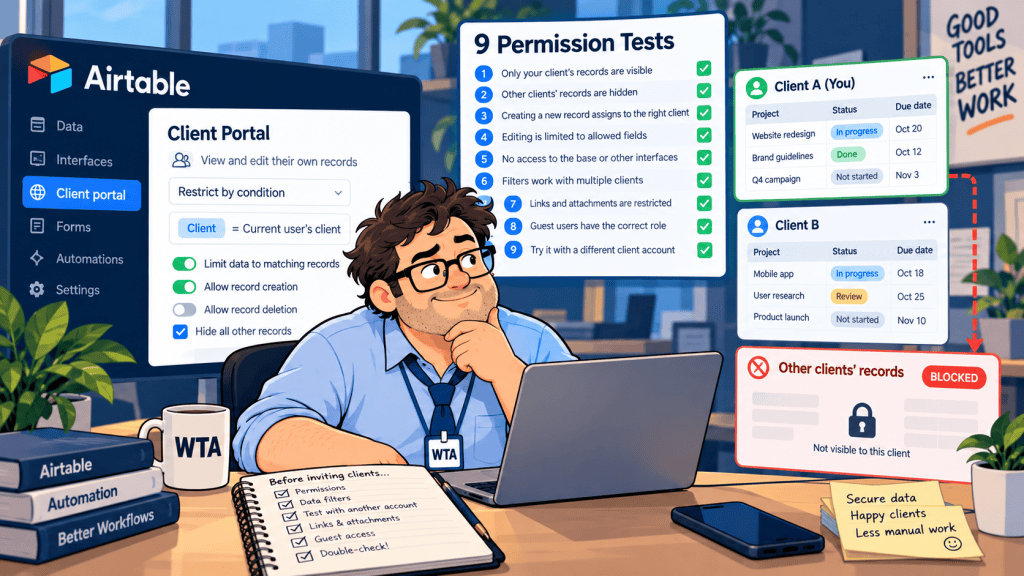
A client portal can look perfectly tidy while showing the wrong client’s project. The mistake may sit in a filter on a secondary page, an overly broad invitation, or an edit form that points to the wrong record. None of those problems is obvious from the administrator’s preview.
This Airtable client portal permissions checklist is for agencies and small operations teams that need to test record access before inviting external clients. It uses two fictional client accounts and nine negative tests: not just “can Client A see their project?” but “can Client A see, edit, export, or reach Client B’s?” It is a configuration review, not a claim that we tested your setup.
Start with the distinction that changes the risk: Airtable Portals is an authenticated external-collaboration feature built on interfaces; a publicly shared Airtable page and a record-specific Fillout update link are different access models. Choose the access model before polishing the portal’s appearance.
First, identify what you are actually sharing
| Client-facing surface | Identity and access model | Audit priority |
|---|---|---|
| Airtable Portals | Invited external users sign in to shared interfaces at assigned permission levels. | Guest scope, per-page filters, edit rights, seat effects. |
| Public Airtable interface page | A read-only public page link, optionally password-protected on eligible paid plans. | Unintended exposure; public pages are not personalized by current-user filters. |
| Fillout Airtable update form | Record-specific update link; optional login page can add verification. | Forwarded links, prefilled fields, record ID, blank-ID behavior. |
| Softr on Airtable | Softr login and its own user groups, filters, and data restrictions. | App-wide view restrictions and write permissions. |
A client invited to one interface should not accidentally receive the whole base. Airtable says the base Share button grants access to the base, while Share interface limits the invitation to published interface pages. Also, someone who already has base or workspace access does not become more restricted just because you later invite them to one interface. Airtable’s sharing documentation makes that distinction explicit.
Set up a two-client test before sending any invitation
Create two fictional client identities, not real customer accounts: Harbor Studio and Pine Works. Give each a different email domain and a separate project, file, and approval request. Add a harmless canary field to each record, such as “HARBOR-ONLY” and “PINE-ONLY.” Use test addresses you control.
Make a tiny permission matrix first. It should describe the intended behavior, not the behavior you hope the software will infer.
| Action | Harbor client | Pine client | Internal owner |
|---|---|---|---|
| See own project/status | Allow | Allow | Allow |
| See other client’s project/files | Deny | Deny | Allow as needed |
| Edit own contact details | Allow only approved fields | Allow only approved fields | Allow |
| Approve scope or budget | Request/review only | Request/review only | Final decision |
| Delete records or change client ownership | Deny | Deny | Restricted |
A passing test has two parts: each client can do the necessary job, and neither can reach the other client’s data. If either part fails, hold the production invitations.
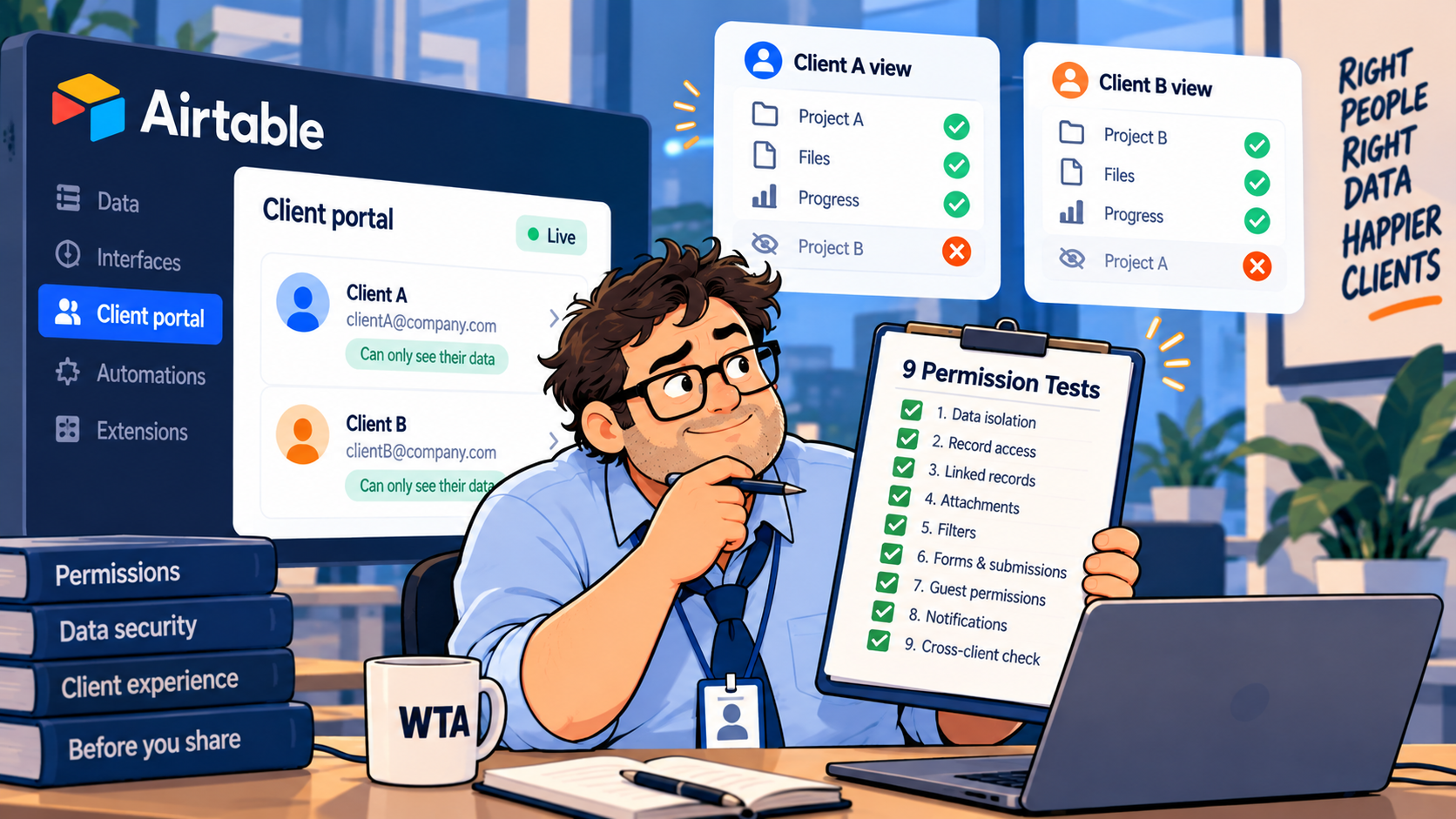
Airtable client portal permissions: nine pre-launch tests
1. Verify the invitation grants interface access, not base access
Invite Harbor using the intended portal guest flow and the lowest useful permission level. Sign in as that account, not as the builder. Confirm that it cannot open the underlying base or unrelated published interfaces. Repeat with Pine. If a user previously had workspace or base access, resolve that broader access before treating an interface-only invitation as protective.
According to Airtable’s documentation updated August 27, 2026, Portals is a paid add-on for Team, Business, and Enterprise Scale. Airtable documents that portal guests are external users and cannot share their interface onward, but neither fact substitutes for correct record filters.
2. Inspect every published page for a current-user filter
In Airtable Interface Designer, inspect each client-facing page’s Filter by setting. The documented “Current user” option works with a user field and can show only records assigned to the signed-in person. Airtable warns that the setting is page-level: configuring it on the project list does not automatically apply it to a second page. Its permission guide also distinguishes operators such as “is” and “is not,” which can reverse the result.
As Harbor, open the project list, record details, dashboard, and any second interface shared through the same base. Search for Pine’s canary. Then switch accounts and repeat. Do not rely on the editor preview as your only check.
3. Follow every detail link, linked record, and attachment
A filtered list is only the front door. Open every available detail view, linked task, file, comment, and attachment link. Check whether a client can jump from an allowed project to a related record belonging to someone else. Test both direct navigation and any search or selector UI. A hidden navigation item is not, by itself, proof of data isolation.
Public Airtable pages deserve a separate review. Airtable explicitly cautions that some conditionally hidden values and chart data on public interface pages may be accessible through browser network inspection, depending on the element. For confidential client data, avoid assuming that a field hidden in the layout is securely withheld. See Airtable’s public-sharing caveats.
4. Try to change fields that should be read-only
Use a fictional record and try editing the project owner, fee, approval status, and linked client. A client who can update a phone number should not automatically be able to reassign the project or mark a contract approved. In Airtable, inspect the interface’s edit actions and record-detail field settings; base field and table permissions can also apply.
If a change is consequential, capture it as a request and let an internal reviewer approve it before writing to the authoritative field. Our guide to client updates without losing Airtable data covers the difference between a correction request and a direct overwrite.
5. Test create, delete, and cross-client write paths
Do not stop at “I cannot see Pine’s record.” Try creating a record under Pine’s client ID, changing an existing record’s client assignment, and using any delete action. Record-level viewing rules and write permissions are different controls.
If your portal uses Softr, its Global Data Restrictions can restrict records by user group. The documented plan distinction matters: view restrictions are available on all plans, while create, edit, and delete restrictions require Business or above. Block-level record filters are useful for display, but audit the app-wide rules as well.
6. Forward an update link and remove its record ID
For a Fillout form connected to Airtable, send Harbor’s fictional record-specific link to the Pine test account. Check which fields appear and whether an unauthorized person could submit a change. Then remove the record identifier from the URL and observe the result in a safe test base. Fillout documents that its Airtable update-form flow can create a new record when no ID is supplied.
A record-specific URL identifies the target record; without a separate identity check, possession of the URL is not proof that the recipient is authorized. Fillout also offers login pages with email verification, password, or SSO options on eligible plans. If clients need ongoing authenticated access, compare that model with Portals rather than treating a link as a login. Our Fillout vs Airtable Portals comparison explains the decision in more detail.
7. Check what happens after an approval or automation runs
Use one harmless test change that should require review and one that can be applied directly. Confirm that a pending change does not appear as final approval, that the correct original record is updated, and that notifications contain only the intended client’s information. Also check the failure path: what happens when the target record was deleted, the ID is blank, or the automation retries?
Keep a simple change log with the record identifier, requesting identity, requested fields, reviewer, and timestamp. If your process begins with a new client rather than an update, Airtable vs Notion for client-intake approvals helps separate intake from the approval stage.
8. Remove access and verify it really disappears
Remove Harbor’s test access using the same surface that originally granted it. Test the existing browser session, a fresh private window, a bookmarked page, and any public or form links previously issued. Removing a portal guest does not by itself disable a separately published public page link or a Fillout update URL. Review each link type independently.
Document the offboarding owner. Someone should know who removes access when a project ends, a client employee leaves, or a shared mailbox changes hands.
9. Check seat impact, then rerun the test after changes
Permission choices can also affect cost. Airtable currently lists Portals starting at $120/month for 15 portal seats on Team and $150/month for 15 seats on Business, before the underlying plan cost. Its documentation says read-only portal guests are not counted as billable portal seats, while commenter/editor access and editor access across multiple bases can change the billing classification. Verify the latest terms before budgeting; do not infer seat cost from the number of invitation emails alone.
Rerun the two-client tests whenever you add an interface page, linked table, new action button, or automation. Treat this as a release test, not a one-time security badge.
What a failed test should change
| Failure observed | Immediate response | Design change to consider |
|---|---|---|
| Client A can view Client B’s records | Pause invitations and remove exposed access. | Correct page-level current-user filters or app-wide data restrictions. |
| A client can edit ownership or approval fields | Disable that action until scoped. | Separate request fields from authoritative internal fields. |
| A forwarded form link edits the wrong record | Stop distributing that link; check changes. | Add authentication or move to a permissioned portal. |
| Revoked user can still open a public link | Disable or rotate the separate public link. | Inventory all sharing surfaces, not just user accounts. |
If the same failure recurs across multiple client projects, the answer may be to simplify the architecture. A portal is not improved by adding another layer of filters to compensate for unclear client ownership. Keep a stable client ID, one authoritative project record, and explicit permission rules before adding more screens. For intake-form selection, see our Notion Forms vs Tally vs Fillout comparison.
A practical launch rule
Before inviting real clients, ask a teammate who did not build the portal to run the Harbor/Pine matrix. Give them only the expected permissions and the test credentials, not the builder’s explanation. Their job is to find a route you forgot to check. Record failures, fix them, and repeat the same steps.
This checklist reduces obvious configuration mistakes; it is not a penetration test, legal privacy assessment, or guarantee against data exposure. For regulated or highly sensitive information, obtain a security review appropriate to the data and the organization.
WTA VERDICT
Do not judge an Airtable client portal by whether the intended client can log in. Judge it by whether a second fictional client cannot see, change, or follow a link into the first client’s records. For recurring collaboration, use an authenticated, properly filtered portal; for occasional corrections, a narrowly scoped form may be enough, but link forwarding and record targeting still need tests.
3-Line Takeaway
- Test with two fictional clients, including direct links and related records.
- Separate view access, edit permissions, and public/form links.
- Retest after new pages, automations, invitations, or offboarding.

Leave a Reply