
Your client needs to correct a billing contact in Airtable. You can send a prefilled edit form, or invite the client into a portal. Both approaches can update an existing record. Only one gives the client an ongoing signed-in workspace, and neither is safe merely because the screen looks tidy.
For a small agency, consultant, or operations team, the useful question is not which product has more features. It is who should be able to see which record, how often they need to return, and what happens when an edit link reaches the wrong person.
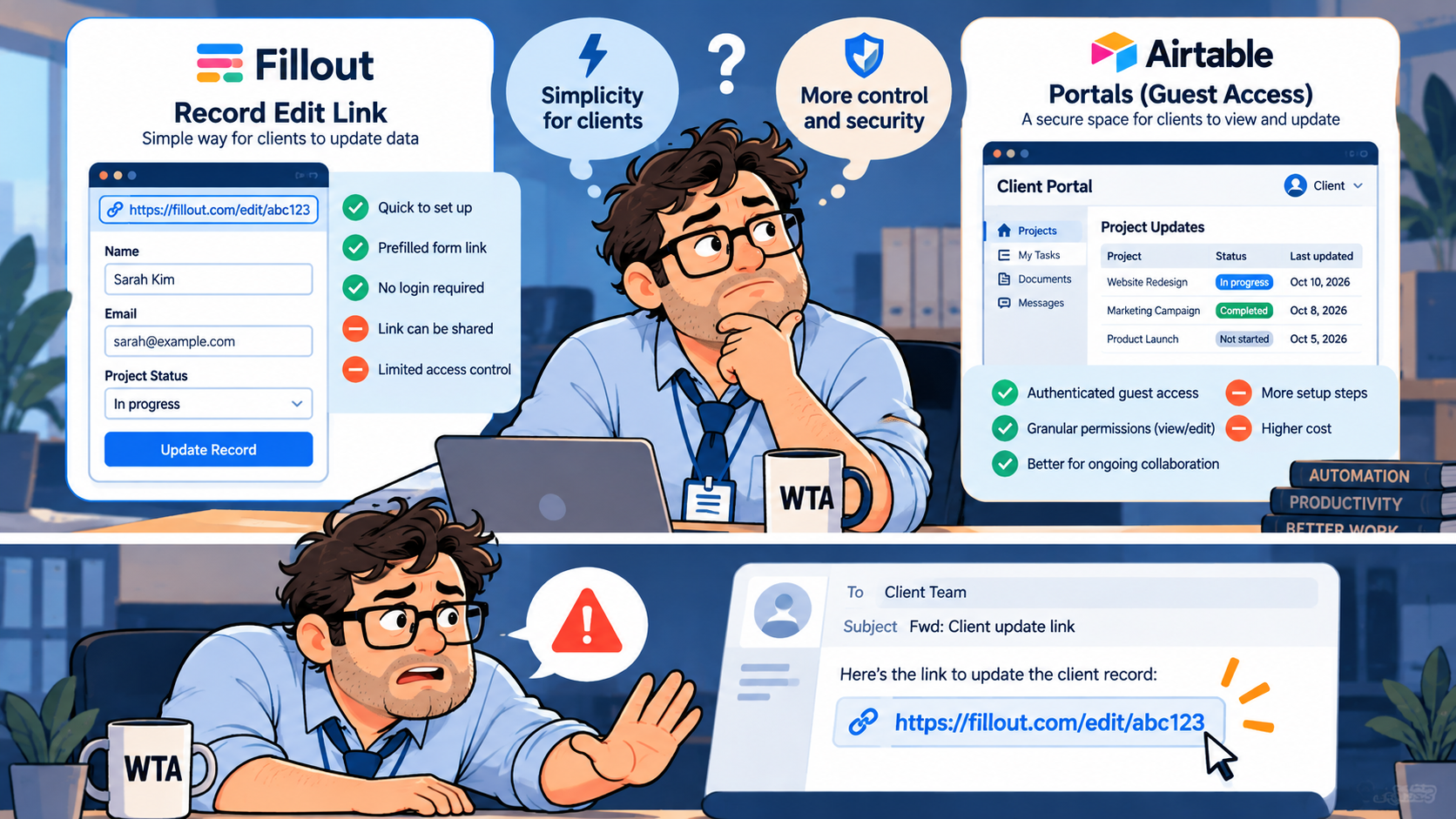
Here is the short decision: use Fillout’s Airtable update forms for occasional, narrowly scoped corrections when you can control link distribution and record exposure. Choose Airtable Portals when external collaborators need repeated sign-in access to selected interfaces and the additional guest-seat cost is justified. If a change requires approval, design a review step before either system writes to the authoritative record.
Fillout vs Airtable Portals: the practical comparison
| Decision factor | Fillout update form | Airtable Portals |
|---|---|---|
| Client experience | Open a record-specific form link; optionally add a login form | Sign in to a shared Airtable interface |
| Existing-record editing | Native Airtable integration can update a chosen record | Interface edit permissions can update permitted records |
| Record selection | Unique record URL; missing ID can create a new record | Interface filters and permissions determine accessible records |
| Privacy work | Restrict prefilled data; control who receives links | Configure interface access, filters, and guest permissions |
| Repeat visits | Possible, but link and form management become important | Designed for ongoing external collaboration |
| Starting price to consider | Fillout Free: $0, 1,000 responses/month | Portal add-on: from $120/month for 15 seats on Airtable Team |
| Best fit | Infrequent corrections to a limited set of fields | Recurring, permissioned client collaboration |
The key difference is between an editing interface and an access model. Fillout is not inherently insecure, and Portals is not automatically configured correctly. The default settings, data layout, and identity checks determine the real risk.
Where Fillout wins: a small correction without a client account
Fillout connects directly to Airtable. In its update mode, the form builder provides a formula for creating a unique link for each record. The form opens with that record’s values already filled in, and the submission updates the linked record rather than requiring an Airtable automation to copy a second row back. That makes it attractive for tasks such as changing a shipping address, confirming a project detail, or updating a single contact field.
The integration is included in Fillout’s Free tier, which currently lists 1,000 responses per month. A small team can therefore evaluate the basic update workflow without buying an additional form subscription. Your existing Airtable subscription remains a separate cost.
But there is a detail worth checking before sending any link: Fillout’s own documentation says that if the update URL does not contain the record identifier, the form creates a new record. A broken or stripped link can quietly turn a correction into duplicate data. Make the presence of the record ID part of your publishing and email-template checks.
The privacy setting that matters more than a hidden question
Fillout documents an important default: an update link can load fields from the entire record, including fields not displayed as questions. Hiding a question is therefore not a reliable privacy boundary. This matters if your Clients table contains internal notes, margins, private contact information, or records that should never reach the client.
Fillout provides a Restrict prefilled data setting under the integration’s advanced options. When enabled, only fields mapped to form questions are loaded; other record fields are unavailable to form logic, calculations, and prefilling. That reduces the data exposed through the update-form mechanism, but it does not replace verifying that the recipient is authorized to edit the record.
For a client-facing update form, keep confidential internal fields in a separate table, enable restricted prefilling, map only necessary questions, and treat the link as sensitive. Do not use a hidden record ID as proof of identity. If the correction is sensitive, add authentication or manual verification appropriate to the data.
Where Airtable Portals wins: repeat access and visible permissions
Airtable Portals is an add-on for Team, Business, and Enterprise Scale plans. It lets an organization invite external collaborators into selected Airtable interfaces. Unlike a one-time correction link, the guest signs in and returns to an interface designed around their work. Permissions can allow viewing, commenting, or editing, depending on the invitation and interface configuration.
This suits a design agency whose clients repeatedly review project milestones, or an operations team whose vendors update delivery statuses over several weeks. The client does not need a new email link for every small change. The team can build an interface that exposes only the intended records and controls which fields are editable.
There is still setup work. Airtable recommends using interface filters to show guests only data relevant to them. Guest access does not remove the need to verify those filters with test accounts. External guests also have domain-related eligibility and sharing rules; on the Team plan, workspace owners need work email addresses to enable Portals.
Portals is not the same thing as giving a client full base access. Inviting someone through the wrong route or granting broader permissions can change both the data they see and the way Airtable bills that person. This is one reason to test the actual guest account rather than judging access from the builder’s preview.
Pricing in October 2026: the cheapest tool is not always the cheapest workflow
As of October 12, 2026, Fillout’s published annual-billing rates are Free at $0 with 1,000 monthly responses, Starter at $15/month equivalent with 2,000 responses, Pro at $40/month equivalent with 5,000 responses, and Business at $75/month equivalent with unlimited responses. Starter includes login forms; Business adds pre-fetch data and more advanced capabilities. Monthly billing differs, so do not compare these annual-equivalent figures with a monthly-only quote.
For Airtable Portals, the add-on starts at $120 per month for 15 portal seats on Team, or $150 per month for 15 seats on Business. Those amounts are in addition to the underlying paid Airtable plan. Airtable says read-only portal users do not count toward billable portal seats, while guests with editing access can. A guest editing across multiple bases can be billed as an internal editor instead; confirm the exact permissions and billing model before rollout.
Consider a hypothetical agency with 12 clients who each change an address twice a year. That is only 24 correction submissions annually, assuming one response per change. A tightly controlled Fillout form may be sufficient. Now imagine 12 clients logging in every week to review and edit ongoing project details. Now the signed-in workspace, persistent permissions, and fewer emailed links may justify the Portals add-on. Submission volume alone does not settle that second case.
These are published US-dollar list prices, not quotes or verified invoices. Regional taxes, annual terms, seat classification, and future plan changes can alter the total. Neither approach removes the cost of the underlying Airtable base or the staff time needed to maintain it.
The failure mode each product needs you to prevent
Fillout: the right record, the wrong recipient
A unique URL is convenient, but it can be forwarded. The default record-loading behavior described above means the consequence may extend beyond the visible questions. Use restricted prefilling, limit data in the target table, and validate recipient identity where appropriate. If a record ID disappears from the link, the new-record behavior is a separate duplicate risk. Test both cases deliberately.
Portals: the right login, the wrong view
A signed-in guest should see only the projects and fields intended for that guest. A misconfigured interface filter or permission can undermine that assumption. Test with two external identities that belong to different clients, and confirm each cannot browse or modify the other’s records. Also check that the invite route did not grant broader base access or trigger an unexpected billable seat.
If an update would change pricing, contractual terms, or an approved project scope, do not make either tool write directly to the final field without review. Capture a proposed change in a separate Requests table, assign a reviewer, and apply the approved value only after checking the latest record. This is a workflow design choice, not a native promise that every form or portal automatically provides approval gates.
A 20-minute pilot for a small team
Before buying an add-on or emailing real clients, make a disposable Airtable base with two fictional client records. Put a harmless “internal-only” note in each one. Then run the following checks from a private browser session or separate test account:
- Record match: Can the client edit the intended existing record without creating a second client?
- Missing identifier: What happens if the record ID is removed from a Fillout update URL?
- Field exposure: With restricted prefilling enabled, can a form access an internal-only field?
- Cross-client access: Can Client A see or change Client B’s record through the portal interface?
- Blank values: Does clearing a field mean “delete this value,” and is that what the team intended?
- Approval: Can a sensitive proposed change be reviewed before it overwrites the current value?
- Recovery: Can staff identify the changed record, restore a mistake, and explain who approved the change?
Write down which tool is the system of record and which tool only collects requests. The distinction is especially important if you already have multiple intake forms and automations. Our guide to safely updating Airtable records explains the native form-and-automation workaround, including blank-field and attachment risks; the Fillout integration is a different implementation, so do not assume its behavior is identical.
For teams choosing the broader intake stack, compare Airtable and Notion as approval owners and our Notion Forms, Tally, and Fillout intake comparison. Those address how requests enter a system; this article addresses how an existing client record should be changed afterward.
WTA VERDICT
Choose Fillout for infrequent, limited-field corrections; choose Airtable Portals for ongoing client collaboration that warrants signed-in access and guest-seat spending. The real dividing line is not whether a form can update a record. Both approaches can. It is whether your team can enforce the right record, the right person, and the right fields over time. For high-impact changes, add the human approval checkpoint before committing an edit.
3-Line Takeaway
- Fillout can update Airtable records directly, but a missing record ID may create a new one.
- Restrict Fillout’s prefilled data; in Portals, verify guest filters and permissions.
- Budget for the access model you need, then test identity, duplicates, and recovery.

Leave a Reply