
The client has uploaded the final contract. Your team has approved it. But the upload link from last week still works, and a late replacement could land in the same folder tomorrow. Closing that intake channel is a small step that prevents a surprisingly awkward question: which file was actually approved?
Short answer: Close a Dropbox file request once intake ends; for OneDrive for Business, delete the specific file-request link in Manage Access. Neither action, by itself, establishes which uploaded version was approved. Preserve a clearly identified approved copy and a decision record before you shut the door.
Documentation reviewed November 4, 2026. This is a documentation-based workflow guide, not a claim of hands-on testing. Administrative settings and product interfaces may vary.
Why closing an upload link is not the same as approving a file
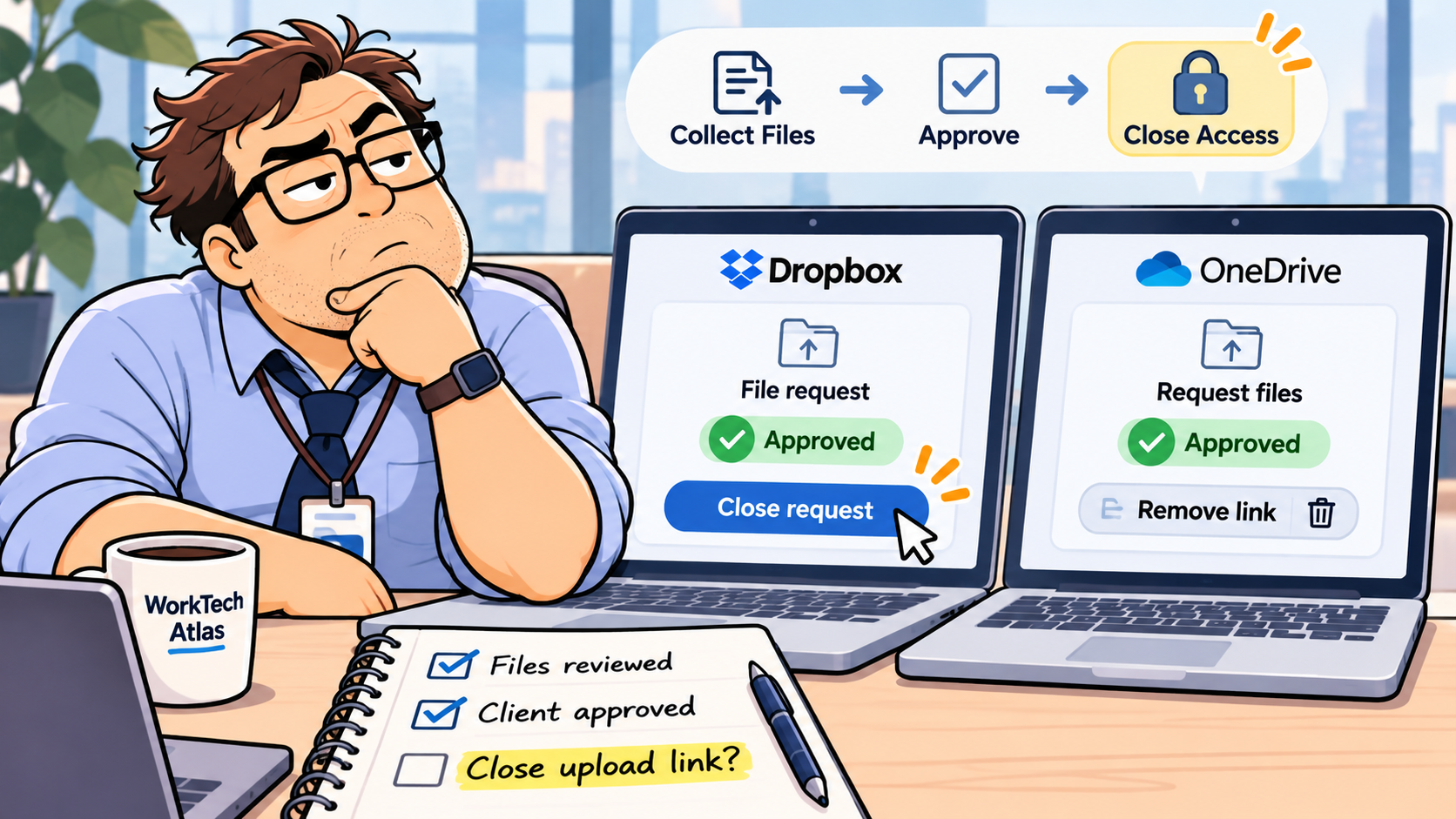
A file request is an intake channel, not an approval system. A successful upload says only that a file arrived. A filename such as “final-v3” is not proof of sign-off, and the most recently received file is not automatically the authorized version.
This matters especially when one person collects assets, another reviews them, and a third sends the deliverable. Keep three distinct events in your record: received, approved, and intake closed. If a revised file arrives after approval, it should start a new review rather than silently replace the approved deliverable.
Our earlier Dropbox vs OneDrive file-request comparison helps you choose an upload channel. This guide covers the operational step after the files have arrived.
Dropbox vs OneDrive: how to stop further uploads
| Platform | Stop receiving files | If you need to reopen intake |
|---|---|---|
| Dropbox File Requests | Close the open file request from File requests → Opened → request → Close request. | Reopen it from the Closed tab with Reactivate request. |
| OneDrive for Business Request Files | In the destination folder, open Manage Access and delete the specific request link. | Create a new file-request link and send the new URL. |
Dropbox explicitly distinguishes closing a request from deleting it. Closed requests can be reactivated; deleted requests cannot be reopened. Its help article also notes that uploaders cannot continue submitting through a closed invitation link. See Dropbox’s file-request instructions.
Microsoft’s OneDrive file-request documentation describes a different control: delete the request link under Manage Access. This stops further uploads through that link; restoring intake requires a new request link. Do not confuse this with deleting the folder or its existing files.
These steps concern the request link, not every other way someone might have access to the folder. If you also granted ordinary sharing permissions, review those separately. Microsoft explains that ordinary edit-sharing can allow broader folder actions than upload-only requests in its sharing guidance.
A five-minute closeout workflow for a small client team
The goal is not to build a heavy compliance process. It is to make the accepted file unambiguous and leave a useful trail for the next person who opens the project.
- 1. Freeze the review decision. Record the approver, approval time, project ID, filename, and the exact storage location. For important deliverables, retain a version identifier or checksum if your process supports one.
- 2. Preserve an approved copy. Put the accepted file in a controlled “Approved” location. Do not rely solely on an intake folder containing multiple drafts.
- 3. Mark late submissions as new work. If a replacement arrives before closure, treat it as pending review rather than overwriting the approved copy.
- 4. Close the request link. Use Dropbox’s Close request or OneDrive’s Delete link as appropriate. Keep the folder and its existing evidence intact.
- 5. Test and communicate. Confirm the old link no longer accepts uploads using a non-sensitive test, then tell the client how to submit future revisions.
A basic closeout record can be one row: Project ID | approved file | approver | approved at | upload link closed at | replacement route. If your team already uses Airtable, our client approval log guide explains why a revision history alone is not an approval decision.
Three mistakes that create version confusion
Closing too early. If the client has not confirmed the complete set of documents, closing intake creates unnecessary back-and-forth. A short receipt confirmation helps: received is not the same as accepted. Our client intake confirmation email guide separates those messages.
Assuming upload names identify the sender. Microsoft says files received through OneDrive requests are prefixed to help identify uploaders, but names entered by unsigned-in uploaders are not verified identity. Do not use a typed name alone as authorization for a contract change.
Letting an automation reopen work. A new-file trigger can still run when someone submits an extra revision before closure. Build a condition that checks the project status before creating tasks or notifying reviewers. If the status is Approved or Closed, route the file to a separate exception queue. The same principle appears in our Airtable reminder stop-after-signoff workflow.
What if the client needs to send a correction later?
Give the client an explicit replacement route rather than leaving the original request open indefinitely. For Dropbox, you can reactivate a closed request when appropriate. For OneDrive, create and send a new request link. In both cases, label the new submission as a proposed revision and reopen the approval step; do not treat it as an automatic replacement.
For higher-risk documents, use a fresh project-specific folder or request for the revision. A new link is not an authentication system: anyone who has it may be able to upload. Use your organization’s approved identity, retention, and access controls for sensitive material.
WTA VERDICT
Close the intake channel after approval, but preserve the decision separately. Dropbox makes temporary pauses convenient through Close and Reactivate. OneDrive’s request link can be revoked and replaced. Neither is a substitute for a version-specific approval record. For most three-person teams, one approved-file location, one status field, and one named owner are enough to avoid “which final file?” disputes.
3-Line Takeaway
- Dropbox: close the file request; reactivate it only when new intake is intended.
- OneDrive for Business: delete the request link, not the approved files.
- Keep receipt, approval, and closure as separate recorded events.

Leave a Reply