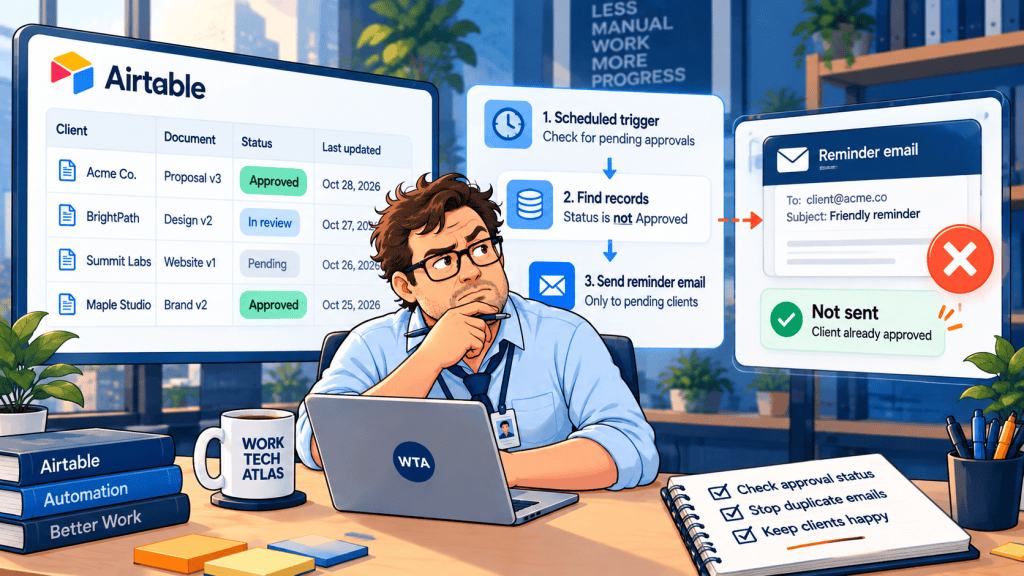
A client has not approved the final homepage design, so an agency sends a polite reminder. The client signs off at 9:07 a.m. At 9:10, another reminder arrives asking for the same approval. Nobody intended to be pushy. The reminder workflow simply did not check the decision before sending.
For a small agency, an Airtable client approval reminder should be tied to the exact deliverable and version, not merely to a due date. This guide shows a practical pattern for a small agency or consulting team: one approval record, a daily eligibility check, a sent-time marker, and a clear stop rule. It is a design to configure and test, not a claim that every Airtable workspace behaves identically.
Scope: Routine client sign-offs for designs, reports, drafts, and deliverables. This is not a legally binding e-signature process or a guarantee against simultaneous updates. For contractual or regulated approvals, use the authorization and retention controls your organization requires.
The failure is usually in the status, not the email
A reminder automation often starts with a date field: “If due date is today, send email.” That looks reasonable until a client approves early, the file is revised, or a teammate changes the deadline. A date tells you when to look. It does not tell you whether a reminder is still appropriate.
First decide what “approved” actually means. A comment such as “looks good” is not automatically a final sign-off, and an approval of version 2 should not authorize version 3. WorkTech Atlas covers the evidence side in its Airtable client approval log guide. This article deals with the separate problem of stopping the follow-up at the right moment.
| Field | Example | Why it matters |
|---|---|---|
| Deliverable / version | Homepage / v3 | A reminder must point to one reviewable version |
| Decision status | Awaiting client / Approved / Changes requested / Superseded | Only Awaiting client is eligible |
| Approval due date | 2026-11-03 | Defines when to check, not permission to send |
| Client email | reviewer@example.com | Recipient must be present and correct |
| Last reminder sent | 2026-11-01 09:00 | Prevents the next scheduled run from repeating too soon |
| Reminder count | 1 | Sets an escalation cap |
| Review link | Version-specific review page | Avoids sending a mutable “latest” file |
| Internal owner | Account manager | Human fallback when automation should stop |
Keep these fields on a Review Requests table, or on an equivalent record representing one version. If a new version is issued, create a new review request or explicitly reset its reminder state. Do not silently reuse an Approved record for a different file.
A daily Airtable reminder that can stop after sign-off
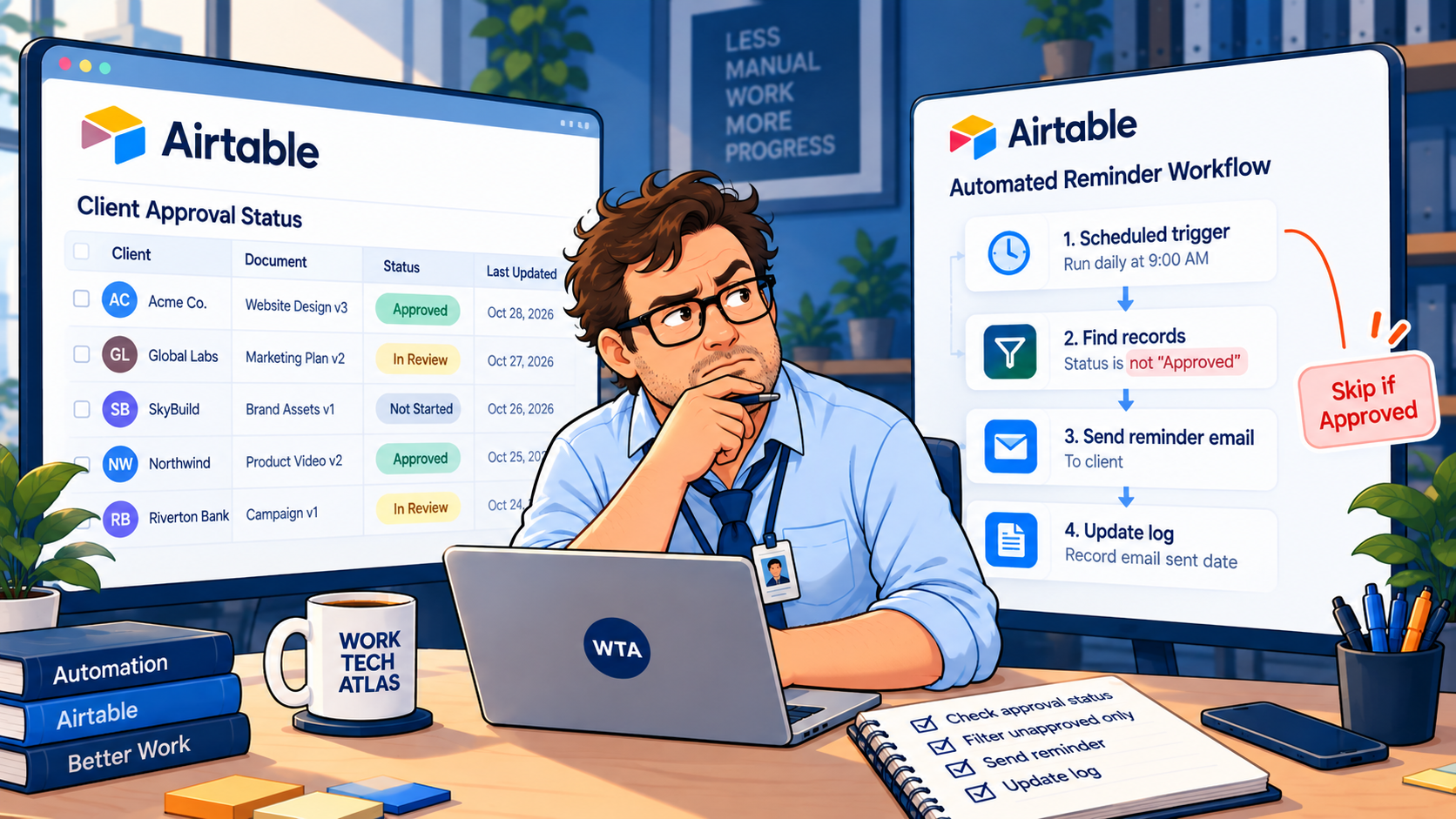
For a modest number of open client approvals, a daily sweep is easier to reason about than a trigger watching every edit. Airtable documents an At scheduled time trigger and a Find records action that can select eligible records. The scheduled trigger has no record attached to it; you must find the relevant records afterward.
- Define a narrow eligibility view. Filter to Decision status = Awaiting client, Review link is not empty, Client email is not empty, Due date is on or before the check date, Reminder count is below your chosen cap, and Last reminder sent is blank or outside your minimum interval. Include a field indicating the version is still current.
- Schedule one sweep. In Airtable Automations, select At scheduled time. For example, choose weekdays at a local business-hour time, then verify behavior across time zones and daylight-saving changes. Airtable notes that scheduled times do not automatically adjust for daylight-saving transitions.
- Find only eligible review requests. Use Find records against the filtered view. Confirm the preview contains the intended records, especially when the view changes or when date fields include a time component.
- Loop through the results. Add a repeating group using the Find records list. Within the group, address Send email to the Current item client email field, not the entire Find records output. Airtable explicitly distinguishes one personalized email per record from one combined message.
- Record the send. After the send action reports success, update that review request’s Last reminder sent and Reminder count. Use the current item’s record ID. Avoid watching those bookkeeping fields with another broad update-triggered automation.
The key condition is Decision status = Awaiting client. When the status becomes Approved, Changes requested, or Superseded, the record leaves the eligible view when the view filters are configured as described. A scheduled sweep then has no reason to pick it up again. This is a stop rule, not a promise of instantaneous cancellation: if a client approves while an automation is already running, a queued email may still send. For sensitive workflows, route the final send through a human check or a system with a transactional re-check immediately before delivery.
Airtable’s Find records documentation says the default limit for newly configured actions is up to 1,000 records per run, with older actions potentially defaulting to 100. A small agency may never reach that threshold, but it is worth checking the configured maximum rather than assuming the sweep is exhaustive.
The decision should cancel reminders, not just change a label
The approval form must update the same decision that the reminder checks. If a client signs off through Fillout, an Airtable interface, or an internal reviewer, map that event to a clear status transition and capture the approver, version, and evidence separately. Fillout documents Airtable update forms with record-specific links; those links are a way to update a record, not proof of the respondent’s identity or an automatic authorization policy.
For a form-based intake workflow, it helps to distinguish received, under review, and approved. The same principle applies to reminder emails. See the related receipt versus approval email workflow if your team currently sends the same confirmation message for every event.
If a client requests changes, set the existing review to Changes requested and stop the old reminder sequence. After the revised deliverable is ready, open a fresh review request for the new version. The new link should identify the actual file being reviewed; a generic link that always opens the latest file makes old email threads ambiguous.
For internal sign-offs, Airtable’s When record matches conditions trigger is useful for a one-time handoff when a status first becomes Approved. It does not process records that already matched before the automation was enabled. For recurring due-date reminders, the scheduled sweep remains the clearer default because the date keeps advancing while a record may stay in the same status.
Five ways an otherwise sensible reminder goes wrong
| Failure | What to check before launch |
|---|---|
| Approval lands during the send run | Accept a small race window; use a final human or transactional gate when unacceptable |
| A new version inherits an old Approved status | Create a fresh version-specific review request and reset reminder counters |
| Two automations both send reminders | Keep one owner of the send action; audit every automation watching the same fields |
| An empty email or expired review link | Require valid recipient and review-link fields in the eligible view |
| A client has asked not to be contacted | Add a separate suppression field that overrides reminder eligibility |
Do not assume a hidden field or an emailed link is access control. Before sharing any client-facing form or portal, check what another client can view and edit. The Airtable client portal permissions checklist provides a practical cross-client test. If a reminder creates downstream tasks, the duplicate-safe Fillout → Airtable → Asana workflow explains why a single request should own that handoff.
What the Airtable plan and sending method change
Airtable’s native Send email action has a material plan distinction. As of October 28, 2026, its official email-action documentation says Free workspaces can send only to verified base collaborators; Team workspaces can send to 100 unique non-collaborator addresses per day and Business workspaces to 1,000. The documentation lists no such daily non-collaborator cap for Enterprise Scale. These are recipient limits, not a promise of inbox delivery.
Airtable also documents monthly automation run allowances: 100 on Free, 25,000 on Team, 100,000 on Business, and 500,000 on Enterprise Scale as of October 2026. Runs are counted when a trigger fires, including failed runs. Check the current plan and limits before enabling a daily process. Free workspaces can consider Airtable’s Gmail or Outlook send-email actions for external recipients, subject to those connected accounts’ own permissions and limits.
For a handful of requests, a manual follow-up from the account manager may be cheaper and more trustworthy than maintaining an elaborate automation. Use a scheduled workflow when the same reminders recur often enough to justify ownership, testing, and occasional troubleshooting.
Run these checks before clients receive anything
Use test records and non-client email addresses. Set up one request each for Awaiting client, Approved, Changes requested, Superseded, missing recipient, and an already-reminded request. Run the automation in a safe test environment and verify which records appear in Find records, which email addresses are used, and whether the send marker is written only after a successful action.
Then simulate a new version, a changed deadline, and an approval arriving near the scheduled send time. Review Airtable’s automation run history rather than treating a green status field as proof of delivery. Airtable notes that a successful send action does not confirm whether an email reached the inbox instead of spam.
Keep a short operating note: who owns the automation, what pauses it, where failed runs are reviewed, and who handles a client who replies directly by email instead of using the approval form. A client’s direct response should be reviewed and recorded before the system sends another follow-up.
WTA VERDICT
For routine client reviews, use Airtable as the source of reminder eligibility, not as a blind date-based mailer. Start with one version-specific review request, a scheduled eligibility sweep, and a clear non-pending stop status. Keep a human exception path for last-minute approvals, disputed decisions, and important client relationships.
3-Line Takeaway
- Only Awaiting client requests with a current review version should qualify for reminders.
- Use scheduled time → find records → repeat, and record when each reminder was sent.
- An approval stops future sweeps, but a send already in progress may still require a human safety check.

Leave a Reply