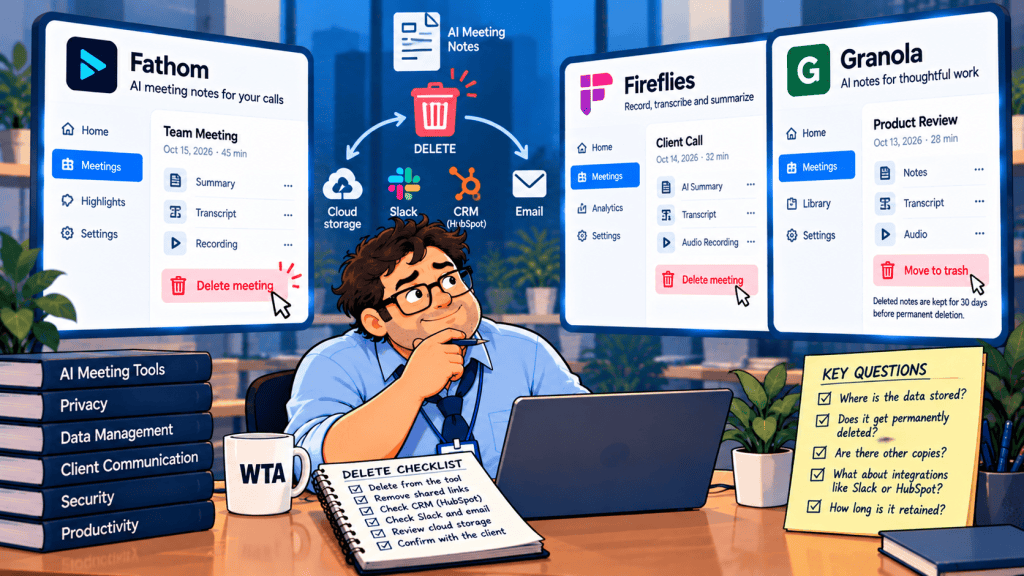
A client asks you to delete the AI notes from last Thursday’s strategy call. You open the meeting assistant, remove the recording, and send a reassuring reply. But a summary may already be sitting in HubSpot, a Slack channel, someone’s inbox, or a downloaded file. The source meeting is gone; the information may not be.
This guide explains how to delete AI meeting notes in Fathom, Fireflies, and Granola without mistaking one deletion button for a complete cleanup. It is for small agencies, consultants, and client-facing teams that send meeting outcomes into other tools. Product behavior was checked against vendor documentation on October 20, 2026. The workflow below is a recommended operating procedure, not a claim of hands-on testing or a guarantee of legal compliance.
Quick answer: To delete AI meeting notes responsibly, treat it as three separate jobs: remove the original meeting, restrict any shared access, and review copies or derived notes in connected systems. Confirm what you actually completed, not what you hope the software did automatically.
One meeting can leave three different kinds of data behind
It helps to stop thinking of an AI meeting as a single file. A transcript can generate a summary; that summary can be emailed, posted to a channel, or attached to a customer record. The resulting objects may have different owners, access rules, and retention policies.
| Layer | What to look for | Why deleting the source may not finish the job |
|---|---|---|
| Original meeting | Recording, transcript, AI summary, note inside the meeting app | This is the object the meeting app’s Delete control usually targets. |
| Access paths | Shared link, team folder, invited viewer, calendar-recipient email | A link can remain in an email even if its destination stops working; an emailed summary is already a separate copy. |
| Downstream copies | HubSpot activity, Slack post, Google Doc, task description, exported file | Each destination needs a separate check. |
A meeting link and a pasted summary are especially easy to confuse. Revoking a link can block future access to the original. It cannot retract text that a recipient copied into a message or document. This is the key distinction missing from many general “how to delete a meeting” instructions.
What each meeting assistant actually deletes
The three products differ in how they capture meetings, how their deletion controls work, and which retention features require an enterprise agreement. Vendor documentation describes behavior inside the vendor service; it does not certify deletion from every connected app. The table is about documented behavior, not a security ranking.
| Tool | Manual deletion | Automatic retention / important limitation |
|---|---|---|
| Fathom | Deleting a call removes the recording and its associated notes; Fathom says the call cannot be recovered. | Organization-wide automatic retention is Enterprise-only and currently requires contacting Fathom rather than a self-service setting. |
| Fireflies | The meeting owner can permanently delete the meeting, transcript, recording, summary, and related content. | Automatic meeting deletion is Enterprise-only and applies to future meetings, not past ones. |
| Granola | Users can delete a note; its October 16 documentation says deleted notes go to trash and are purged after 30 days. | Granola says source audio is discarded after transcription. Transcript retention windows exist; Enterprise can enforce workspace-wide policies. |
Fathom: delete the call, then check who received it
Fathom’s deletion guide documents two routes: open a call and choose Delete Call, or find it on the home page and choose Delete Recording. Associated notes go with the recording. That is a meaningful source deletion, but it is not a recall button for material already distributed.
The distribution detail matters. Fathom’s auto-share documentation says enabled auto-sharing can email summaries or recordings to everyone on the connected calendar invitation, including invitees who did not attend. It also says shared emails cannot be unsent. You can remove an individual viewer and switch a recording from “Anyone with the link can view” to “Only people added can view.” Those are access controls, not erasure of emailed text.
For a recurring policy, Fathom documents Enterprise-only retention, with one retention policy per team and support-assisted setup. If a client asks for a shorter period than your team policy, handle that meeting individually rather than assuming the global setting will accommodate it.
Fireflies: the owner matters, and old meetings need separate attention
Fireflies’ meeting deletion guide says only the meeting owner can delete it. The meeting, recording, transcript, AI summary, and related content are removed permanently. A person who merely received or viewed the notes may not have the right control; find the owner before promising a deletion date.
Its auto-delete guide describes an Enterprise-only retention setting from one week to one year. Crucially, the setting applies to future meetings only. Enabling it today does not clean up last month’s client calls. Enterprise administrators can also enforce a workspace-wide period. Separately, Fireflies documents Enterprise recording formats that retain a summary without the audio or full transcript; those modes change what is stored for new meetings, not what copies have already been sent.
Granola: no saved audio is not the same as no saved meeting data
Granola says it discards captured audio after transcription, but keeps the transcript and enhanced notes in its cloud service. Its October 16, 2026 documentation says a deleted note moves to trash and is permanently purged after 30 days. The same document describes individual transcript auto-deletion windows from one day to one year and Enterprise-wide policies. Do not describe a manual note deletion as instantaneous server purging when the vendor describes a trash period.
That timing is worth clarifying with the vendor if a client contract demands a particular purge deadline. It also does not address a summary previously pasted into a shared folder, CRM activity, or email. For the broader capture-and-sharing trade-offs, see our Granola vs Fireflies client-call comparison.

The eight-step client-call deletion runbook
Consider a hypothetical five-person agency. Its client asks that last Thursday’s pricing discussion be removed after a proposal is finalized. The agency used a meeting assistant, posted a short recap in Slack, and attached an AI-generated note to the client’s HubSpot timeline. A responsible cleanup is not just a trip to the meeting library.
- Identify the exact meeting and owner. Record the meeting date, client, internal owner, product, and source link or meeting ID. Avoid searching by client name alone when multiple calls exist.
- Stop new distribution. Pause or narrow the relevant CRM sync, recap email, Zap, or shared-folder workflow so a deleted summary is not immediately recreated. Record which integration you changed and when.
- Separate the record you need from the material you should remove. Check internal policy, contract obligations, and any applicable hold before deletion. If permitted, retain a minimal, access-controlled decision or fulfillment record rather than exporting the entire transcript “just in case.”
- Delete the source meeting using the correct owner account. Use the documented Fathom or Fireflies delete action, or delete the Granola note. Note the vendor’s stated permanence or trash timeline; do not invent a purge timestamp.
- Review shared access. Check viewers, public-link settings, team folders, and calendar-based auto-sharing. Revoke access where available. Distinguish a dead link from a copy of the actual summary already emailed.
- Inspect every destination. Search the relevant HubSpot record, Slack channels, documents, task descriptions, and approved exports. Remove or redact the specific content under each system’s own controls; do not delete unrelated client history.
- Verify with a second account and a destination audit. Check that the source link no longer exposes the meeting to an unauthorized viewer, and that the targeted downstream copies are gone or restricted. Note any retained backups, exports, or records you cannot verify.
- Close the request with a factual log. Record the actions taken, system owners, completion date, remaining exceptions, and any vendor support ticket. Tell the client what was done without claiming universal deletion.
The pause-and-audit step is particularly important for CRM workflows. Our guide to AI notes on the wrong HubSpot deal shows why the note activity, deal associations, and property updates can be separate objects. Deleting one activity is not a general undo for every CRM change.
The copy problem: CRM notes, Slack recaps, and email
A deletion request is easier to manage if every integration has an explicit data destination and an owner. For example, “Fathom summary → HubSpot note activity” and “Fireflies recap → #client-projects” are two separate routes. A summary posted as Slack message text is different from a Slack message containing only a link to the meeting.
Slack’s retention documentation makes that separation concrete: Slack controls its own messages and files, while files shared from third-party services remain in their original service. Deleting a Slack message is not the same as deleting the source file; deleting a source file does not automatically erase a copied Slack message. Workspace retention and export rules can also affect what remains accessible to administrators.
Likewise, stopping a Zap or disconnecting an integration prevents or changes future actions; it does not establish that historical notes in destination apps were erased. Zapier’s connection-management guide describes revoking app access and updating affected workflows, not retroactive deletion of the records those workflows previously created.
When a meeting created tasks, use the same restraint. Keep legitimate assignments if your policy permits, but remove unnecessary transcript quotations from task descriptions. The AI meeting-notes review gate explains how to distinguish actual commitments from conversational suggestions before copying them into task systems.
Set a retention policy before the next call
A team should not have to reconstruct a meeting’s entire journey every time a client requests deletion. Decide how much of each client call your team truly needs: an audio recording, a searchable transcript, a summary, or just approved decisions and tasks. Then check which controls your actual plan supports.
- Capture: Tell participants what is being transcribed or recorded, and follow the applicable consent requirements and client agreement. A bot-free recorder still captures a conversation.
- Sharing: Keep automatic recap distribution narrow. Test whether calendar invitees, non-attendees, teammates, and anyone holding a forwarded link can access the result.
- Retention: Specify a documented review or deletion window for source notes and each destination. Do not assume an Enterprise-only feature is available on a free or team plan.
- Exceptions: Decide who handles preservation requirements, disputes, or contractual holds before a staff member clicks an irreversible delete button.
The most useful preflight is a dummy meeting with fake client information. Share it through your normal workflow, then map every copy it creates. Do not use a real client’s confidential call as your test. This is a proposed verification exercise, not a test we performed.
If you are still deciding which assistant to buy, start with our Fathom vs Fireflies HubSpot comparison. For a bot-free capture decision, our Fathom vs Granola comparison adds context. Product selection matters, but the downstream data map matters more when someone later asks you to remove a conversation.
What a deletion confirmation can honestly say
Avoid the blanket phrase “All traces of the meeting have been permanently erased” unless you have actually verified every relevant system and have a basis for that claim. A more defensible confirmation distinguishes the meeting-app deletion, revoked access, destination cleanup, and any remaining retention period or exception. If a vendor’s documented purge takes 30 days, say so. If you cannot control a recipient’s private download or mailbox, do not imply that you did.
For regulated or disputed records, involve the appropriate privacy, security, or legal owner. This article is an operational guide, not legal advice; the right action can depend on jurisdiction, contract terms, and preservation duties.
WTA VERDICT
Choose your deletion procedure by where the meeting data traveled, not just by which AI notetaker recorded it. Fathom and Fireflies document permanent source deletion; Granola’s current guidance describes a 30-day trash period for deleted notes. None of those source controls should be treated as proof that emailed summaries, CRM entries, or Slack copies vanished.
3-Line Takeaway
- Delete the source: use the owner’s documented control and note the retention timeline.
- Trace the copies: check shared links, CRM activities, messages, and exports separately.
- Confirm only what you verified: log exceptions rather than promising invisible cleanup.

Leave a Reply