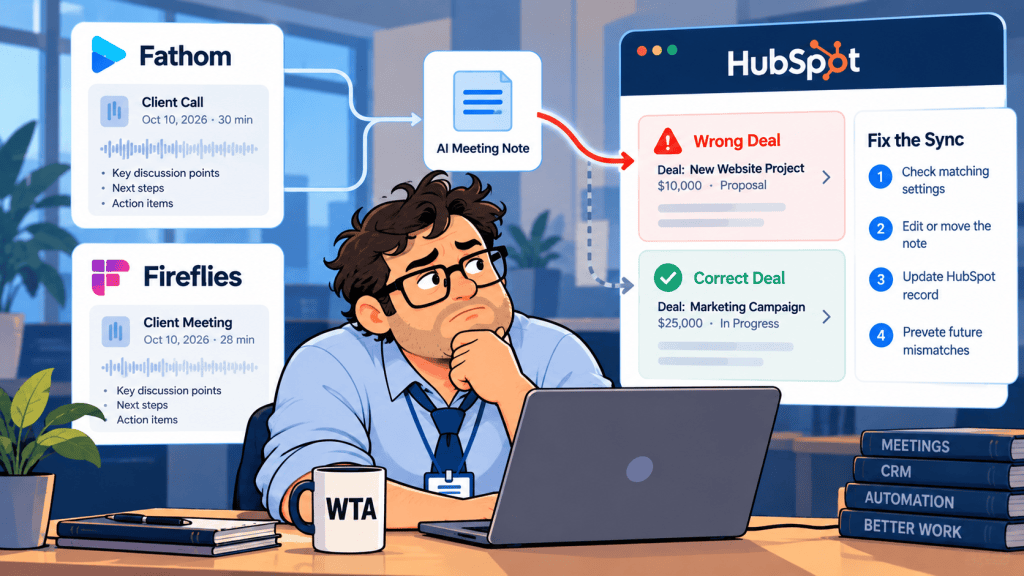
Imagine a prospect attending a sales call about renewing a contract. In HubSpot, that person is attached to two open deals: Acme — Renewal and Acme — Expansion. The meeting summary is accurate, yet it appears on both deal timelines. Someone reviewing Expansion now sees a renewal commitment that was never made for that opportunity.
This is an association problem, not necessarily a transcription problem. Fixing it means checking where the activity was attached, how the meeting app matched the attendee, and whether any AI-generated CRM fields were updated as well. This guide covers HubSpot, Fathom, and Fireflies using their documented behavior as of October 13, 2026. It is a configuration and verification guide based on product documentation, not an independent test report. Quick fix: In HubSpot, open the note or meeting activity and review its linked records; then check the deal-association rule in Fathom or the pipeline logging settings in Fireflies.
Already deciding between the two apps? Our Fathom vs Fireflies for HubSpot comparison covers their broader sync and review models. Here we focus on the narrower failure case: one contact, multiple deals, one meeting.
Why AI meeting notes appear on the wrong HubSpot deal
Teams often call everything a “CRM sync,” but three different changes may be involved. They need different fixes.
| CRM write | Check this first |
|---|---|
| Meeting or note activity | Which contact, company, and deal timelines display it. The summary may be right but the association wrong. |
| Deal property | Which field changed and whether it was appended or overwritten. Removing a note link does not undo a separate write. |
| Follow-up task | Task owner, due date, and linked records. A task can stay wrong after the note is fixed. |
HubSpot says notes and meetings can be associated with multiple records. Under its documented default behavior, an activity first logged on a contact can also be associated with the contact’s primary company and up to five of the most recent associated open deals. Admins can customize eligible automatic associations. Do not assume those defaults are the same as the separate matching rules used by your meeting app. See HubSpot’s activity-association documentation.
Repair an existing activity in HubSpot before changing automation
If the incorrect item is a note or meeting activity, start at the HubSpot record where it is visible. Open the Activities tab, expand the activity, and use the [x] associations control near the lower right. HubSpot’s documented dialog shows the records already linked to that activity. Clear the wrong deal, then search for and select the correct deal if needed.
Check the original contact record and both deal timelines after the change. You are correcting the activity’s associations, not deleting the meeting itself. If the wrong item was a deal property update or an automated task, inspect and correct that separately; the association dialog is not a general undo button.
Write down the affected record IDs first. Correct the visible activity, inspect field history and tasks, then change the rule that created the association. If the integration continues to sync or regenerate activities, a HubSpot-only correction may not be the end of the story.

Fathom: remove the deal from the call, not just the HubSpot timeline
Fathom’s August 2026 deal-association guide describes a particularly relevant scenario: a contact is linked to both a new-business deal and a renewal deal, but the call only concerns the renewal. Fathom can associate a recorded call with eligible open deals connected to recognized attendees. Its documentation says a deal is eligible for automatic sync when it is still open and the call was no more than seven days before the deal was created.
In the Fathom web app, open the call and select Edit under Related. In the desktop app, use Associated Deals near the meeting title. Remove the irrelevant deal while retaining the one actually discussed. Fathom says additions and removals change the corresponding CRM call activity.
That change can reach beyond the activity timeline. Fathom says removing a deal from a call causes its Deal Summary and Key People summary to be regenerated from the calls that remain; mapped deal-summary fields can also refresh in the background. Fathom warns that these background changes may not appear immediately. Verify the affected HubSpot properties after the change, particularly if your team uses Business/Enterprise field mapping. Fathom’s HubSpot integration guide documents that mapping separately.
Limit: Fathom can suggest or associate deals linked to recognized call attendees; its manual association tool cannot pick an unrelated deal or repair an impromptu call with no associated attendees. If the correct opportunity does not appear, check the attendee-to-contact-to-deal relationship in HubSpot rather than repeatedly resyncing.
Fireflies: check pipeline logging and Autofill CRM separately
Fireflies has two paths that are easy to conflate. Deal-level meeting-note logging places activity on deal timelines. Autofill CRM prepares updates to contact, company, and deal properties for review. One can be misconfigured without the other being wrong.
For meeting notes: inspect the pipeline rule
In the Fireflies HubSpot integration, deal logging is controlled under Pipeline integration → Log meeting notes, which Fireflies documents as off by default. You can select a pipeline and stage. If neither is selected, Fireflies says it creates meeting notes for all deals associated with the meeting participants’ contacts. Fireflies sends a link to the full transcript rather than inserting the complete transcript into HubSpot. That broad setting is worth reviewing when one contact has multiple open opportunities. See Fireflies’ deal-level logging instructions.
If a note has already landed on the wrong deal, use HubSpot’s activity-association control to inspect and correct the visible relationship. Then narrow Fireflies’ pipeline and stage settings for future meetings. A pipeline filter is not a guarantee that the correct deal will be unique when a contact has two deals in the same stage.
For field updates: review the target deal before approval
Fireflies’ Autofill CRM documentation says extracted property values are prepared for review rather than sent automatically. When reviewing the Deals step, users can select one or more open deals associated with meeting contacts, edit suggested values, and choose which fields to include before sending. Check the deal identity and whether each field is set to append or overwrite.
For occasional contact-level notes, Fireflies also documents a manual Send Notes option from the meeting Notepad. That flow lets you enter recipient emails and send to matching CRM contacts; do not mistake it for a universal “choose any deal” control.
A small review gate for contacts with multiple open deals
When a contact is tied to several open deals, an email match is not enough to authorize a deal update. Have the owner choose the destination before enabling broad CRM writes.
| Signal | Recommended handling |
|---|---|
| Exactly one matching contact and one relevant open deal | Allow note logging after checking the configured pipeline/stage and your account’s association defaults. |
| One contact, two or more plausible open deals | Hold deal-property updates for an owner to select the specific deal; review where note activities will appear. |
| No matching contact or an email alias mismatch | Stop automatic deal-level writes and reconcile the CRM identity first. |
| Meeting covers multiple opportunities | Have the owner explicitly approve which deals should receive the note and which properties, if any, should change. |
| Notes are correct but a field changed unexpectedly | Inspect field history and integration mapping separately; changing the note association is insufficient. |
This is a proposed operating policy, not a setting that every vendor provides out of the box. For the larger design principle, see our guide to where human approval belongs in AI workflows. A meeting-to-task automation needs a similar checkpoint; our meeting-notes task review gate explains that adjacent problem.
Run a five-case pilot before switching on broad sync
Use non-sensitive test contacts and deals in a sandbox or clearly marked test records. For each case, record the meeting ID, attendee email, intended deal ID, actual linked deal IDs, and any property or task changes. You want to discover ambiguous matches before they touch real client history.
- One contact, one open deal: confirm the note appears where expected and no unapproved fields change.
- One contact, two open deals: verify whether the activity appears on both and whether the owner can correct the source association.
- Contact email mismatch: test a secondary address or missing attendee; confirm the workflow does not silently target an unrelated deal.
- Two deals in the same pipeline stage: confirm a stage filter alone does not create false confidence.
- Correct a mistaken association: verify the HubSpot timeline, any Fathom-generated deal summaries, Fireflies Autofill changes, and related tasks after correction.
Review the summary and the proposed CRM write separately. If you are still choosing a meeting capture tool, our overview of Notion, Otter, Fireflies, and Fathom workflows helps frame the upstream decision.
WTA VERDICT
Match the meeting to the deal, not merely the attendee. When a buyer has two open opportunities, a correct AI summary can still produce misleading CRM history. Fix the visible HubSpot activity association, then correct the source rule: Fathom’s call-to-deal relationship or Fireflies’ pipeline logging and Autofill review. Reserve automatic deal-property changes for cases where the destination is unambiguous.
3-Line Takeaway
- Diagnose: separate note associations, deal fields, and follow-up tasks.
- Correct: fix HubSpot activity links and the originating app’s deal-selection rule.
- Prevent: require owner review whenever one attendee maps to multiple plausible deals.

Leave a Reply