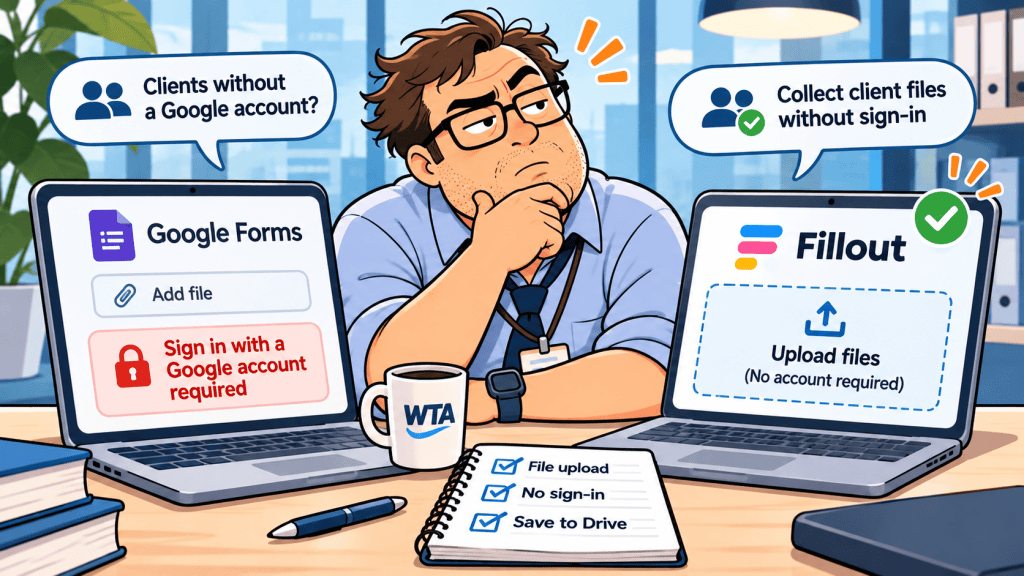
A client opens your project-intake form, adds a short brief, and reaches the upload question. Instead of attaching the PDF, they see a Google sign-in screen. The form is public, but that does not make its file upload public.
That distinction is the reason to compare Google Forms vs Fillout for client file uploads. For a small agency collecting contracts, artwork, or supporting documents, a single extra account requirement can be more important than the number of form templates.
Short answer: Keep Google Forms when your respondents already have Google accounts and the team wants a straightforward, Google-native collection process. Choose a public Fillout form when external clients must attach files without creating or signing into a Google account, and you also need structured answers. If you only need an upload destination with no questionnaire, consider a dedicated file-request link instead.
Documentation reviewed November 6, 2026. This is a documentation-based comparison, not a hands-on test. Workspace policies, plan entitlements, and interface labels can change.
The sign-in trap: “anyone with the link” is not the same as anonymous uploads

Google lets a form creator publish a form and give response access to anyone with the link. But the File upload question is a separate constraint: Google’s support community documentation states that people must sign in to a Google account to upload. A client with a non-Gmail email address can still create a Google account, but they cannot simply skip the sign-in.
This matters because teams often test only the first page. A client may answer ordinary questions without difficulty, then get stopped when a file upload is required. It is not a branding problem or a missing share setting; changing the public-access option does not remove the upload sign-in requirement. See Google’s publication and responder-access guidance and the Google Docs Editors Community explanation.
A standard public Fillout form can collect a file without asking the respondent to have a Google account. That does not mean every Fillout form is anonymous: its optional login pages can require email verification, a password, or SSO. The form owner decides whether that extra step belongs in the workflow; use it when verified identity matters more than frictionless upload.
Google Forms vs Fillout: the client-file comparison
| Decision point | Google Forms | Fillout |
|---|---|---|
| Client has no Google account | File-upload question blocks the upload until Google sign-in | Public form can accept an upload without Google sign-in |
| File destination | Copies uploaded files into the form owner’s Google Drive | Stores form submissions; optional Google Drive integration can route uploads into folders |
| Free-plan file size | Creator-configured file limits and available Google Drive space | 20 MB per file on Free, Starter, and Pro, per current pricing table |
| Free-plan response volume | No separate per-form paid tier for ordinary Forms use; Google account/storage policies still apply | 1,000 responses/month |
| Control over respondent access | Google sharing controls, plus compulsory sign-in for file uploads | Public links or optional login/restricted flows on eligible plans |
| Best fit | Known, Google-account-equipped respondents | External-client intake with a no-Google-login requirement |
Neither approach is automatically a secure approval portal. A public form link can be forwarded, and a received file is not proof that the right person authorized a change. For confidential material, confirm your organization’s retention, access, and identity requirements before collecting anything.
File limits and pricing: check the actual bottleneck
Google Forms is available without a separate form-builder subscription, but uploaded files go into Google Drive and use the available storage. The creator sets the accepted file types, number of attachments, and maximum sizes. A generous file-size setting is not useful if the destination account is short of storage or an organization’s Google Workspace policy disallows the workflow.
Fillout’s published pricing table currently lists 1,000 monthly responses and a 20 MB maximum file size on Free. Starter raises responses to 2,000 per month, and Pro to 5,000, but both still list a 20 MB file-size maximum. Business lists larger uploads (1 GB+) and unlimited responses. The pricing page shows Starter at $15/month, Pro at $40/month, and Business at $75/month when billed annually; monthly billing is higher. Check the live page before paying, especially for multi-file submissions or larger media assets.
The practical dividing line is often one attachment that does not fit. A creative agency collecting logos and PDFs may fit under 20 MB; a video editor receiving raw footage probably will not. Don’t assume upgrading from Free to Starter solves the size issue.
For a no-account file-only transfer rather than a form with fields, our Dropbox File Requests vs OneDrive Request Files comparison explains a different class of tool that may fit better.
Where the files go is part of the decision
With Google Forms, uploaded files are copied to the owner’s Drive, and responses can be reviewed in Forms or linked to a Google Sheet. That is convenient if the owner’s account is also the team’s intended storage location. It becomes less convenient when an employee leaves, the files need to live in a team-controlled folder, or clients need controlled access to previous submissions. Google’s response-management documentation covers the review and export paths.
Fillout offers a Google Drive integration that can put uploaded files in folders and use submission data for dynamic file or folder names. This can help an agency connect the attachment to a request ID. But integration is not the same as an audit trail: review the destination account, folder permissions, failed-transfer handling, and whether the right request record points to the right file.
If the request also needs to be reviewed, corrected, and approved in a database, the more relevant choice may be between form systems, not storage apps. Our Zapier Forms vs Fillout client-intake guide covers that handoff; the Tally vs Fillout Airtable guide focuses on new records versus client edits.
A safer workflow for collecting files from outside clients
For a three-person service team, use the following sequence. The point is not to automate more steps; it is to keep the document and the decision attached to the same request:
- Define the request. Give each client request a unique reference, an owner, and a due date before distributing any upload link.
- Choose the login policy deliberately. If Google sign-in is acceptable, Google Forms may be enough. If it is not, create a public Fillout form without an added login page.
- Keep questions minimal. Ask for a request reference, contact details, document type, and file. Do not use a general public link for sensitive identity documents unless your security review approves it.
- Make limits visible. Tell clients the supported file types, per-file size, and what to do if the upload fails. For the 20 MB Fillout tiers, provide a separate approved route for large assets.
- Test as an outsider. Open the published link in a signed-out browser or a separate test profile, submit a harmless file, and verify that the exact file arrives in the intended private destination.
- Review, record, then close. Mark submissions as received; have a person approve them; preserve the approved version and stop new submissions when intake ends.
A confirmation message should say that the files were received for review, not that the client’s scope or deliverable was accepted. Once a document is approved, keep the approved copy separate from the intake folder. For dedicated upload links, the follow-on procedure is covered in how to close client file requests after approval.
When Google Forms is still the better choice
Not every team needs another SaaS subscription. Google Forms is a sensible default for internal document collection, education workflows where respondents already use Google accounts, or small batches of files managed by one accountable Drive owner. You get simple form questions and a familiar place to review responses.
Use Fillout when external friction is real and you need more than an upload-only page: for example, a client brief where the same submission contains a project code, content type, deadline, and attachment. Its public link and Google Drive integration can bridge intake and storage without forcing customers through Google sign-in. Do not choose it solely for the promise of “unlimited uploads”; size, monthly responses, plan controls, and data governance still apply.
WTA VERDICT
For guest client uploads with a short questionnaire, Fillout is the more practical starting point. Its public form can avoid a Google-account sign-in step, but the 20 MB limit on lower plans deserves an early check. For known Google-account users, Google Forms stays economical and straightforward. When you need only a place to drop large files, evaluate a dedicated file-request tool before building a form.
3-Line Takeaway
- No Google login: A public Fillout form is better suited than a Google Forms file-upload question.
- Know your limits: Fillout Free, Starter, and Pro list 20 MB per file; check the plan before sending a link.
- Control the handoff: Receipt, approval, storage permissions, and closing intake are four separate decisions.
Sources and product documentation checked November 6, 2026. Pricing and administrative options may change. No hands-on performance testing was conducted for this article.

Leave a Reply