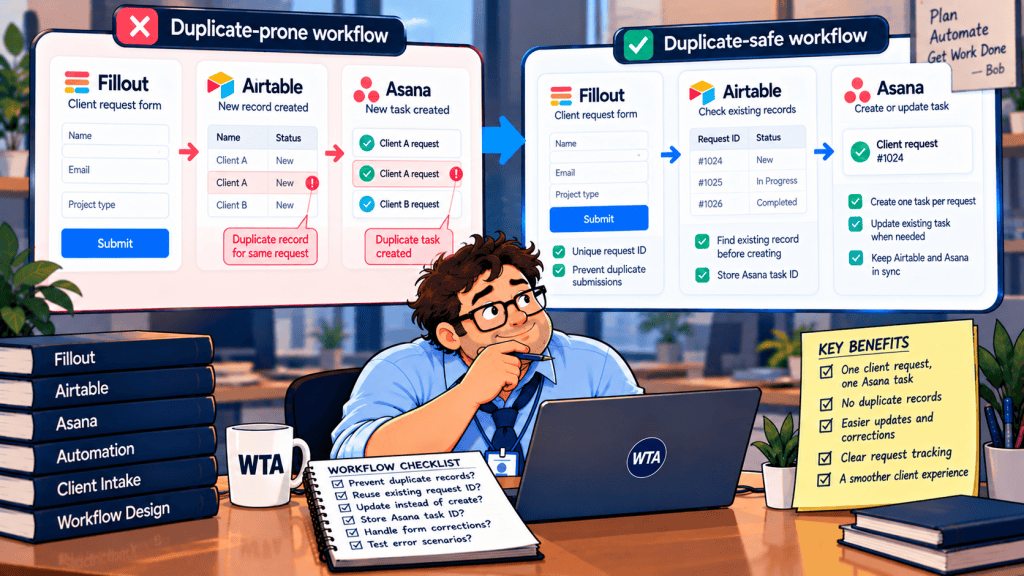
For a small agency using Fillout, Airtable, and Asana, a client sends a new website request on Monday. On Thursday, they return to correct the budget. By Friday, the agency has two Airtable rows and two Asana tasks for what should have been one job. Nobody knows which record holds the current instructions.
Each tool did what it was told. The handoff failed because it treated every submission as a new piece of work.
Quick answer: To prevent duplicate client requests in Airtable and Asana, give each request a stable ID, separate a new request from a correction, and write the Asana task ID back to the Airtable record. Check that ID before creating another task. A client email address alone is not a reliable request key.
First, decide what counts as a duplicate
There are three different things in a client intake workflow: a submission event, a client request, and a work task. They may look identical in a simple form-to-task automation, but they are not interchangeable. A repeat submission may update a request; a new request from the same person may need a new task.
| Record | Example | What it means |
|---|---|---|
| Submission event | S-302 | One form response or attempted update. Keep for troubleshooting; not every event deserves a task. |
| Client request | R-104 | The durable business item: “Revise the landing page.” This ID survives corrections. |
| Asana task | Task ID saved against R-104 | The work item created after intake is accepted. It should not multiply when R-104 changes. |
Imagine client C-014 changes the budget for R-104. That produces another submission event, not a second request. If the same client commissions a new campaign, create R-105. Matching only on client email would collapse two legitimate jobs; matching on the submission ID would manufacture a new job every time someone edits.
The unique request ID is a workflow convention, not a claim that a normal Airtable text field enforces uniqueness. A normal Airtable lookup and conditional automation can find duplicates, but you still need to handle conflicting matches and simultaneous submissions.
The simplest architecture: one record owns the request
For an agency already using Airtable as its intake database and Asana for delivery, keep one authoritative Airtable record per accepted request. Let Fillout collect the information. Do not let the form, Airtable, and a separate Zap each independently create work in Asana.
| Layer | Responsibility | Field or rule that matters |
|---|---|---|
| Fillout | Collect a new request or a correction | New-request route versus record-specific update link |
| Airtable | Own the request, status, and destination task reference | Request ID; review status; Asana task ID |
| Asana | Track the work after acceptance | One task linked back to its Airtable request |
| Automation | Move an accepted request across the boundary | Check destination ID, then create or update |
This does not require AI. The tricky work is identity, state, and failure recovery. Those are easier to maintain as explicit rules than as a prompt that guesses whether two similar requests mean the same thing.
Step 1: make “new” and “edit” two different journeys
Use a new-request form for work the team has never received. For changes to an existing request, use a controlled update path. Fillout’s official Airtable update-form guide documents an Update record mode with record-specific links and prefilled fields. Its documentation also warns that an update-form URL without the record ID creates a new record instead. That small URL detail can become a large cleanup job.
A record-specific link identifies which row to change; it does not, by itself, prove the visitor is authorized to change that client’s data. Treat edit-link distribution, login requirements, and field permissions as separate security decisions. For the broader create-versus-edit tradeoff, see our Tally vs Fillout Airtable intake comparison.
Step 2: make the Airtable request record explicit
In the Airtable Requests table, keep fields for Request ID, Client ID, Request type, Intake status, Last submission reference, Asana task ID, and Last handoff result. Add an owner and an exception reason so failed handoffs are visible. A human-readable request number helps conversations, but the record’s actual Airtable ID or another durable system-generated identifier should anchor the integration.
Use statuses with real meaning: Needs review, Accepted, Sent to Asana, and Needs repair. A submission arriving in Needs review is not yet permission to create a task. This creates one place where someone can reject an incomplete request, merge a legitimate correction, or ask a client to clarify the scope.
If your clients need to correct an existing record rather than submit a fresh one, our Airtable client update guide explains why identifying the original record matters more than pre-filling a convenient form.
Step 3: create the Asana task only after acceptance
Make the outbound handoff conditional: the request is Accepted, its Asana task ID is empty, and there is no unresolved duplicate candidate. After the task is created, save the returned Asana task ID to the same Airtable request. On later corrections, update or flag the existing task rather than creating another one.
Airtable’s “When record matches conditions” documentation is especially relevant here. The trigger can run again if a record stops matching and later matches the conditions anew. Airtable recommends a field that changes only once for one-time actions. In practice, a dedicated “Ready to hand off” decision and a stored destination ID make the intent easier to audit.
If your team starts in Asana instead, the architecture is different: Asana Forms turns each form submission into a task in its project. That can be the cleanest path when Asana is the only system of record. Our Asana Forms vs Fillout guide covers the choice between direct task intake and a more flexible form layer.
A lookup is useful, but it is not a magic duplicate lock
Airtable’s Find records action can search for a matching record using conditions or a view. Its documented default limit is up to 1,000 results per run, with plan-dependent exceptions. That is enough for many focused lookups, but a search result should still be treated as evidence to inspect, not a guarantee that two near-simultaneous submissions cannot both create records.
The same distinction applies to Zapier. Zapier’s duplicate-data guidance says polling-trigger deduplication works within a single Zap; two Zaps listening to the same trigger can both run. Action steps follow the destination app’s behavior. In other words, “Zapier did not trigger twice” is not the same as “our entire workflow cannot create two tasks.”
A durable design has two checks. Before creating an Asana task, inspect the authoritative Airtable request for an existing destination task ID. After creating the task, write its ID back and record success.
If task creation succeeds but the write-back fails, stop automatic retries and send the request to Needs repair. Otherwise, a retry can create a second task because Airtable still appears to have no task ID.
The dangerous failure is not a visible error. It is a successful task creation followed by a failed confirmation.
For higher-volume or time-critical systems, a simple “search, then create” sequence is not a transactional uniqueness guarantee. Two runs can search before either has written its result. If that risk matters, serialize the creation path or use a backend that can enforce a unique request key. A no-code workflow should not claim exactly-once delivery unless that guarantee is actually implemented and tested.
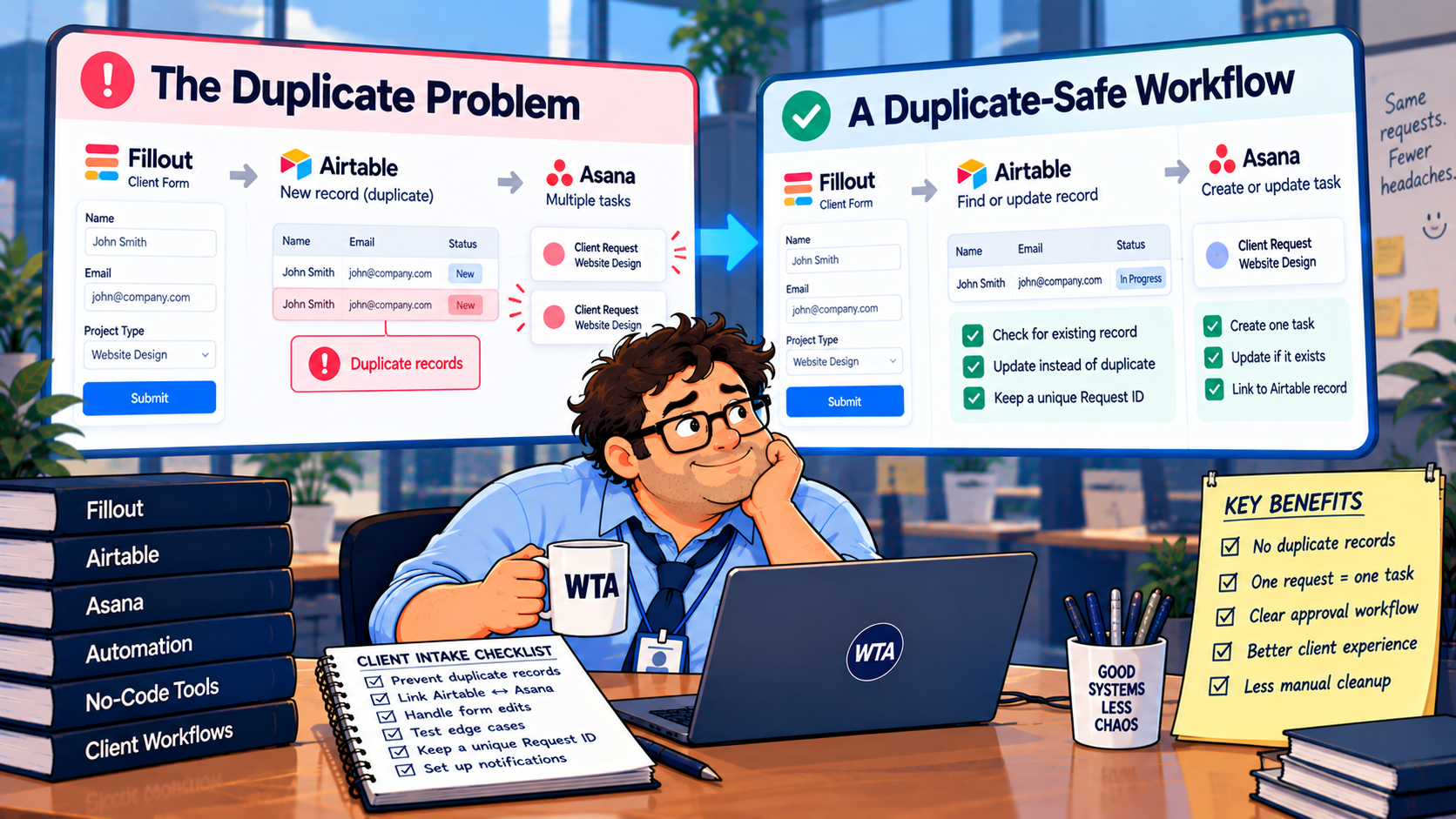
Bob’s field note: if the Asana task exists but Airtable still shows a blank task ID, do not press “replay” first. Find the existing task, restore the missing ID, and only then resume the workflow.
Six launch tests worth doing before clients see the form
Use a test base and test project. The expected result matters more than whether every automation step displays a green checkmark.
| Test case | Expected result |
|---|---|
| 1. A new client sends a new request | One Airtable request, one review item, then one Asana task after acceptance. |
| 2. The same client sends a different project | A new request ID and a separate task; email matching must not block it. |
| 3. A client corrects an accepted request | The original request updates; the existing Asana task is amended or flagged. |
| 4. The edit link is missing its record ID | No silent duplicate: warn, reject, or route to a review queue. |
| 5. The task is created but the ID write-back fails | Needs repair; find the existing task before replaying anything. |
| 6. Two submissions arrive almost together | Only one accepted work item, or an explicit duplicate exception for human resolution. |
For ongoing maintenance, add a periodic check: search Airtable for likely duplicates and compare accepted requests with Asana task IDs. Airtable’s Dedupe extension can identify and merge duplicate records on paid plans, but Airtable is clear that its automation-based duplicate detection runs after</em records are created. Cleanup is not the same as prevention.
Do you need Zapier, or will Airtable automation do?
If Fillout writes to Airtable and a simple accepted-record rule is all you need, begin with Airtable’s native automation actions. Keep the number of systems that can create an Asana task to one. A more complex workflow may need Zapier for additional routing, notifications, or cross-app search, but that is a workflow requirement rather than an automatic upgrade.
If you do use Zapier, build one owner Zap for the outbound task creation, use a search or find-or-create pattern where the destination supports it, and inspect run history when duplicates appear. Zapier’s troubleshooting guide lists multiple Zaps, broad triggers, loops, and timeouts among common causes. Our Airtable Automations vs Zapier guide goes deeper on where native automation stops being enough.
If all you need is task intake, skip Airtable and use Asana Forms. If client updates, portal access, and record history matter, keep Airtable as the request system and make Asana downstream. The right choice depends on which app must hold the authoritative client record, not which tool has the longest integration list.
Check plan limits before building the workflow
A prototype can be simple; a production rollout still depends on plan features. As of October 21, 2026, Fillout’s pricing page lists 1,000 monthly responses on Free; paid plans raise that allowance. Asana’s pricing page lists Forms on Starter, with branching and deeper customization on Advanced. Airtable’s Dedupe extension is available on paid plans. Check your current plan, permissions, and expected response volume before committing.
Do not price the workflow only by the form subscription. Count the Asana seats you actually need, Airtable usage, automation runs, exception-review time, and the cost of repairing one wrong client task. These costs are not identical across a solo consultant and a 20-person agency.
A small team that already pays for Airtable and Asana may need no new subscription. A team with complex client-facing updates may find a dedicated form layer worthwhile. The least expensive design is usually the one with the fewest independent places where a new request can be created.
What to document so the system stays reliable
Write a one-page operating note for the person who inherits this automation: where a new request enters, which table owns its ID, who approves it, which automation creates the Asana task, where the task ID is stored, and what to do when a run fails halfway through. Add a link to the test cases above and review them after changing forms, fields, or integrations.
The same duplicate-safe principle applies when tasks originate from messages rather than forms. Our Slack emoji-to-Asana workflow illustrates why a single deliberate task-creation boundary matters regardless of the trigger.
WTA VERDICT
One accepted client request should own one durable ID and one downstream work item. Fillout can collect and update the details, Airtable can hold the request state, and Asana can manage delivery. The safety comes from explicit create-versus-edit routes, a stored Asana task ID, and a repair path for partial failures, not from assuming every successful automation is duplicate-proof.
3-Line Takeaway
- Separate events from requests: repeat submissions should not automatically mean new work.
- Save the destination ID: check and write back the Asana task reference before allowing another create.
- Test partial failures: retries, missing edit IDs, and simultaneous submissions expose the real duplicate risks.
Research note: Product behavior and plan references were checked against official vendor documentation on October 21, 2026. This is a documented workflow design, not a claim of hands-on testing. Features and limits may change.

Leave a Reply