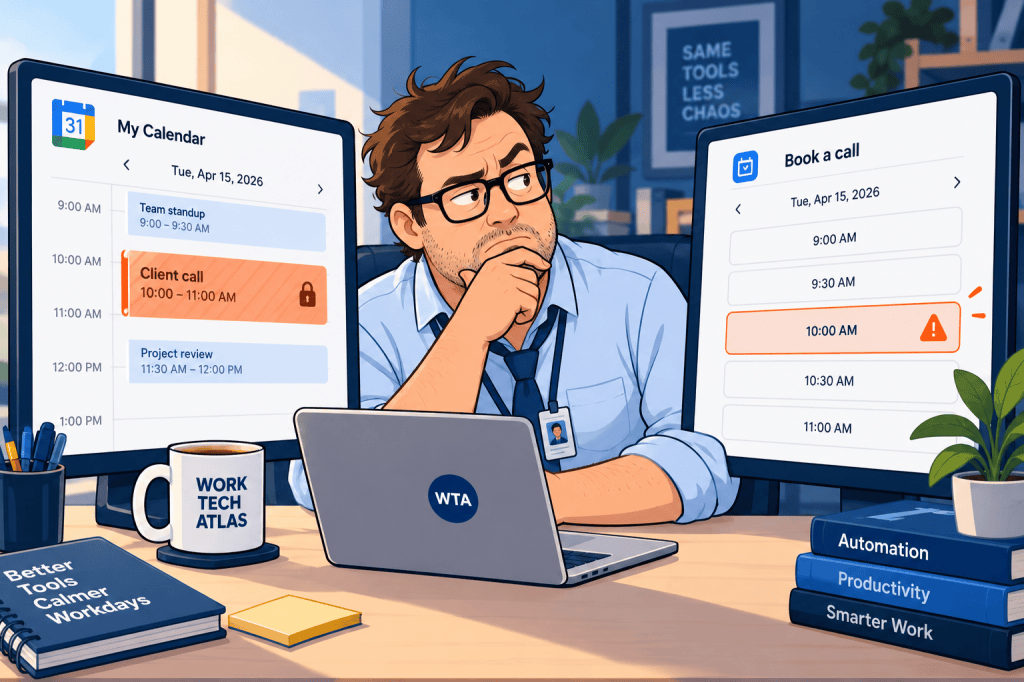
A client books a 30-minute kickoff call for Tuesday at 2:00 p.m. The consultant already has a private appointment at that hour, but Calendly still offered the slot. A teammate adds a calendar automation to “fix” it. Now the client has two calendar invites instead of one.
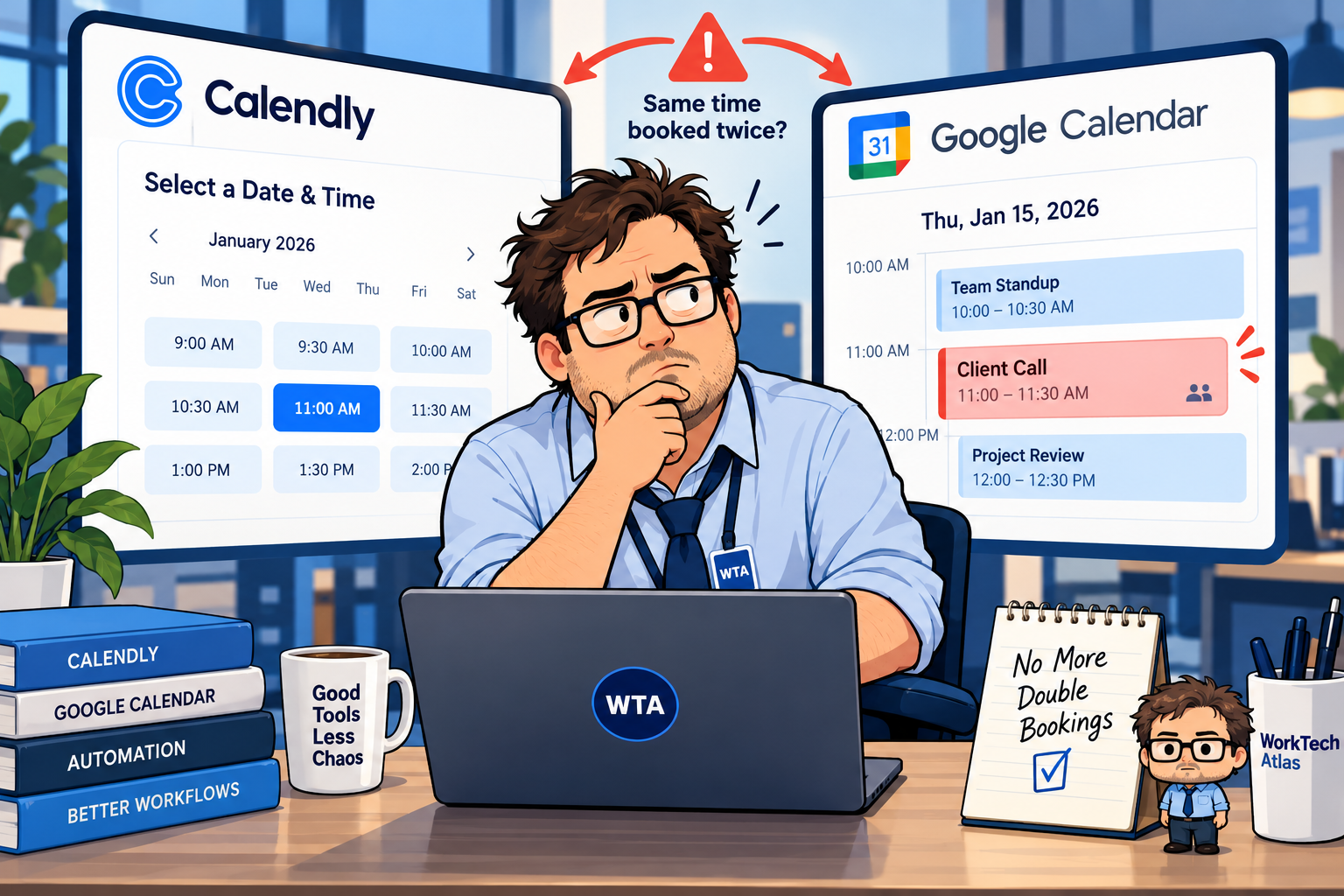
Those are two different failures. A double booking means two commitments compete for the same time. A duplicate event means one real appointment appears more than once. Treating both as a sync problem can make the calendar harder to trust.
Quick answer: If Calendly shows busy times as available, first verify the calendar account, the calendars checked for conflicts, and each event’s Busy/Free status. Then inspect booking exceptions and any second scheduling page. If the problem is two copies of the same meeting, audit your automation before changing availability settings. This is a configuration guide based on official product documentation, not a report of hands-on testing.
Double booking or duplicate event? Diagnose the symptom first
Start with the symptom, not the app you suspect. The fastest fix is usually at the layer that made the incorrect decision.
| What you see | First place to look | What to verify |
|---|---|---|
| A busy hour is still bookable | Calendly conflict checks | Correct calendar selected; existing event marked Busy |
| Two different clients booked one host at the same time | Multiple booking links or host rules | Both links see the same conflicts; team host owns the slot |
| One client gets two calendar events | Automations and destination calendar | Scheduler already writes the event; a Zap may write another |
| Google booking page and Calendly disagree | Separate booking systems | Each booking page checks the same real commitments |
| Time is unavailable but calendar looks clear | Availability, buffers, limits | Hidden Busy events, meeting limits, and date rules |
This distinction matters for small teams. A calendar can be perfectly synchronized and still show an unwanted slot if the relevant event is marked Free or an event exception allows bookings over it. Conversely, two copies of one appointment can be created even when conflict detection works.
Seven checks, in the order that saves the most time
1. Confirm the calendar account Calendly is connected to
Open Calendly’s calendar settings and verify the connected Google account is the one where the host’s real commitments live. A work Gmail account and a personal Gmail account can look similar in a browser, but connecting one does not automatically mean Calendly can see the other.
Calendly’s current calendar connection guide says the Free plan connects one calendar account, while paid plans can connect up to six per user. If a critical calendar is outside the connection limit, first decide whether a supported calendar-sharing setup will expose the relevant Busy events; only then consider a plan change. Do not upgrade just because a slot looked wrong once.
2. Check the exact calendar that contains the blocked event
A connected Google account may contain a primary calendar and other calendars. In Calendly, look at Calendars to check for conflicts, not only the calendar where new bookings are added. These are different choices. The Google Calendar connection instructions explicitly separate conflict-check calendars from the destination calendar.
For a three-person consultancy, write down which calendars actually contain client calls, personal unavailability, travel, and team commitments. Then check only the calendars whose Busy events should prevent bookings. A shared calendar that is visible in Google Calendar but not selected for conflict checks can be an easy-to-miss gap.
3. Open the event and inspect Busy versus Free
In Google Calendar, open the event that should block the time. If it is marked Free, Calendly generally treats that time as bookable; an event marked Busy blocks it when its calendar is selected for conflict checks. This behavior is documented in Calendly’s Busy/Free help article. All-day events deserve a look too: a Busy all-day item can block far more than intended.
Do not assume “tentative” means the same thing in every booking system. Google’s own appointment-schedule documentation notes that unaccepted or tentative Google Calendar events do not block its appointment availability. That statement is about Google appointment schedules; do not transfer it uncritically to every Calendly connection or to Outlook status mappings.
4. Look for a rule that deliberately permits overlap
Calendly has Free/busy rules that can allow bookings over selected existing meetings. They can be useful when a team wants a high-priority client meeting to take precedence, but they are a poor surprise if no one remembers setting them. Open the affected event type and inspect its exceptions, especially rules matching words in meeting titles.
A calendar marked Busy is not a universal guarantee if the booking tool has been instructed to ignore that category of event. Remove an exception only after confirming why it was added; a team may have a legitimate workflow that depends on it.
5. Check whether two booking pages are selling the same hour
A consultant may share Calendly in email and a Google Calendar booking page on the website. These are two independent scheduling paths. Google says its appointment booking pages can check calendar availability and add booked appointments to Google Calendar, but premium multi-calendar features depend on the Workspace plan.
If both links remain live, make sure the booked events land on calendars the other system actually checks. Otherwise, the first booking can be legitimate in one system while the second system still advertises the same hour. The simplest policy for a small team is usually one public booking link per meeting purpose, with old links retired or redirected.
6. Stop a Zap from creating a second copy of the same meeting
Calendly already adds scheduled meetings to the destination calendar you selected. If a Zap also listens for new Calendly bookings and creates a fresh Google Calendar event without checking for an existing booking, the two systems may create separate entries for one client call. This is an architectural risk, not proof that every such Zap duplicates events.
Before enabling a create-event action, ask whether the booking exists in Google Calendar already. If you need a separate operations record, create or update a record in your CRM or intake database instead of blindly making another appointment. Zapier’s duplicate-data troubleshooting guide recommends filters, find-or-create actions where supported, and checking for multiple Zaps or loops. Use a stable booking ID and an existing-event lookup when the app actions support them.
7. Check host ownership, buffers, and disconnected calendars
For Round Robin or Collective events, confirm each host’s calendar is connected and checked. Calendly’s availability overview recommends that each team member connect their own calendars; do not assume the team owner’s connection covers everyone. Buffers and meeting limits protect capacity, but neither substitutes for checking a real conflicting event.
Finally, look for a disconnected-calendar warning. Calendly notes that revoked permissions, password changes, or temporary access problems can disrupt availability; follow its reconnection instructions before trusting a public booking link again.
Run this preflight before sending another client link
Most booking mistakes reveal themselves in one controlled test. Use a future test slot that no client needs, and cancel any test booking when finished. If your account has multiple hosts or booking pages, repeat the check for each path that can produce a client appointment.
- Block: Create a short Busy event on the calendar that should protect the host, then confirm the same time disappears from the public booking page.
- Expose: Temporarily mark a separate non-sensitive test event Free and confirm the change behaves as expected. Restore the intended status afterward.
- Cross-check: If both Calendly and a Google appointment page are public, verify a booking made through one removes the slot from the other.
- Inspect: Book one test appointment and count calendar events, confirmation emails, and downstream records. Check whether one real booking produced an unintended second meeting.
- Reschedule: Move or cancel the test booking using the booking system, then confirm that downstream records are updated rather than duplicated.
Record the result in a small table: test slot, booking link, host, conflict calendar, expected result, actual result, owner. If one test fails, fix that layer and rerun the same test. Do not keep adding automations until the outcome looks right.
Where client intake changes the answer
An intake form is not a booking system. A prospect can submit a project request without the team agreeing to take the work, and a calendar booking does not necessarily mean a proposal has been approved. Keep those states separate: request received → review completed → appointment confirmed.
Our guide to receipt, approval, and update emails explains why a submission acknowledgment should not promise that work is scheduled. If a client edits their intake answers later, use one request identifier rather than creating a second case; the duplicate-safe Fillout → Airtable → Asana workflow shows that pattern for request records.
For teams connecting a booking to a CRM or task system, the decision is similar to the one in our Airtable Automations vs Zapier intake comparison: keep one source of truth, and let downstream tools update that record. A booked appointment should have a booking ID, host, start time, time zone, and current status. A canceled appointment should not remain labeled “confirmed” in the client record.
If the underlying problem is that client calls consume every open hour, review the calendar rules for protecting focus time before buying an AI scheduler. A simple weekly availability window and a real Busy block may be enough.
Do you need a paid plan or a different scheduler?
Not necessarily. A missing calendar connection can be a plan-limit issue, but it can also be the wrong account, an unchecked calendar, a Free event, an overlap exception, or a second public booking page. These are configuration questions first. Calendly documents one connected calendar account on Free and up to six on paid plans; exact entitlements should be rechecked before purchasing.
Google Calendar appointment schedules are worth considering when a team already pays for Google Workspace and needs a straightforward booking page. But switching tools does not solve the need to identify which calendars are checked, which host owns the booking, and whether an automation creates extra events. Evaluate the workflow, not only the subscription price.
WTA VERDICT
Fix the calendar truth before automating around it. For most small service teams, the first useful move is to confirm the conflict calendar and Busy status, remove accidental overlap rules, and retire redundant booking links. Treat duplicate calendar entries as a separate automation problem. Only compare paid plans after those checks reveal a real feature limit.
3-Line Takeaway
- A bookable busy hour points to conflict settings, event status, or a second booking page.
- Two copies of one call point to duplicate event creation or an untracked automation.
- Test one real booking path end to end before sharing links with clients.

Leave a Reply