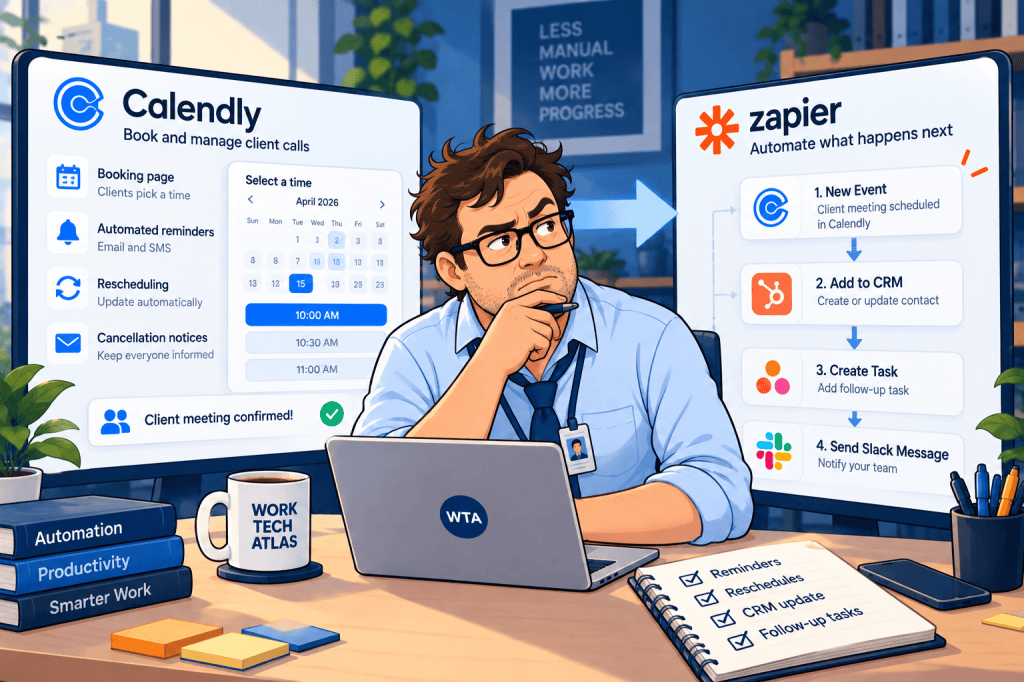
A consultant schedules a discovery call for Tuesday. The client gets a calendar invitation, a reminder from the booking tool, and another reminder from an automation. On Monday, the client moves the meeting to Thursday. The CRM records a cancellation, the project board gets a second task, and the old reminder is still waiting to send.
No single app necessarily malfunctioned. The problem is that two systems were allowed to own the same part of the appointment.
Quick answer: For a small team using Calendly, start with Calendly Automations for appointment-specific emails and reminders. Add Zapier when a booking must update another system, such as a CRM, task board, or internal notification channel. The difficult part is not connecting the apps; it is deciding which system may send a message, create a record, or react to a reschedule.
Product features and public USD pricing checked October 27, 2026. This is a documentation-based workflow analysis, not a hands-on product test.
Calendly Automations vs Zapier: assign one owner to each job
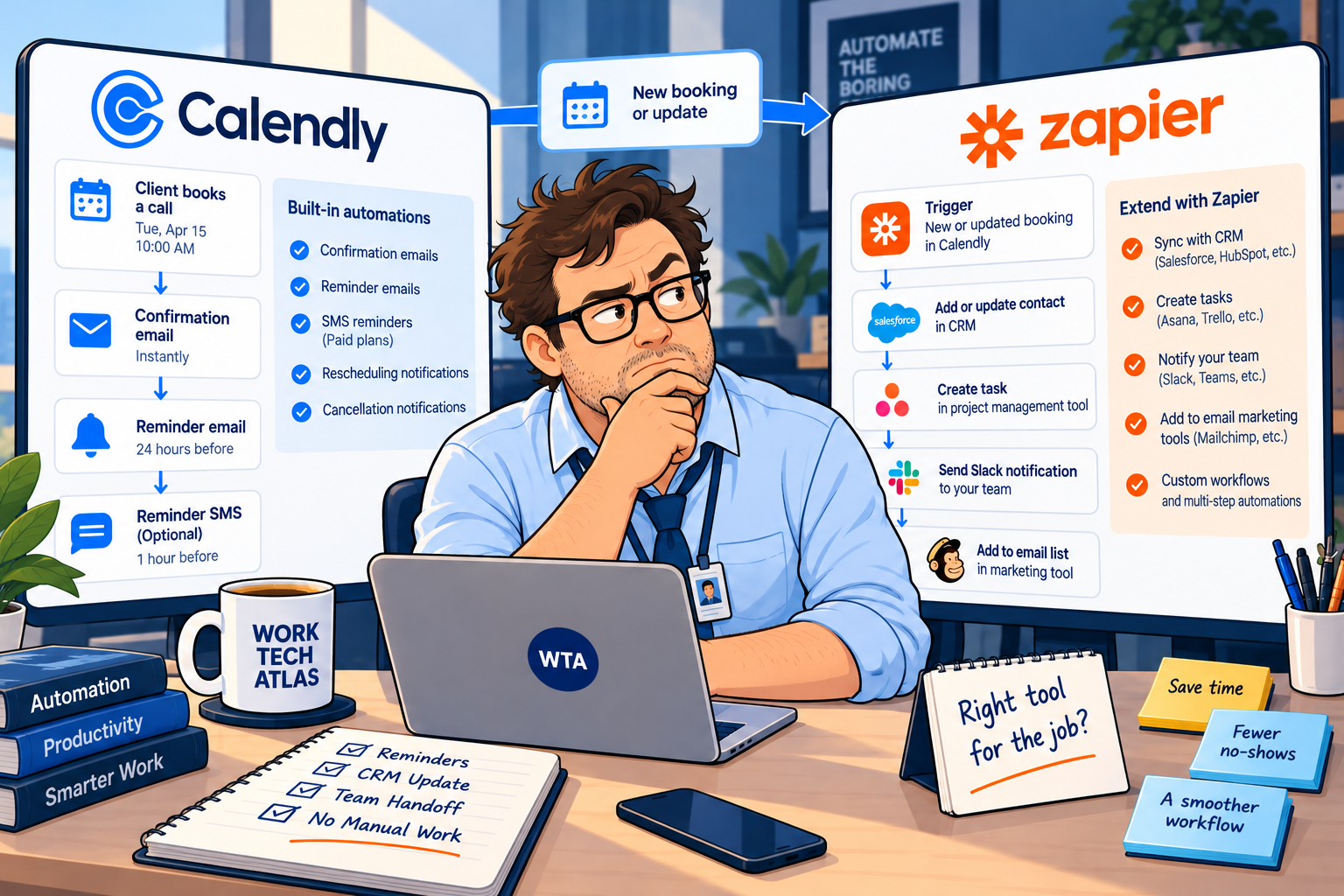
Calendly calls its built-in reminder and follow-up feature Automations in its current help documentation. Some older guides and URLs still call these Workflows; Calendly’s current setup guide uses the Automations name. Zapier is a separate automation platform that listens for Calendly events and performs actions in other apps.
| Job | Better default owner | Why |
|---|---|---|
| Booking confirmation and meeting details | Calendly’s built-in notifications | The booking tool already knows the appointment and invitee. |
| Reminder or post-call thank-you email | Calendly Automations | Keeps meeting communications close to the event lifecycle. |
| Create or update a CRM record | Zapier, unless a suitable native integration already covers it | The destination system needs a reliable record, not just an email. |
| Create a preparation task or notify a teammate | Zapier, when the task truly lives outside Calendly | Lets the team work in its existing project or chat tool. |
| Handle a reschedule or cancellation | Both, but with separate responsibilities | Calendly owns invitee communications; Zapier updates downstream records. |
This is a division of responsibility, not a ranking of the two products. A reminder that stays inside Calendly is usually easier to maintain. A booked consultation that must become a qualified lead in another app needs a different kind of automation.
If you are still sorting out calendar availability, fix that before adding a Zap. Our Calendly and Google Calendar double-booking checklist covers conflicts and duplicate calendar events; neither automation tool can compensate for the wrong calendar being checked.
What Calendly can do without a Zap
According to Calendly’s Automations overview, Automations can run when an event is booked, begins, ends, is rescheduled or canceled, or when an invitee is marked as a no-show. A before-event trigger supports reminders. The same feature can send a thank-you message, request feedback, or invite someone to book another meeting.
Calendly also documents an important exception: when an invitee is marked as a no-show, its no-show Automations take precedence over ordinary post-meeting follow-ups. That is useful if you would otherwise send “Thanks for joining” to someone who never attended. The behavior depends on actually marking the no-show; a team that never updates attendance should not rely on this safeguard.
For a 30-minute introductory consultation, a native-only setup might use the standard booking confirmation, one reminder before the call, and a carefully worded follow-up afterward.
Do not add a second confirmation Automation merely because the template exists. Decide whether the default notification or your custom Automation is responsible for each message.
There are boundaries. Calendly says a user or team can create up to 50 Automations across event types, and updates to Automation settings apply to future bookings, not meetings created before the change. Its Automation activity view lets you inspect what ran for a particular meeting. Those details matter during troubleshooting: a corrected template does not necessarily repair a reminder already scheduled under an older configuration.
For personal event types, Calendly can also send Automation emails through a connected Gmail or Outlook account, allowing recipients to reply to the sender. That option has restrictions, including a single connected sending account; do not assume it works identically for shared or team event types.
Use Calendly alone when: the outcome is a meeting-specific message, the recipient is the invitee or host, and no external record needs to change.
Where Zapier earns its place
Zapier becomes useful when the appointment affects work beyond scheduling. For example, a new paid consultation might need an internal preparation task, an updated lead record, and a notification to the person responsible for the client. These are operational changes, not reminders.
The Calendly app on Zapier supports triggers for an invitee being created or rescheduled, an invitee canceling, and a no-show being marked, among others. Zapier’s current setup documentation requires Calendly Standard or higher to use the integration. A free Zapier account does not remove that Calendly requirement.
Consider an illustrative three-person consulting team. Each consultant hosts calls in Calendly, while the operations coordinator uses a shared task board. A sensible Zap would:
- Receive a new booking from Calendly.
- Find the corresponding client or booking record in the destination system.
- Create the preparation task only if the record does not already reference that booking; otherwise update the existing task.
- Notify the assigned consultant only after the task has been linked successfully.
That sequence is a design pattern, not a claim that a particular template automatically performs every check. The actual steps, search fields, and update actions depend on the destination app and your Zapier plan. A simple “create task” action on every booking can make a mess as soon as a client changes their time.
For a related example of keeping approval inside one system and handoff inside another, see our Airtable Automations vs Zapier guide for client intake. The principle carries over: one record owns the decision, and cross-app automation transports that decision rather than inventing a second one.
The reschedule trap: a cancellation is not always a lost client
Here is the detail that deserves its own test before any client-facing automation goes live. Zapier’s Calendly troubleshooting guide explains that a Calendly reschedule cancels the original booking and creates a new booking. As a result, a cancellation trigger may run for the old appointment while a created-or-rescheduled trigger runs for the replacement.
Imagine an appointment moves from Tuesday at 2 p.m. to Thursday at 11 a.m. If your cancellation Zap tells the CRM to close the opportunity, and your booking Zap creates a brand-new opportunity, one client change has produced two contradictory outcomes.
| Event observed | Safe interpretation | Downstream action to consider |
|---|---|---|
| New booking | A new appointment exists | Find or create a linked appointment record. |
| Rescheduled booking | An old appointment was replaced | Update the active appointment reference and task due date. |
| Cancellation of old booking | May be a reschedule, not a lost client | Check whether a replacement booking exists before closing a client record. |
| True cancellation without replacement | Appointment is no longer active | Cancel prep work and notify the owner according to policy. |
A booking identifier is a better link than a person’s email address alone: one client may legitimately book several sessions. Store the relevant event or invitee reference, the current appointment time, and a status such as scheduled, rescheduled, or canceled in the destination system. Treat these as your own data-model choices, not guaranteed Calendly field names.
Do not rely on a simple search-before-create step as a perfect duplicate lock. Retries and near-simultaneous events can still race. If duplicate records would cause serious harm, use a destination with a unique key or an explicit update/upsert strategy, and test what happens when the same event is processed twice.
The same caution applies to delayed messages. If a Zap waits until one hour before the original meeting and then sends an email, check the current appointment status immediately before the send. Never assume a delay step will automatically cancel itself when a booking changes.
A small-team setup that stays understandable
Before opening another automation builder, write down who owns the confirmation, the reminder, the client record, the internal task, and the cancellation. If two boxes have the same owner and purpose, ask whether you need both.
1. Keep appointment communication in Calendly. Use its booking notifications and Automations for one confirmation path, one reminder path, and any appropriate no-show or post-meeting message. If you use a custom reminder, inspect the default notifications so the client does not get two versions of the same information.
2. Make one external record the source of truth for work. A CRM record may own the commercial relationship; a task may own preparation. Avoid making both systems independently decide whether a client request has been accepted. Our client intake confirmation email guide explains why “received,” “approved,” and “updated” should not be interchangeable promises.
3. Use Zapier for a specific handoff. Choose the booking event, the destination record, and the exact field that links them. If the team only needs a reminder, stop here and use Calendly instead.
4. Give changes their own path. Reschedules should update the current appointment; cancellations should be evaluated before closing the record; no-shows should not trigger an ordinary “great meeting” follow-up. Avoid sending the same status update from both platforms.
5. Keep a human decision where it matters. A booked call does not automatically mean a proposal was accepted, a refund was approved, or a project should begin. A scheduling event can request review; it should not silently authorize commercial commitments. For the wider pattern, see where to put human approval in an AI workflow.
The resulting architecture is intentionally unglamorous: Calendly manages the appointment and client-facing meeting messages; Zapier carries approved event changes to the systems where the team actually works.
What the plans cost in October 2026
The relevant price is not “Calendly versus Zapier,” because many teams use both. It is the incremental cost of adding Zapier to a Calendly setup that already handles scheduling.
Calendly’s published pricing lists Standard at $10 per seat per month when billed annually, including Automations and reminders. Teams is $16 per seat per month when billed annually, adding round-robin scheduling and team controls. Its Free plan includes basic booking but not the same Automation features.
Zapier’s pricing page lists a Free tier with 100 tasks per month and two-step Zaps. Professional starts at $19.99 per month and adds multi-step Zaps and other advanced capabilities. The displayed starting price is not a promise that every workflow volume or billing choice costs $19.99; task usage and plan options affect the bill.
| Scenario | Likely starting point | Budget implication |
|---|---|---|
| Solo consultant needs booking reminders only | Calendly Standard | No separate Zapier subscription needed for that job. |
| Solo consultant needs one simple cross-app update | Calendly Standard + evaluate Zapier Free | Calendly still must be paid; verify Zap steps and monthly task volume. |
| Three consultants need CRM updates, filters, and task handoffs | Calendly seats + an appropriately sized Zapier plan | Price the number of hosts and expected downstream task usage separately. |
If collecting consultation payments is the real decision, use our Cal.com vs Calendly guide for paid consultations instead. Do not pay for a more complex automation stack just because a template makes it look easy. Start with the one external update that saves real work. If the team already has a suitable native integration, compare that path before adding another paid tool.
Seven tests before clients depend on it
Run these with test bookings and a clearly labeled test client. Check the messages received, the records changed, and the automation history, not just whether the trigger says “successful.”
- New booking: exactly one intended confirmation or reminder path is active; one linked destination record is created.
- Same event processed twice: the second run updates or exits instead of creating another task.
- Reschedule: the new time appears in the active record; the old task or reminder does not survive unnoticed.
- Cancellation: the appointment is marked inactive, but a reschedule is not mistaken for a lost client.
- No-show: a missed meeting does not produce a cheerful attendance thank-you.
- Different time zones: the client-facing time and the internal due time agree after conversion.
- Human review: a new booking cannot bypass a required acceptance, payment, or scope decision.
If a test fails, inspect Calendly’s event timeline and the destination record before adding another rule. A chain of patches often hides the original ownership problem.
WTA VERDICT
Use Calendly Automations for the conversation around the appointment; use Zapier for the work that appointment creates elsewhere. For most solo consultants, the native reminder and follow-up tools are the simpler first choice. A small team should add Zapier only when it can name the destination record, the update rule, and what happens after a reschedule.
3-Line Takeaway
- Reminders: keep one message owner, usually Calendly.
- Handoffs: use Zapier for a specific external record or task, with duplicate checks.
- Reschedules: treat the old cancellation and new booking as one client change, then test it.

Leave a Reply