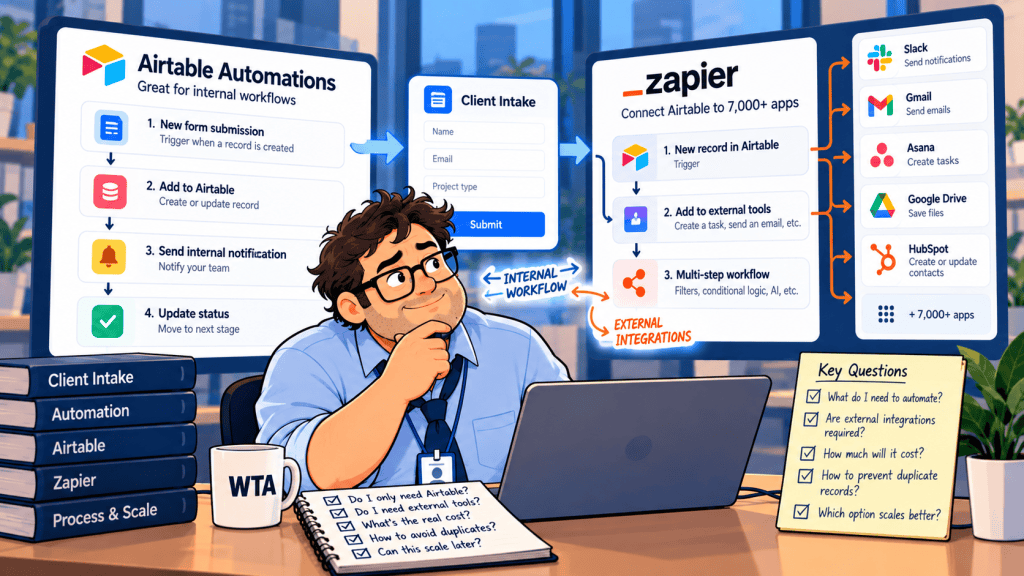
An agency receives a new client request through a form. Someone needs to check whether the client already exists, approve the work, and send the approved request to the delivery team. Airtable can manage the review. Zapier may help with the handoff—or introduce another place where duplicate work can begin.
Short answer: Keep the review and record updates inside Airtable when Airtable is already the source of truth. Add Zapier when an approved request needs dependable coordination with apps such as Asana, Gmail, or HubSpot. Neither product automatically makes an intake process duplicate-proof.
This comparison is for small agencies, operations managers, and service teams choosing the automation layer after they have picked a form or database. It is a documentation-based decision guide, not a hands-on benchmark. Product and plan details were checked against official pages on October 17, 2026.
Airtable Automations vs Zapier: the decision in one table
| Question | Airtable Automations | Zapier |
|---|---|---|
| Where the workflow begins | Records and conditions in an Airtable base | Events in Airtable or many other connected apps |
| Best first use | Review gates, linked records, status changes, internal notifications | Moving an approved request into another team’s software |
| Finding an existing client | Find records, then use the correct record ID for an update | Find Record, Find or Create Record, or Create or Update Record actions |
| Repeat-run protection | Requires carefully designed status and processed fields | Trigger deduplication exists for polling, but action-level duplicates remain possible |
| Usage meter | Runs triggered per Airtable workspace/month | Tasks and plan features; multi-step workflows need a paid tier |
| Main operational risk | Re-triggering or updating the wrong Airtable record | Two systems creating or updating the same client or project |
The critical distinction is who owns the decision. Airtable is well suited to holding a request until a human marks it ready. Zapier is most useful once that decision must cross an application boundary. A tool choice cannot compensate for a missing client identifier or a vague approval rule.
When Airtable alone is enough
Suppose every intake request lands in an Airtable Requests table and the team already reviews it there. Airtable automations support triggers such as “when record created,” “when record updated,” and “when record matches conditions,” plus actions to find and update records. Its documentation recommends a single ready signal for work that should happen once, rather than a condition that can become true halfway through manual data entry. Airtable explains why a ready checkbox is safer.
Use a small set of fields that separate intake from execution: Request ID, Client ID, Review status, Approved by, Approved at, Processed at, and External task ID. A request can be new while the client is existing; those are different facts and should not share a single status field.
A workable Airtable-only route
- Capture: save the submission as a request, not automatically as a second client. Keep the submission’s own identifier.
- Review: have a person confirm the client match and whether the request is in scope.
- Approve: change one deliberate field from Pending to Approved (or check Ready).
- Update: use the known Airtable record ID to update the intended client or request. Stop for manual review if a lookup returns zero or multiple plausible clients.
- Close the loop: write a processed timestamp and the resulting record or task ID. Show failed items in a separate exception view.
Airtable’s Update record action requires one record ID. A hard-coded ID can send every run to the same record; an overly broad Find records step can return the wrong match. Those are design errors, not pricing-tier problems. For client corrections rather than new inquiries, see our guide to updating Airtable records without losing data.
An Airtable-only route also reduces the number of third-party connections holding access to the base. It does not remove the need to review permissions. If customers will sign in to see records, use the separate client portal permissions checklist before inviting them.
When Zapier earns a place in the workflow
Zapier becomes more compelling when the approval is in Airtable but the work happens elsewhere. Its Airtable integration directory lists triggers for new and updated records, along with Find Record, Find or Create Record, Create or Update Record, and other actions. Those can support a route from an approved Airtable request to an Asana task or a CRM update without treating Airtable as the only operating system.
For example, a team can put approved, not-yet-exported requests in a dedicated Airtable view, have a Zap watch for eligible records, create a task in the delivery app, and write the external task ID back to Airtable. Before switching it on, confirm exactly how that trigger handles records entering the view and what happens if a record is edited or re-enters. Do not assume a view filter is an exactly-once guarantee.
There is a meaningful catch: Zapier documents polling-trigger deduplication within an individual Zap, but says action-level duplicate behavior depends on the receiving app. Two Zaps watching the same intake source can both run. “The trigger did not fire twice” is not proof that a client record or task can only be created once.
Zapier’s published pricing and feature table shows a Free tier with 100 tasks per month and two-step Zaps, while Professional starts at $19.99/month and adds multi-step Zaps. The Airtable connector page lists a 15-minute polling interval on Zapier Free; the pricing comparison lists faster polling on paid tiers. Check the billing selector, task tier, and connected-app requirements before treating any starting price as your actual monthly cost.
The hybrid pattern: approve once, then hand off
For a 10-person agency, a simple boundary is often easier to maintain than a fully synchronized stack. Keep one authoritative intake record in Airtable; use Zapier only for the first cross-app action after approval. This is an illustrative design, not a tested workload or cost estimate.
| Stage | System of record | Guardrail |
|---|---|---|
| 1. Form submission | Airtable Requests | Unique Request ID; no immediate client creation |
| 2. Client match and scope review | Airtable Clients + Requests | Reviewer checks uncertain matches |
| 3. Approval | Airtable Requests | Single Approved state; approved timestamp |
| 4. Delivery task creation | Zapier → project app | Search for existing external task; carry Request ID |
| 5. Receipt | Airtable Requests | Write external task ID, export status, and last error |
| 6. Recovery | Exception view | Retry or reconcile deliberately; do not create blindly |
Airtable should not simultaneously create the delivery task if Zapier is already responsible for it. Pick one owner for each external write. This is also why a clear approval owner matters more than a longer automation chain. Our Airtable vs Notion client intake approvals comparison covers the upstream question of where that decision should live.
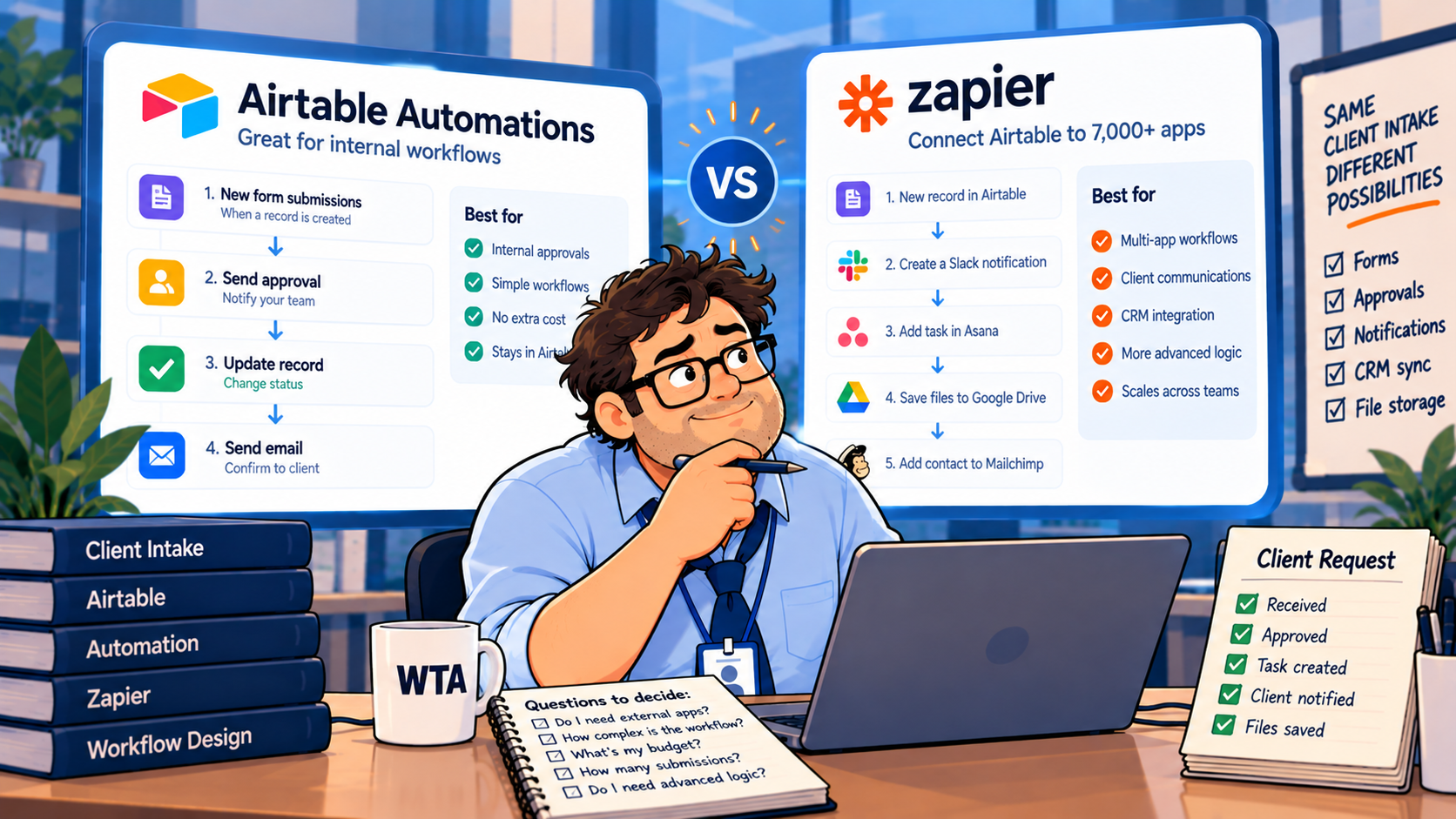
Four failure cases to test before inviting real clients
The phrase “duplicate-safe” should describe a tested recovery policy, not a promise that retries cannot happen. Build a small test table with fictional clients and try these cases before you connect production accounts.
- The same person submits twice: two Request IDs may be legitimate submissions. Match the client by a stable, reviewed key, not by a name alone. Do not merge two different jobs just because the email matches.
- Approval is toggled twice: Airtable’s “matches conditions” trigger can run again if a record stops matching and later matches. An Approved value is not enough; inspect Processed at and the external task ID before creating anything.
- A Zap fails after creating a task: the task may exist even if the receipt was not written back. Search the destination by Request ID or another durable reference before retrying. A find-then-create check alone may not prevent two simultaneous runs from racing.
- The wrong client is matched: a successful automation can still update the wrong record. Require a reviewer when lookup results are ambiguous, and check linked records and access permissions after the write.
Airtable’s October 15 updated-record trigger documentation specifically warns that an automation watching a field it also writes can re-trigger itself. Zapier likewise warns that duplicate handling for actions depends on the app. If your workflow must guarantee one-and-only-one creation under simultaneous submissions, use a system that enforces a unique key or transactional constraint; neither visual builder alone establishes that guarantee.
Plan limits and the cost question
Airtable counts an automation run whenever a trigger is invoked, even if later actions fail. As of the official documentation checked October 17, 2026, its monthly workspace allowances are 100 runs on Free, 25,000 on Team, and 100,000 on Business. Limits reset on the first of the month. Airtable Free also restricts its built-in Send email action to verified collaborators in the base; Team permits up to 100 unique non-collaborator email addresses per day. These details matter if your intake system sends client confirmations. See Airtable’s plan-limit reference and email action limits.
Zapier bills around tasks rather than Airtable-style triggered runs. A request that only changes status inside Airtable may not justify a second paid platform. A request that also needs an Asana task, a CRM update, and a confirmation email can justify Zapier—but each action path and its task consumption must be estimated from the actual Zap, not from the number of submitted forms.
Do not compare “25,000 Airtable runs” with “100 Zapier tasks” as though they were identical units. One is a triggered automation run; the other is a billable-work unit in a different product. A useful buying exercise is to count monthly requests, the percentage approved, the number of cross-app actions per approved request, and how often corrections or retries happen. Then check the current plan selector for both products.
Which should your team choose?
| Your situation | Start here | Why |
|---|---|---|
| Requests, reviews, and internal status all live in Airtable | Airtable Automations | Fewer connections and one place to audit |
| Approved requests must create work in Asana or update a CRM | Airtable + Zapier | Clear cross-app handoff with one authoritative intake record |
| Multiple external forms and inboxes feed one queue | Zapier feeding Airtable, then Airtable review | Normalize incoming sources before approval |
| You need guaranteed uniqueness under concurrent writes | Neither alone is a guarantee | Use enforced unique keys / transactional controls and test recovery |
If the decision is really between multiple automation platforms rather than Airtable-native versus cross-app orchestration, our Zapier vs Make vs n8n comparison is the better next read. For this intake use case, first decide whether a cross-app handoff is necessary at all.
WTA VERDICT
Start with Airtable Automations for the approval boundary; add Zapier only for the work that must leave Airtable. Keep a separate Request ID, preserve the client’s canonical record, and require a durable receipt when an external task is created. That design is easier to audit than two platforms both trying to own the same update.
3-Line Takeaway
- Airtable first: use a deliberate approval state and update by the correct record ID.
- Zapier when needed: connect approved requests to other apps, with a receipt back in Airtable.
- Test the ugly cases: duplicate submissions, re-approvals, partial failures, and ambiguous client matches.

Leave a Reply