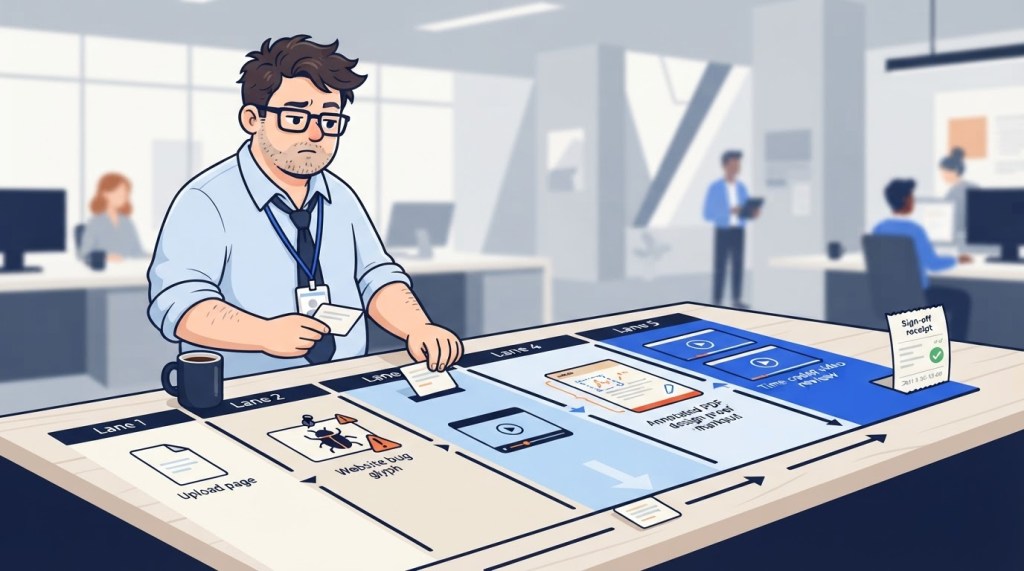
A client sends a screenshot of a broken checkout button. Another writes “approved” beneath last week’s design PDF. A third asks for a small edit in a video, but only describes it as “the part near the end.” All three messages arrive in the same project inbox. None calls for exactly the same review process.
That is what a single client feedback tool cannot automatically sort out. An agency can buy an excellent annotation product and still lose track of which file was approved. It can move every request into a task board and still have no reliable record of who signed off. For a three-person studio dealing with several clients and a dozen outside reviewers, the expensive mistake is often routing different kinds of feedback through the same door.
This client review workflow guide is a map of decisions, not a ranking of five “best” apps. It uses current vendor documentation and a realistic small-agency scenario to separate intake, website bugs, screen-recorded problems, design proofs, and video edits. There is no hands-on testing behind the recommendations, and there are no affiliate links.
The short answer: Route a request by the evidence and decision you need. Keep one internal task owner, tie the decision to an identifiable version, and test external-link access before making a tool part of your client process.
Route client feedback into five distinct review lanes
| The client needs to… | Capture the right evidence | What must come out of review? |
|---|---|---|
| Submit a brief or missing file | Structured fields and a file request | A complete intake record, not an approval |
| Point to a problem on a website | Page location, screenshot, device/browser context | A reproducible issue with an owner |
| Show a failure that unfolds over time | Short customer-recorded video, reproduction steps | Enough context to investigate without a call |
| Comment on a PDF, mockup, or design | Annotations attached to a named file version | An explicit revision decision or sign-off |
| Comment on a video cut | Time-coded remarks tied to a particular cut | Approval of that cut, not every subsequent export |
A workflow may move through more than one lane. A website project can start with a brief, gather page-level bug reports, then end with approval of a branded launch graphic. The distinction is what each step is authorized to decide. A file-upload confirmation means received. A green check beside a proof may mean approved. They should not share the same status field without context.
Where these lanes lead in practice
Intake and file collection. Use a form or file-request workflow when the client is submitting assets or instructions for the first time. Ask for project name, requested action, owner, due date, and the file or link. Resist describing this as a sign-off process. If clients cannot be expected to use a Google account, check the upload experience as a logged-out visitor. Google Forms file-upload questions may ask the responder to sign in with a Google account even when the form link is shareable. Test that exact question as an external client before committing to it.
Live-website feedback. A report such as “the menu overlaps the price” benefits from a page-specific pin and browser context, not another email attachment. BugHerd documents client feedback through share links and collects a name and email; Marker.io describes annotated captures with device context and technical logs. Decide whether your client needs a small guest review surface or whether your developer needs the report delivered straight into a tracker. Their workflows are compared in BugHerd vs Marker.io for client website reviews.
Bugs that need motion. A screenshot cannot show a menu that disappears after three clicks or a checkout spinner that never resolves. Here the first question is who should record? Your team can send a walkthrough; the client may need to record the failure from their own environment. Treat the resulting video as diagnostic evidence, not automatic permission to circulate it. Our Loom vs Zight guide for client bug reports explores that direction-of-recording decision.
Design and PDF proofing. This is where “comment” and “approve” most often get confused. Filestage separates reviewers into groups so internal feedback and client review can occur in distinct stages. Its help center also distinguishes a review link that follows the latest version from a link pinned to one particular version. A designer who re-exports a PDF after approval needs to know whether a previous decision still applies. For the three-editor, twelve-client scenario, see Filestage vs GoVisually for small agencies.
Video cuts and timed feedback. “At 00:42, change the title” is far more actionable than “the middle feels off.” Vimeo’s help center documents time-coded comments, guest review links, link-level permissions, and options for viewing previous versions, with plan restrictions for some capabilities. Frame.io also uses review links and version workflows. Because some Frame.io help articles now carry a “Legacy” label, verify the sharing controls in the current V4 interface before relying on an older instruction. We compare these choices in Frame.io vs Vimeo Review for client video approvals.
The five lanes are not a recommendation to subscribe to five services. Start with the services you already pay for. Then find the handoff that repeatedly breaks. A specialized product should solve that failure, not simply give the team another dashboard to check.
Four permissions questions to ask before inviting clients
A review URL looks simple until it lands in the wrong inbox. Most agencies should inspect four boundaries before comparing feature checklists.
1. Entry. Can a client use the workflow without creating a new account? Does the tool prompt for a name or email after opening? Can an outside reviewer upload material, or only comment? Don’t confuse “does not need a paid seat” with “can access this without authentication.” Ask a colleague to open the actual share link in a private browser session.
2. Visibility. Is the client seeing only their project, or also internal annotations, earlier drafts, other clients, or team-only conversations? For instance, Filestage says reviewer groups isolate comments and files from other groups. BugHerd documents a separate member-only commenting option on qualifying plans. Those are useful controls, not universal guarantees across all sharing settings.
3. Identity. Does a link show the latest file or the specific version the reviewer opened? This difference matters more than a colorful approval button. Filestage’s documentation explicitly explains that project-overview review links can track the latest version, while file-view links can stay attached to the selected version. Never assume the link proves what was approved without capturing a version identifier.
4. Exit. What happens after the project ends? Some share links remain usable when an invited person is removed. Filestage says removing a reviewer does not by itself prevent access through an existing shareable review link. Depending on the product and plan, you may need to disable a link, restrict its scope, set a password, or manage expiry. Test removal with the same external account or link that was originally invited.
These boundaries affect costs too. Compare three internal editors and twelve reviewers, not fifteen paid editors by default. Ask each vendor which roles consume paid seats, which guest actions are included, how many projects or links can be active, and whether the permissions you need require a higher tier. A price seen on a monthly-billing screen is not a reliable annual quote.

Turn comments into a decision record
For routine agency work, use one source of truth for the decision, even if comments live in several products. A task tracker or a simple register can serve, provided it points back to the real artifact. Use fields like these:
| Field | Example value | Why it matters |
|---|---|---|
| Project and deliverable | Cedar launch / homepage PDF | Prevents cross-client mix-ups |
| Asset ID and version | homepage-design / v3 | Freezes the object being reviewed |
| Reviewer and role | Alex / client approver | Distinguishes advice from authority |
| Decision | Changes requested / Approved | Prevents comment-only ambiguity |
| Timestamp and evidence | UTC time + review-link reference | Makes the decision findable |
| Next action owner | Maya / designer | Names the person responsible for moving it forward |
| Access closure | Link disabled / verified date | Completes the handoff |
The receipt is useful even when your review app records its own approval history. The point is not to rebuild a proofing service in Airtable. It is to keep the minimum cross-tool evidence your agency will need when a client asks, two weeks later, which version they accepted. Our separate guide explains why an Airtable approval log is not the same as revision history.
Consider this normal sequence: the client approves homepage-v3.pdf at 14:20; the designer then changes the legal footer and creates homepage-v4.pdf. The correct state is v3 approved, v4 awaiting a decision. A moving review link may display v4 tomorrow, but it does not retroactively transfer the old sign-off to the new file. For regulated or contract-sensitive deliverables, agree in writing which changes trigger another approval; do not invent a legal sign-off rule from your software settings. The agency needs an explicit policy for which edits require another approval. It should not silently treat any edit as harmless.
That also gives your automation a safe stopping point. It may create a follow-up task, notify the owner, and move the status to Awaiting client review. It should not infer approval from a file download, a comment, or the absence of objections.
A minimal workflow a three-person agency can operate
Build the process with clear state transitions rather than the largest feature set you can afford.
- Capture. Assign one intake reference and one internal owner. Preserve the original client file and message.
- Classify. Route the item into intake, website bug, recorded bug, proof, or video review. Don’t let it drift between tools without the same project reference.
- Review internally. Remove team-only comments and confirm the artifact and external audience before sharing a link.
- Request a decision. Send the correct version and name who is authorized to approve. Others may comment without being final approvers.
- Record the outcome. Mark
Changes requestedorApproved v#, with the reviewer, timestamp, and version reference. - Deliver and close. Provide the agreed final asset. Check every link or guest permission that should stop working, then archive the decision record.
Do not automate all six stages at once. Start with the point where a client currently loses context: a missing upload, a bug that is hard to reproduce, or a sign-off that travels only through email. A manual review gate at the transition from feedback to approval is often a better investment than another AI-generated summary.
Seven test cases for the client review pilot
These are proposed checks, not tests we ran on any product. Use dummy clients, fictional documents, and non-sensitive recordings.
| Test case | What should happen |
|---|---|
| Guest opens the link in a private browser | Entry behavior matches your stated client instructions |
| Client forwards the review URL to another address | You know whether it works and can restrict or revoke it as needed |
| Internal teammate leaves a private comment | Outside reviewers cannot see the internal discussion |
| Approver signs off on version 3, then version 4 is uploaded | Version 3 stays the recorded approved artifact until new approval |
| Client asks for changes after an approval | The team records a new request without overwriting the old decision |
| Assigned teammate is absent | Another teammate can find the owner, current stage, and pending decision |
| Project closes and access is removed | Expired or disabled links are actually inaccessible using the old URL |
If a vendor cannot pass an essential test on your plan, write that limitation down rather than assuming an integration or add-on will solve it. The right choice may be an existing tool plus a clearer policy. Also check storage retention and the treatment of confidential screenshots or recordings with your own security and contract requirements; this guide is not a product security audit.
Sources and editorial method
This is a documentation-led workflow guide, prepared November 19, 2026. Product-specific behavior and access settings were checked against official documentation linked below. No hands-on tests, security assessments, vendor endorsements, or measured performance claims were conducted. Pricing is deliberately discussed by billing model and permissions rather than quoting volatile plan figures. Vendor documentation may change; recheck your plan and current interface before committing.
- BugHerd: get feedback from clients on websites and files
- Marker.io: website design feedback and technical context
- Filestage: manage review links for files and versions
- Filestage: invite or remove reviewers
- Filestage: separate reviewer permissions
- Google Forms: publishing and sharing with responders
- Vimeo: create and manage video review links
WTA VERDICT
For a small agency, buy review software for the evidence it needs to capture and the decision it needs to preserve, not the number of feedback widgets it offers. Website annotations, client-submitted recordings, design proofs, and time-coded video review solve different problems. Use the lightest lane that gives you a trustworthy record, and make version-specific approval and access closure part of the workflow from day one.
3-Line Takeaway
- Route by evidence: a broken page, a failing interaction, and a revised PDF should not enter the same review lane by default.
- Approve the artifact: record the reviewer, decision, and exact version; a reusable link is not a sign-off receipt.
- Test the exit: verify guest access and shared links after offboarding, not just when inviting a client.

Leave a Reply