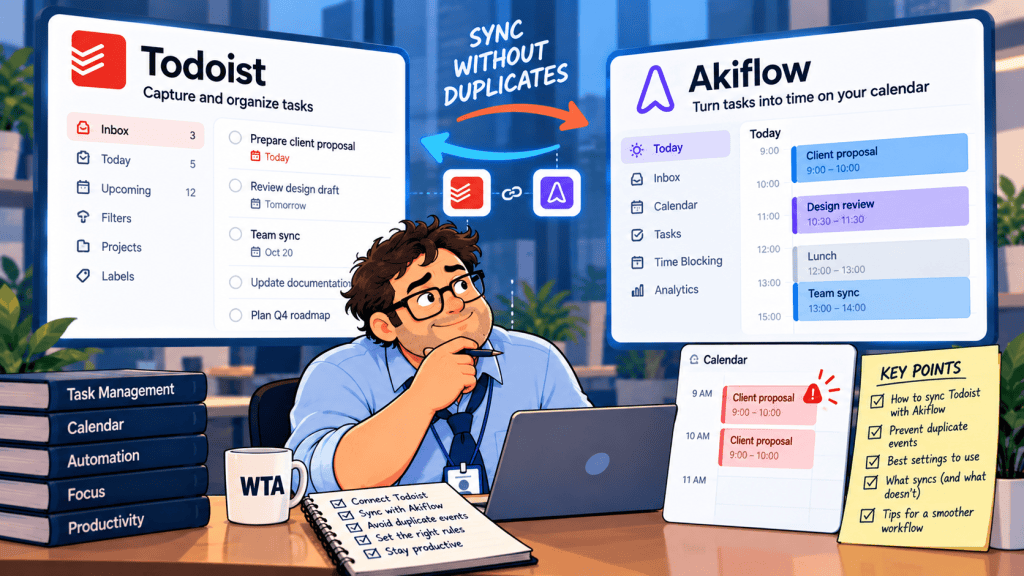
Connecting Todoist to Akiflow can be a reasonable setup: keep the task list you know, then plan those tasks on a dedicated planning calendar. The complication starts when the same piece of work appears twice in Google Calendar.
Two blocks do not necessarily mean two tasks. They can be two calendar events representing one task because both apps publish time blocks. Deleting one event may clean up the view without fixing the underlying setting.
This guide explains how the connection works, which app should own the calendar block, and how to check the result before paying for another planner. It is a configuration guide based on current vendor documentation, not a claim of hands-on product testing.
Todoist or Akiflow: who owns the calendar block?
Give each job one owner. Todoist can remain the task source of truth while either Todoist or Akiflow publishes scheduled work to your external calendar. You do not need both apps publishing the same task.
| Setup | Where tasks live | Who publishes the calendar block | Practical result |
|---|---|---|---|
| Todoist only | Todoist | Todoist Calendar integration | Fewest moving parts for basic time blocking |
| Todoist + Akiflow, Akiflow owns blocks | Todoist, imported into Akiflow | Akiflow’s calendar lock | Centralized planning across task sources; one block publisher |
| Todoist + Akiflow, Todoist owns blocks | Todoist, imported into Akiflow | Todoist Calendar integration | Keep Todoist as publisher; leave Akiflow locking off for those tasks |
| Both publish the same work | Todoist, imported into Akiflow | Both tools | Risk of two calendar representations; check before relying on availability |
These are recommended configurations, not guarantees about every account or calendar. The potential overlap is a configuration risk inferred from two documented capabilities: Todoist can create a separate calendar of scheduled tasks, and Akiflow can lock tasks into a connected Google Calendar. Neither vendor’s documentation establishes that the other tool will automatically suppress its corresponding event.
What Todoist and Akiflow actually sync in 2026
Todoist now handles real time blocking
Todoist’s calendar integration works with Google Calendar or Outlook Calendar. Connecting a provider, viewing its events, and syncing scheduled tasks are available on Beginner, Pro, and Business. The visual calendar layout used to drag work into time slots is a Pro or Business feature; the connection itself is not a paid-only integration. As of its October 2026 help update, Todoist also lets Pro and Business users estimate a task duration before assigning a date.
With “Sync tasks to calendar” enabled, Todoist creates a calendar named Todoist and places eligible scheduled tasks there. External calendar events displayed inside Todoist are read-only; editing those meetings sends you back to Google or Outlook. The integration connects to one Google or Outlook account/provider at a time, though subscribed calendars may appear through that account. See Todoist’s calendar integration guide and its task-duration documentation.
If this already gives you a workable weekly view, a second planner may be optional. Our related guide examines when Todoist Calendar makes a separate AI scheduler unnecessary.
Akiflow imports the task, but completion needs a decision
Akiflow can import selected Todoist projects, including choices for shared-project tasks and subtasks. Unscheduled imports land in Akiflow’s inbox; dated tasks appear on their planned date. According to Akiflow’s Todoist integration documentation, title, description, date, time, duration, priority, and deadline changes sync in both directions.
Completion is less symmetrical. Completing a task in Todoist updates Akiflow. Completing it in Akiflow updates Todoist only if you choose the “Mark as complete in Todoist” action. Deleting an imported task in Akiflow does not delete the original Todoist task. Recurrent tasks have additional rules, so do not infer that every instance behaves like a one-off task.
Akiflow also connects multiple calendar accounts and can create or edit Google events from its calendar view. A scheduled Akiflow task appears on Google Calendar only when its lock behavior is enabled and the task is locked. See the Akiflow Google Calendar guide. That gives you more calendar control, but also another place where the same work can be represented.
Two sensible configurations, with no duplicate publisher
Option A: Keep Todoist as the calendar publisher
- In Todoist, connect your Google or Outlook Calendar account under Settings → Calendars.
- Enable Sync tasks to calendar if you want Todoist time blocks visible to people checking that calendar’s availability.
- Connect Todoist to Akiflow under Settings → Integrations → Todoist, and import only the projects you intend to plan there.
- In Akiflow, avoid locking those imported tasks to the same external calendar as separate events. Check the Lock tasks and Lock time Slots preferences.
- Schedule one ordinary task, then inspect both the Todoist calendar and your main Google or Outlook view before scaling up.
This arrangement makes sense if you value Akiflow’s consolidated inbox or daily planning but want Todoist to remain responsible for external task blocks. Be aware that Todoist’s event view is not a general-purpose meeting editor.
Option B: Let Akiflow publish the blocks
- Keep Todoist as your task list, and import selected projects into Akiflow.
- In Todoist, leave Sync tasks to calendar off for this configuration. You can still choose to display connected calendar events in Todoist.
- Connect your desired Google Calendar in Akiflow and confirm the correct primary calendar.
- Enable Akiflow’s lock setting only for the calendar where you intend to publish work blocks.
- Lock one imported task, verify that the resulting event appears once, then reschedule it and check whether the original Todoist task’s date and time reflect the change.
Important cleanup warning: Todoist says turning off its task-to-calendar sync deletes events in the dedicated Todoist calendar, including events manually added there. Inspect that calendar and move any unrelated entries elsewhere before changing the setting. This is a documented consequence, not a speculative edge case.
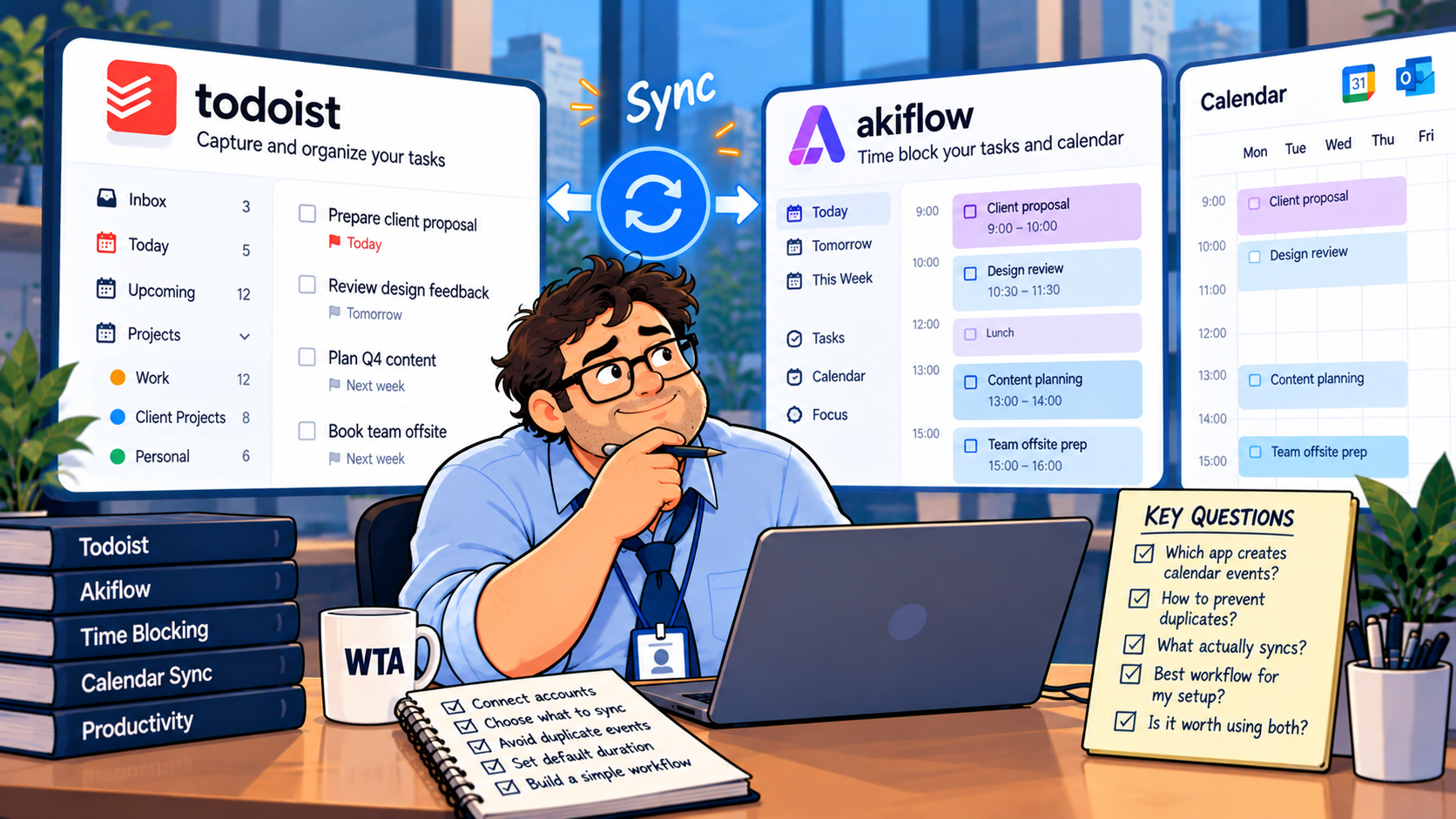
Neither arrangement requires creating a second independent task for every imported Todoist item. If you need Akiflow mainly to gather work from email, Slack, and other tools, it may be worth keeping Todoist as one of several sources rather than replacing it. For a broader look at that planning style, see our Akiflow vs Sunsama comparison.
Five failure checks worth doing with one sample task
Use a fictional, non-sensitive task such as “Prepare client agenda,” scheduled for 45 minutes. Do not begin with an actual confidential meeting or a crowded shared calendar.
- Two visible blocks. Search for the sample task in your external calendar. If you see both a Todoist-synced event and an Akiflow-locked event, identify the publisher of each. Hide one calendar only to diagnose; change the publisher setting to prevent recurrence.
- Completion mismatch. Mark the sample complete in Akiflow and verify whether Todoist also shows it done. If not, check the Todoist integration’s completion preference rather than completing a second copy manually.
- Recurring-task surprises. Try a disposable weekly task. Akiflow creates a new occurrence after the Todoist recurrence advances; Todoist also documents calendar-sync exceptions for some single-instance recurrence edits. Verify the next occurrence, not just today’s.
- Calendar visibility. If you lock tasks onto a shared Google Calendar, other people with access to that calendar may see the blocked time. Akiflow says the contents of your Akiflow account remain private, but the calendar event itself follows Google Calendar sharing permissions. Use a neutral event title where appropriate.
- Disconnect behavior. Before disabling Todoist sync, inspect the special Todoist calendar for entries you need to preserve. Before deleting an imported task in Akiflow, remember that deletion does not remove the original task in Todoist.
These checks are especially useful for consultants who share availability with clients. A duplicate block may look like an overbooked afternoon, even though the underlying workload has not changed. If your problem is mainly colleagues booking over protected work time, calendar rules for protecting focus time may solve more than another task interface.
What does using both cost?
For a single individual paying published U.S. list prices, the October 17, 2026 comparison is straightforward. Todoist Pro is $60/year or $7/month. Akiflow Pro is $228/year ($19/month billed yearly) or $34/month billed monthly. Akiflow advertises a seven-day trial. Prices may vary by location, taxes, promotions, and legacy subscriptions; confirm checkout before purchasing.
| Individual setup | Annual billing total | 12 months at monthly rates | What you are buying |
|---|---|---|---|
| Todoist Pro only | $60 | $84 | Tasks, duration, calendar layout, and calendar sync |
| Akiflow only | $228 | $408 | Centralized daily planning and integrations; only a substitute if its task model fits |
| Todoist Pro + Akiflow | $288 | $492 | Todoist task system plus Akiflow planning layer |
The right question is not whether Akiflow has more features. If you already pay for Todoist Pro, adding Akiflow at its annual rate costs another $228 per year. Is consolidating tasks from multiple sources and managing the day in one planner worth that incremental subscription and the integration maintenance? If your work arrives only in Todoist, the answer may be no.
Published prices: Todoist pricing and Akiflow pricing. Existing Todoist legacy subscribers may have different entitlements and rates; the legacy plan policy is worth checking before switching.
A 20-minute decision test before upgrading
Use the free or already-paid setup you have before committing to an annual subscription. Set aside 20 minutes for a controlled workflow check, not a productivity experiment that pretends to measure hours saved.
- Five minutes: list where new work arrives. If almost every task starts in Todoist, a separate consolidation layer has less to collect.
- Five minutes: schedule two tasks in Todoist’s calendar view and move one after a meeting changes. Note whether the friction is actually the tool or simply the decision to reprioritize.
- Five minutes: if you are evaluating Akiflow, import a disposable Todoist project and choose one block publisher. Check a move, a completion, and the external calendar.
- Five minutes: decide whether Akiflow removes a recurring handoff or adds a second place you must review. Record that decision before any paid renewal.
One useful decision rule: pay for Akiflow when it replaces a repeated planning chore across several sources, not merely because its calendar is more attractive. Our AI productivity-stack audit uses the same principle for avoiding overlapping subscriptions.
WTA VERDICT
Keep Todoist Pro alone if your tasks already live there and you mainly need visual time blocking. Use Todoist with Akiflow if you genuinely need a planning inbox across several tools, but designate only one app to publish each scheduled task to your calendar. Treat two visible events as a configuration question first, not proof that your task data has duplicated.
3-Line Takeaway
- Todoist can time-block and sync scheduled work without Akiflow.
- When using both, choose one calendar-block publisher and test completion behavior.
- At annual U.S. list rates, adding Akiflow to Todoist Pro costs $228 more per year.

Leave a Reply