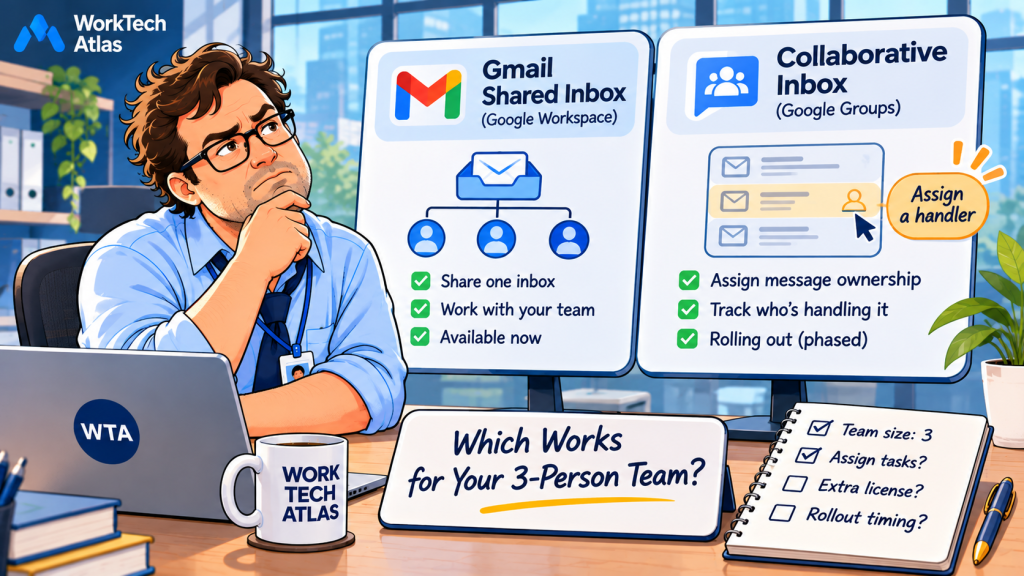
A three-person studio receives client requests at hello@studio.example. All three people need to see the conversation. Only one should answer. When a client changes the scope after the first reply, someone needs to know who owns the follow-up.
Google Workspace offers two things that sound almost interchangeable: a shared inbox configured around a Gmail mailbox and a Collaborative Inbox built in Google Groups. They solve different parts of that problem. One gives teammates access to the same mailbox; the other gives a group a queue with assignment and resolution controls.
Short answer: Choose the Google Workspace shared inbox when your priority is working inside Gmail from one team address. Choose Google Groups Collaborative Inbox when you need to assign and close conversations without buying a separate team-inbox app. Neither automatically gives you a full customer-support workflow, and Google’s new shared-inbox setup is still being released in phases.
Documentation check: November 3, 2026. This is a product-documentation analysis, not a hands-on test. Availability and licensing should be checked in your own Google Workspace Admin console.
Google Workspace shared inbox vs Collaborative Inbox: the actual difference
The decisive question is whether your team needs a mailbox or a queue. Two products share a name but not a job. Google’s shared-inbox admin guide, updated October 26, 2026, describes a mailbox that delegates can read, send from, and manage. Google’s Collaborative Inbox guide describes a Google Group where members can take, assign, and resolve conversations.
| What matters | Workspace shared inbox | Groups Collaborative Inbox |
|---|---|---|
| Where people work | A delegated Gmail mailbox | Google Groups conversation view, with email notifications available |
| Who can answer | Delegates can send from the mailbox | Group members can post; using the group address depends on posting permissions and sender settings |
| Who owns a request | No native assignment queue described in the shared-inbox setup | Take, assign, unassign, mark complete, no action needed, or duplicate |
| Setup prerequisite | Supported Workspace edition and the phased Admin console feature | Google Groups for Business, conversation history, and appropriate group permissions |
| Best starting use | Shared client correspondence with a small number of senders | A queue where assignment and completion status matter |
If you cannot find the new setup button, there is a third route: ordinary Gmail delegation. If your admin does not yet see the new shared-inbox option, Google explicitly recommends delegated Gmail accounts as the interim approach. It grants mailbox access but does not turn messages into assignable tickets. Do not confuse that fallback with the Google Groups queue.
A client reply is not the same as a claimed conversation
Imagine a client asks for a revised proposal. Sam opens the message at 9:05. Lee opens it at 9:07. Sam starts drafting while Lee sends a shorter answer. Both were able to access the inbox; neither had an agreed owner.
In a delegated mailbox, access is shared, not responsibility. The team can see the same mail. Google’s setup documentation does not describe an assignment status or collision-prevention lock. You can adopt a manual rule, such as a Gmail label for Owner: Sam, but the rule is only as reliable as the people following it.
In Google Groups Collaborative Inbox, an authorized member can take a conversation or assign it to another member. Google documents filters for assigned and unassigned conversations, plus outcomes such as complete, no action needed, and duplicate. That is a more explicit ownership model. The assignment still does not stop someone from replying through a separate channel, so the team must agree that the Groups conversation is the authoritative queue.
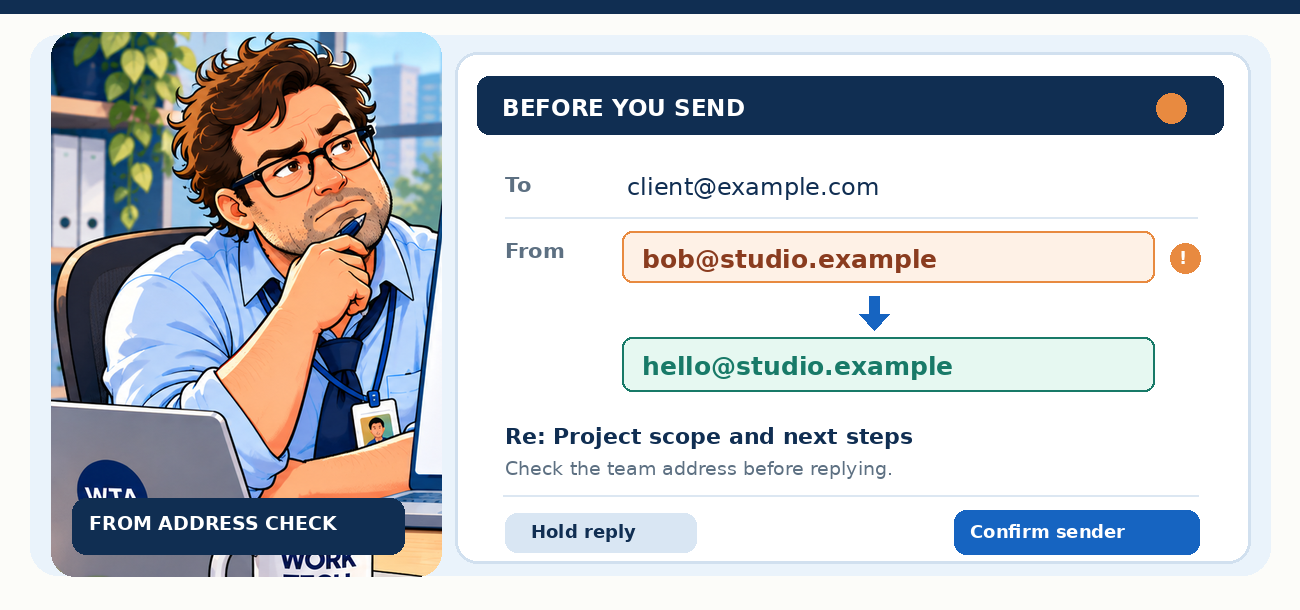
A common shortcut in software comparisons is to say a Google Group can never send from its group address. That is too broad. Google’s group settings reference includes Who can post as group and Default sender controls. The real question is whether your members have permission to use the group address in the reply path they actually use. Test a reply to an external mailbox and inspect the received From and Reply-To fields; do not rely on the settings label alone.
If duplicate replies have already happened, use our small-team duplicate-reply workflow to separate the owner, reviewer, and sender before introducing new software.
The 2026 rollout changes the setup, not the ownership problem
Google’s October 26 documentation lists the admin-created shared inbox for Business Starter, Business Standard, and Business Plus. It also says the feature is being released in phases. If the Set up a shared email address control is missing, that is not proof that your admin made a mistake. Google’s published fallback is to delegate a Gmail account and convert it later when the shared-inbox option becomes available.
The shared-inbox guide says an outgoing message can show the shared From address and a Sent by delegate field. The visibility of the latter can be adjusted. For a client-facing team, decide whether the recipient should see the individual sender and confirm the actual received header before launch.
Do not call the shared mailbox free without checking the license
A Google Group address is not the same object as a Gmail mailbox, and the cost model should be checked at the account level. Google’s licensing guide says Gmail users require Workspace licenses, while the shared-inbox setup page does not quote a separate shared-mailbox price. If you create a new mailbox account, have your admin check whether it consumes another licensed user in your subscription. Converting an existing account may have a different incremental cost from creating a new one.
For a team already paying for three people, the useful comparison is three existing user seats plus any additional mailbox account, versus a Group configured for those existing members. Avoid assuming that either route has zero incremental cost or that it automatically needs a fourth paid seat in every billing arrangement. Check the actual license count under Admin console billing before deciding.
There is a less obvious feature limit. Google’s delegation documentation lists Gemini in Gmail among the features unavailable to delegates. If your team depends on AI drafting inside the shared account, verify that workflow with a delegate rather than assuming features from personal Gmail transfer unchanged. Google announced mobile access to delegated Gmail accounts in 2026, but feature availability and supported actions can vary; test the Gmail app on your team’s devices rather than relying on old desktop-only advice.
Set up the native option that matches the job
Route A: a shared Gmail mailbox
If your Admin console offers the feature, the administrator uses Users → Set up a shared email address, enters the shared address, adds users, and completes the remaining steps. Google’s instructions warn that stopping before the final Next step can leave users added without usable access. For an existing account, the same flow can convert the account and select delegates.
If the feature is not available, use Gmail’s delegate invitation process on a computer: the mailbox owner opens Gmail settings, selects Accounts, grants access, and waits for the invitee to accept. Google says an invitation expires after a week and access may take up to 24 hours. Give each teammate their own login. Sharing the mailbox password is not a substitute for delegation.
Once configured, agree on a visible operating rule. For example, a teammate claims a new inquiry in a team tracker before drafting, the reviewer comments outside the customer thread, and only the owner sends. That rule is a team process, not a feature Google promises to enforce.
Route B: a Google Groups queue
A group owner or manager creates the Group, turns on conversation history, and enables Collaborative Inbox under Group settings. The owner must also grant the appropriate moderate metadata permission for members who will take, assign, and complete conversations; duplicate and no-action resolutions can require moderate content permission as well. These are documented in Google’s setup guide.
For a client-facing address, inspect who may post from outside the organization, who may view messages, and who may post as the Group. A permissive public posting rule is different from a permissive public reading rule. Send an external test email, claim it, reply, resolve it, and reopen the conversation before adding real customers.
Six checks before giving the address to a client
Run these checks with test accounts, not a live customer. A setup can look perfect when one person is logged in and fail the moment two people answer from different devices.
- External arrival: Send from a non-Workspace account. Does the message appear in the shared mailbox or Group history, and can the intended team members read it?
- Sender identity: Reply as a delegate or Group member. Does the external recipient see the intended From address, and does a reply return to the right place?
- Ownership race: Have two teammates open the same inquiry. Is there a visible claim or an agreed manual owner before either sends?
- Revision after completion: Mark a Group conversation complete, then send a follow-up from the client. Does the team notice the new work and assign it correctly?
- Access removal: Remove a teammate’s access in a test environment. Confirm the person cannot read or send through the shared address afterward.
- Mobile and feature limits: Test the exact phone apps and delegate features your team uses, including attachments, search, and any Gemini-dependent step.
Keep a small results sheet with expected result / observed result / owner / fix needed. If the From address or assignment state is wrong, fix the setup before forwarding the public contact form to the new address.
When a paid shared inbox earns its place
For a low-volume three-person inbox, a native Google option may be enough with a clear ownership rule. Buying software becomes more defensible when the work itself needs features the native path does not document.
| Persistent friction | What to evaluate next |
|---|---|
| Two people repeatedly answer the same client | Collision indicators, assignment rules, and a single accountable sender |
| New outbound quotes need another person’s review | Shared drafts and a documented review-and-send process |
| Requests require response deadlines or reporting | SLA controls, routing, and response analytics |
| People need to collaborate without exposing the entire mailbox | Conversation-level access, internal notes, and permission boundaries |
For Gmail-first teams, our Gmelius vs Hiver three-seat comparison examines shared drafts and the actual published seat rules. The Missive vs Hiver guide compares a collaborative email client with a Gmail-based support workflow. If managerial review is the bottleneck, the Missive vs Front client-email review comparison focuses on the difference between shared drafting and a verified approval process.
None of those links is an affiliate referral. And a paid shared draft is not automatically a send lock: verify who can press Send during a trial. Give each teammate a role, use dummy client messages, and watch what happens when two people reach for Send.
Sources and editorial scope
This article uses Google’s shared-inbox administrator guide (last updated October 26, 2026), Google Groups Collaborative Inbox instructions, Group posting settings, Gmail delegation guidance, and Workspace licensing rules. It is not a claim of hands-on product testing, a security certification, or a guaranteed billing quote. Regional availability, admin permissions, and subscriptions can change.
WTA VERDICT
For a three-person client team, choose Google Workspace shared inbox when the job is to send and read from one Gmail mailbox, and choose Google Groups Collaborative Inbox when assigning and resolving requests matters more than staying inside Gmail. The new admin setup is still phased, so delegation is a legitimate interim route. Neither replaces a team rule for who is allowed to send.
3-Line Takeaway
- Mailbox: Gmail shared access is not the same as conversation ownership.
- Queue: Groups can assign and resolve requests, but sender permissions must be tested.
- Upgrade: Pay for a dedicated inbox only when collision, review, or reporting friction persists.

Leave a Reply