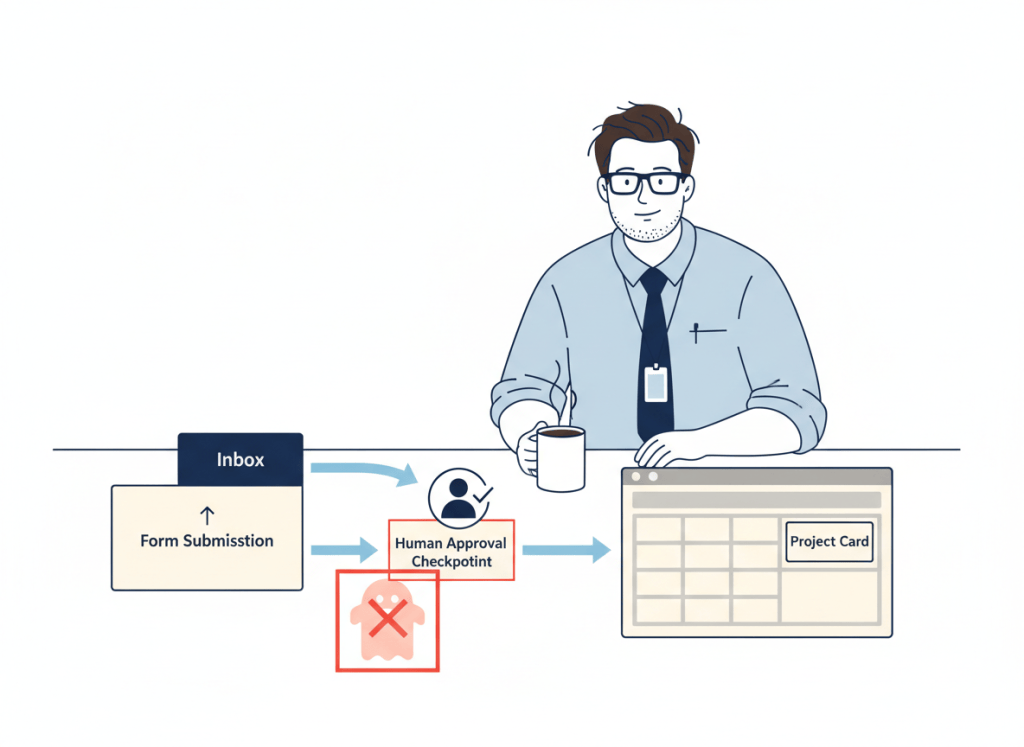
A client inquiry is not yet a project. If every Notion form response automatically creates a project, incomplete requests, repeat submissions, and client corrections can become competing project records. A safer workflow separates intake from commitment: submission, review, approval, and only then project creation.
This guide builds on our Notion Forms vs Tally vs Fillout comparison, which covers how to collect client information. Here we focus on what happens after the submission arrives.
The approval workflow
Client form → Intake Requests → Reviewer decision → Approved status → Project lookup → One project → Confirmation. The reviewer checks scope, missing information, and whether the work already exists before any project is created.
Step 1: Separate requests from projects
Create two databases: Intake Requests and Projects. Intake Requests should include a request title, client, contact, stable Request ID, status, reviewer, submission date, decision date, and linked project. Use statuses such as New, Needs Info, In Review, Approved, Rejected, and Duplicate.
The Projects database should include the source Request ID and a relation or URL back to the approved request. That link is the simplest way to trace why a project exists. A request title or customer email alone is not a reliable unique key: both can change or recur.
Step 2: Connect a Notion form to the intake queue
According to Notion’s official forms documentation, forms are available on all plans and responses are stored in the connected database. Create the form from Intake Requests, not Projects. Ask for contact information, request type, desired outcome, deadline, and essential context. Keep the initial questionnaire short enough that a client can finish it.
Conditional questions in native Notion Forms require Business or Enterprise. If you need more branching, consider a dedicated form builder, but preserve the intake queue as the destination.
Step 3: Give one person the approval decision
Create an In Review view filtered to requests needing attention. Assign a reviewer. The reviewer should decide whether the request is in scope, sufficiently detailed, already represented by an existing request, and ready for an owner. If it is a duplicate, link the original record rather than deleting the evidence.
Our human approval guide explains why acceptance, external commitments, and ambiguous ownership deserve an explicit checkpoint.
Step 4: Use a database button carefully
Notion database buttons can edit properties, add a page to another database, and display a confirmation. Buttons are available across plans, though some actions are paid. A reviewer can use an Approve button to mark a request as accepted, and an appropriately configured action may create a project.
A button alone does not guarantee uniqueness. Clicking it twice or running a second integration may create two projects. For a low-volume team, a safer first version is to approve the request, check whether a project is already linked, manually create one from a template, and save the link.
Step 5: Prevent duplicate projects by Request ID
For higher volume, use a lookup-before-create step. When a request is approved, the automation searches Projects for the same stable Request ID. If exactly one exists, return and link it. If none exists, create a project and write its identifier back. If multiple records match or the lookup fails, stop and alert a human.
- Repeat client submission: flag for review and link to the original request.
- Double approval click: check for an existing linked project before creation.
- Webhook retry: reuse the existing project rather than create another.
- Ambiguous match: stop instead of guessing which record to update.
- Client correction: route changes to the original approved project.
A search-before-create check may still race if two automation runs happen simultaneously. Where possible, serialize creation or use a platform-supported unique-key safeguard. Treat retries and failed lookups as expected operational cases, not unusual accidents.

Step 6: Know Notion’s automation limits
Notion database automations are generally paid-plan features. Its documentation states that one database automation cannot trigger another database automation; a user-clicked button action can trigger one. Plan the approval handoff accordingly instead of assuming a chain of native automations will run.
If the workflow spans CRM, billing, and project tools, compare external orchestration options in our Zapier vs Make vs n8n guide. Adding another tool is worthwhile only if it reduces operational risk or manual effort enough to justify the maintenance.
Step 7: Test the failure cases
- Submit and approve a normal request: exactly one project should appear.
- Submit the same details twice: a reviewer should see the possible duplicate.
- Approve twice: the second attempt must not create another project.
- Remove an integration permission: the request should remain visible for recovery.
- Simulate a timeout: retrying should not create a duplicate.
- Change a deadline after approval: update or flag the original project.
Assign an owner to review unresolved requests and failed automation runs. Document who may override a duplicate warning and how to reverse an accidental approval. Never send a client an acceptance notice before the approval and project creation are confirmed.
A sensible small-team rollout
Start with a human-reviewed queue and a manual project link. After two weeks of normal requests, measure where staff repeat work: copying fields, checking duplicates, or sending confirmations. Automate only the repeated, well-defined steps. If you later introduce an AI agent to classify incoming requests, keep the approval and record-identity checks deterministic.
For broader Notion automation choices, see our Notion Custom Agents vs Zapier Agents comparison.
WTA VERDICT
Approve first, create once. Keep intake and projects in separate databases, give every request a stable identifier, and require a clear decision before project creation. Native Notion forms and buttons are enough for a lightweight starting point. External automation becomes useful when reliable cross-system lookups, retries, and error handling justify the complexity.
3-Line Takeaway
- Separate new requests from approved project records.
- Use human approval and a stable Request ID before project creation.
- Design for double clicks, retries, and failed lookups from day one.

Leave a Reply